
atieclxx.exe is usually associated with AMD graphics drivers, specifically the AMD External Events Client Module/Utility. Older removal pages often labeled the filename as a coin miner, but that is not accurate for the legitimate AMD component. The real question is whether the file belongs to AMD software, is signed by a trusted publisher, and behaves like a driver helper.
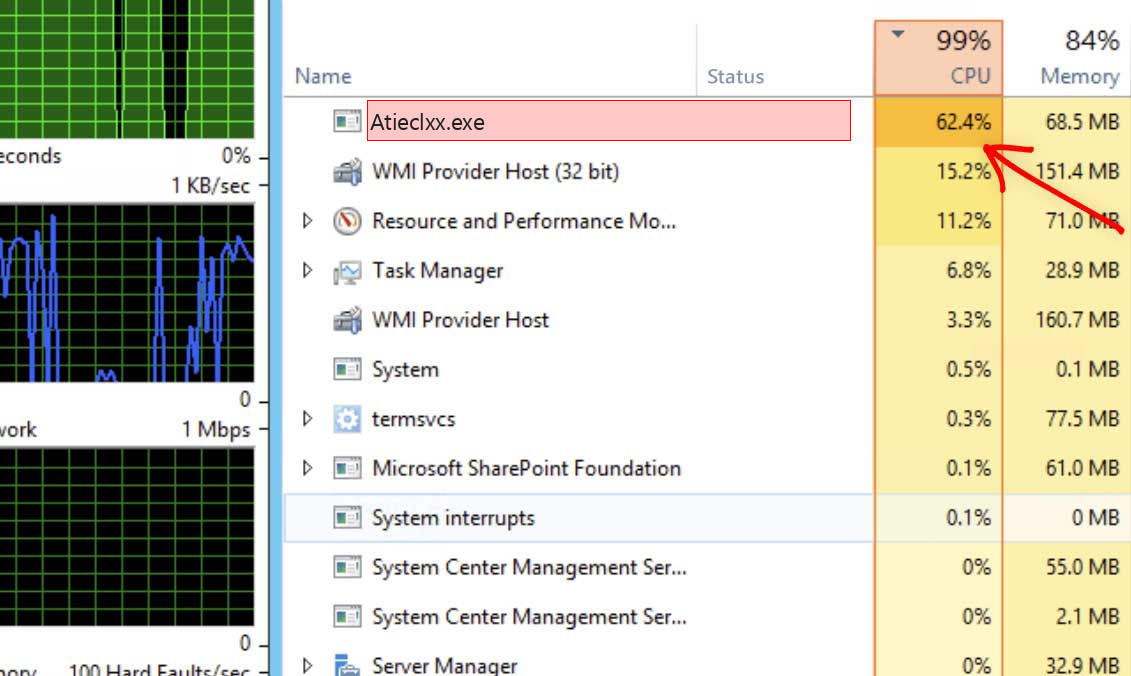
What is atieclxx.exe?
AMD graphics driver packages can install background services that handle display events, hotkeys, graphics settings, external display changes, and driver-related notifications. atieclxx.exe is commonly tied to that AMD External Events stack. On systems with AMD Radeon graphics or AMD driver software, seeing it in Task Manager can be normal.
That does not mean every file named atieclxx.exe is safe. Malware can imitate driver names. Check the file location, signature, parent service, and behavior before deciding what to do.
Safe vs suspicious signs
| Usually legitimate | Suspicious |
| Located in an AMD/ATI driver folder under Program Files or Windows driver locations. | Runs from AppData, Temp, Downloads, Startup, or a random folder. |
| Appears on a PC with AMD Radeon graphics or AMD driver software. | No AMD graphics hardware or AMD driver package is present. |
| Signed by AMD or a trusted driver publisher. | Unsigned file or unknown publisher. |
| Uses brief resources during display changes, driver startup, or Radeon software activity. | Constant high CPU/GPU, network activity, or persistence after AMD driver removal. |
Why atieclxx.exe can use CPU
CPU usage can happen after a driver update, when connecting/disconnecting monitors, changing display settings, waking from sleep, or when Radeon software reloads driver services. It can also happen if the AMD driver install is damaged or if an old driver component remains after a GPU change.
Constant high usage is not normal. If it continues while idle, check the path and signature first, then repair the AMD driver stack.
How to verify it
- Open Task Manager, right-click atieclxx.exe, and choose Open file location.
- Confirm that the path belongs to AMD/ATI driver software.
- Open file properties and check the digital signature.
- Check whether AMD Software/Radeon drivers are installed.
- If the file is outside trusted folders, scan it and inspect startup entries.
How to fix high CPU or errors
Update the AMD graphics driver from AMD or the device manufacturer. If the issue started after an update, perform a clean driver install. If you no longer use AMD graphics, remove leftover AMD software cleanly. Avoid deleting atieclxx.exe manually because that can leave broken services and driver errors behind.
When to treat it as malware
Treat the file as suspicious if it is outside AMD/Windows driver folders, unsigned, installed by a suspicious bundle, or running on a system without AMD graphics. Also investigate if browser redirects, disabled security settings, or unknown startup tasks appeared at the same time.
Practical example
If atieclxx.exe spikes after plugging in a monitor, it is likely responding to display events. If it spikes from AppData after installing a fake driver updater, it is likely not the AMD component. The same filename leads to different conclusions depending on the evidence.
After repair
After updating or reinstalling the driver, reboot and check Task Manager while idle and while changing display settings. A legitimate driver helper should settle down. If a suspicious copy was removed, confirm that the startup entry and parent folder are gone too.
Decision tree for AMD systems
If the PC has an AMD GPU or AMD APU, start from the assumption that atieclxx.exe may be legitimate. Verify the path and signature, then check whether AMD Software opens normally. If the process spikes only after a display change, wake from sleep, driver update, or monitor reconnect, it is probably reacting to graphics events.
If there is no AMD graphics hardware, if the file runs from a user profile, or if it appeared after a fake driver updater, treat it as suspicious. In that case, do not focus only on the visible process. Look for the installer, scheduled task, or service that launches it.
Clean AMD driver repair path
- Download the current driver from AMD or the PC/laptop manufacturer.
- Uninstall old AMD software from Windows settings.
- Reboot before installing the clean driver.
- Install only the components you need.
- Test idle CPU, display switching, sleep/wake, and Radeon software.
Common false alarms
Users often notice atieclxx.exe because it appears with a technical name and sometimes runs without an open AMD window. That can be normal for driver helper services. A quiet AMD-signed copy in an AMD folder is not the same as an unsigned file in AppData.
What to record before removal
If the file is suspicious, record its path, signature status, creation date, parent process, and startup source before deleting it. That evidence helps determine whether it came from a fake driver updater, bundled installer, or another unwanted program. After removal, reboot and confirm that no launcher recreates it.
FAQ
Is atieclxx.exe a virus?
The legitimate AMD file is not a virus. A fake copy using the same name can be malicious.
Can I disable AMD External Events?
You may be able to disable related services, but doing so can break driver features. Repair or update the driver first.
Why is it still present after changing GPU?
Old AMD driver components may remain. Use proper driver cleanup or uninstall AMD software cleanly.



Leave a Comment