
The Smile virus falls within the ransomware type of infection. Malware of such sort encrypts all the data on your computer (photos, text files, excel tables, music, videos, etc) and appends its extra extension to every file, creating the SM$LE-read-it.txt files in every folder with the encrypted files.
What is known about the Smile virus?
Smile appends its specific .SM$LE extension to every file’s title. For instance, a file entitled “photo.jpg” will be turned into “photo.jpg.SM$LE”. Likewise, the Excel sheet with the name “table.xlsx” will become “table.xlsx.SM$LE”, and so on.
In every directory containing the encrypted files, a SM$LE-read-it.txt file will appear. It is a ransom money note. Therein you can find information on the ways of paying the ransom and some other remarks. The ransom note most probably contains instructions on how to purchase the decryption tool from the Smile developers. You can obtain this decryptor after contacting [email protected], via email. That is pretty much the scheme of the malefaction.
Smile Overview:
| Name | Smile Virus |
| Extension | .SM$LE |
| Ransomware note | SM$LE-read-it.txt |
| Contact | [email protected], |
| Detection | Trojan:Win32/Tnega!MSR Removal, Win32:Adware-DNA [Adw] Virus Removal, Win32:Secat [Trj] Virus Removal |
| Symptoms | Your files (photos, videos, documents) have a .SM$LE extension and you can’t open them. |
| Fix Tool | See If Your System Has Been Affected by Smile virus |
The SM$LE-read-it.txt file coming in package with the Smile malware provides the following dispiriting information:
/////>SMILE RANSOMWARE

Ooops. Your files have been encrypted by The SMile Ransomware. Your files are now encrypted with
AES and RSA encryption algorthims and are no longer accessable to you. In order to gain access to your files, you must buy our decryption software. To restore your data, follow these easy steps.

1. Download the TOR Browser at hxxps://torproject.org/

2. Visit any of the three darknet sites listed below:

-
-
-

If one of the sites doesn\'t work then try another one as some of these sites may be
offline from time to time!

4.Once your connected to one of our websites. You must pay a total of $3000 worth of bitcoin
to the address listed on the website. Once the payment is verified, you will be sent the decryption software in due time!

WARNING: Failure to pay the ransom within a 3 day time period will result in the decryption software being destroyed and your files and data will be lost FOREVER!!!!!!!!!!!!!!!!!!!!!!!

If you have any other issues. Please feel free to contact us at [email protected] or LIVE CHAT
with our operators on one of our darknet sites!

Thank you.

Best Regards.

Smile C0rp
In the picture below, you can see what a folder with files encrypted by the Smile looks like. Each filename has the “.SM$LE” extension appended to it.
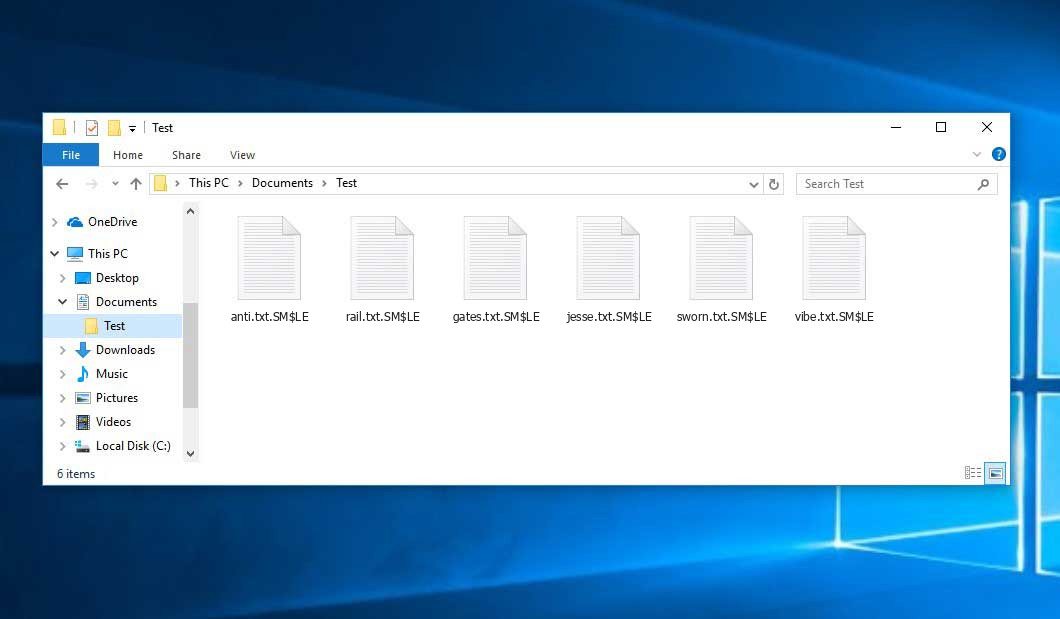
That is how encrypted “.SM$LE” files look.
How did Smile ransomware end up on my PC?
There are plenty of possible ways of ransomware infiltration.
There are currently three most popular ways for evil-doers to have ransomware acting in your digital environment. These are email spam, Trojan infiltration and peer file transfer.
- If you access your mailbox and see letters that look like familiar notifications from utility services companies, postal agencies like FedEx, Internet providers, and whatnot, but whose “from” field is strange to you, be wary of opening those emails. They are very likely to have a malware item enclosed in them. Thus it is even more dangerous to download any attachments that come with letters like these.
- Another thing the hackers might try is a Trojan file scheme. A Trojan is an object that gets into your machine pretending to be something different. For example, you download an installer for some program you need or an update for some service. However, what is unpacked turns out to be a harmful program that encrypts your data. As the update package can have any name and any icon, you have to make sure that you can trust the source of the files you’re downloading. The best thing is to trust the software developers’ official websites.
- As for the peer file transfer protocols like torrent trackers or eMule, the threat is that they are even more trust-based than the rest of the Web. You can never know what you download until you get it. Our suggestion is that you use trustworthy resources. Also, it is a good idea to scan the directory containing the downloaded items with the antivirus as soon as the downloading is done.
How do I get rid of ransomware?
It is important to inform you that besides encrypting your files, the Smile virus will most likely deploy Vidar Stealer on your PC to get access to credentials to different accounts (including cryptocurrency wallets). The mentioned program can extract your credentials from your browser’s auto-filling data.
Remove Smile with Gridinsoft Anti-Malware
We have also been using this software on our systems ever since, and it has always been successful in detecting viruses. It has blocked the most common Ransomware as shown from our tests with the software, and we assure you that it can remove Smile as well as other malware hiding on your computer.
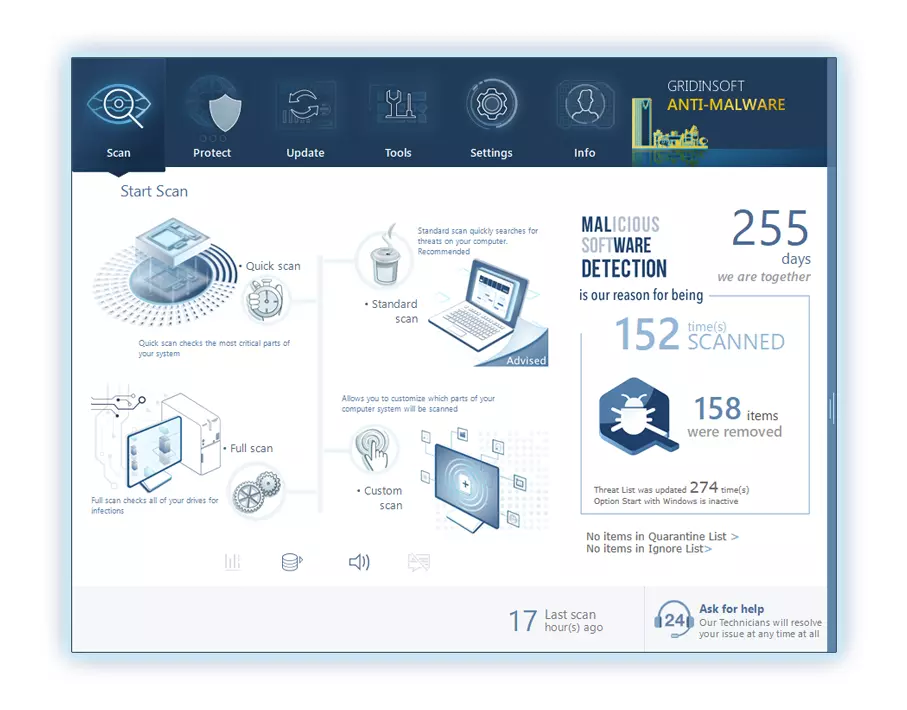
To use Gridinsoft for remove malicious threats, follow the steps below:
1. Begin by downloading Gridinsoft Anti-Malware, accessible via the blue button below or directly from the official website gridinsoft.com.
2.Once the Gridinsoft setup file (setup-gridinsoft-fix.exe) is downloaded, execute it by clicking on the file.
3.Follow the installation setup wizard's instructions diligently.
4. Access the "Scan Tab" on the application's start screen and launch a comprehensive "Full Scan" to examine your entire computer. This inclusive scan encompasses the memory, startup items, the registry, services, drivers, and all files, ensuring that it detects malware hidden in all possible locations.
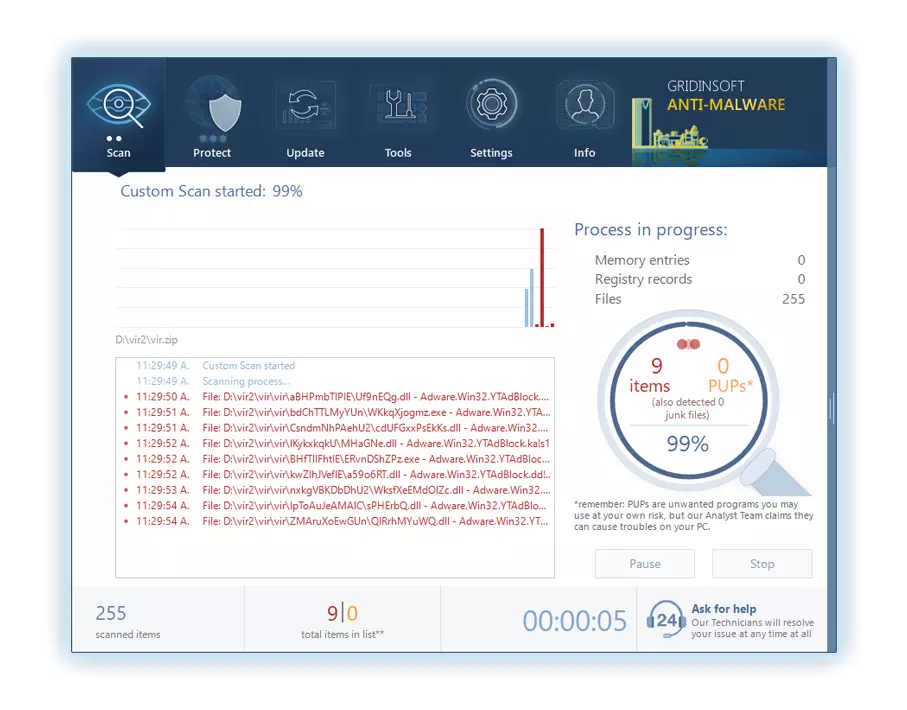
Be patient, as the scan duration depends on the number of files and your computer's hardware capabilities. Use this time to relax or attend to other tasks.
5. Upon completion, Anti-Malware will present a detailed report containing all the detected malicious items and threats on your PC.
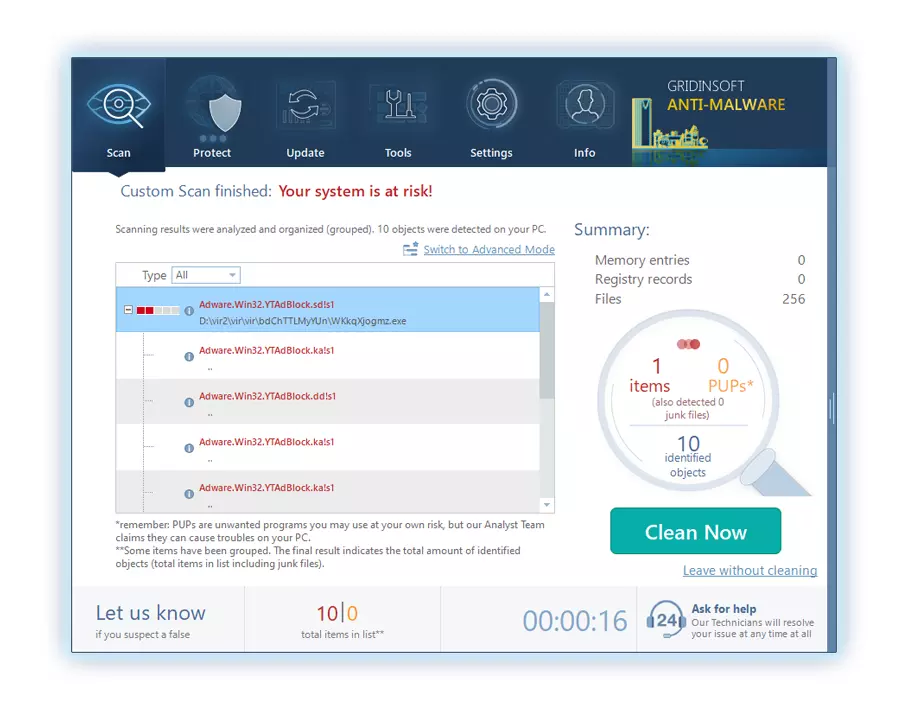
6. Select all the identified items from the report and confidently click the "Clean Now" button. This action will safely remove the malicious files from your computer, transferring them to the secure quarantine zone of the anti-malware program to prevent any further harmful actions.
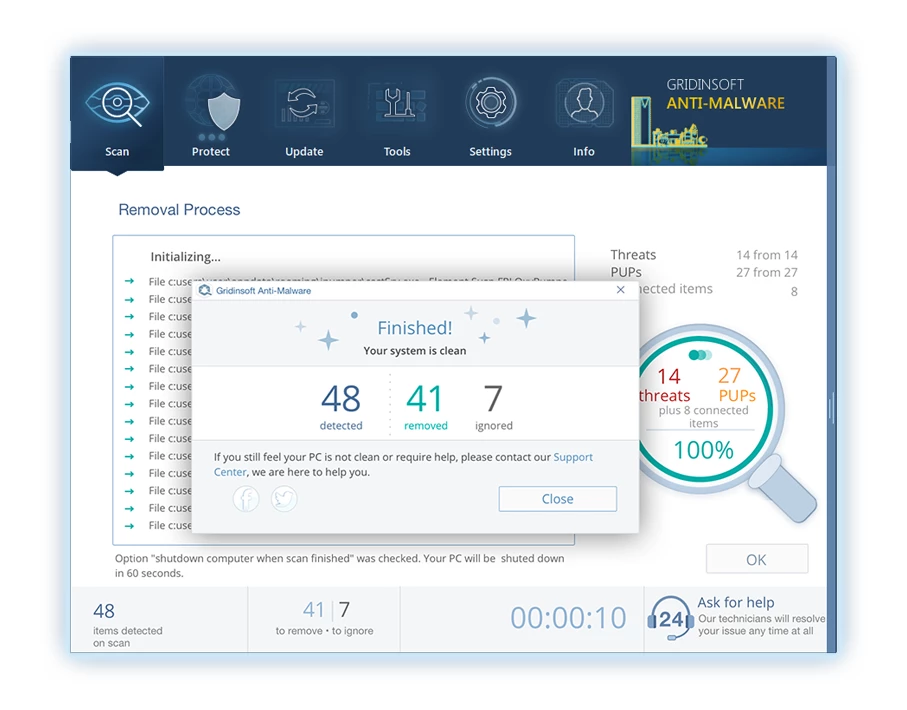
8. If prompted, restart your computer to finalize the full system scan procedure. This step is crucial to ensure thorough removal of any remaining threats. After the restart, Gridinsoft Anti-Malware will open and display a message confirming the completion of the scan.
Remember Gridinsoft offers a 6-day free trial. This means you can take advantage of the trial period at no cost to experience the full benefits of the software and prevent any future malware infections on your system. Embrace this opportunity to fortify your computer's security without any financial commitment.
Trojan Killer for “Smile” removal on locked PC
In situations where it becomes impossible to download antivirus applications directly onto the infected computer due to malware blocking access to websites, an alternative solution is to utilize the Trojan Killer application.
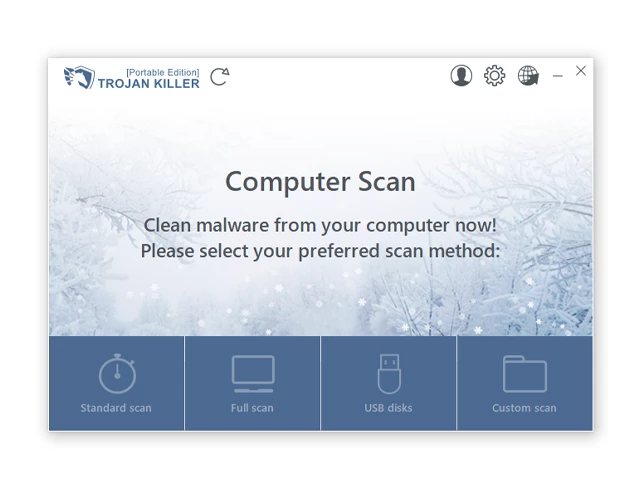
There is a really little number of security tools that are able to be set up on the USB drives, and antiviruses that can do so in most cases require to obtain quite an expensive license. For this instance, I can recommend you to use another solution of GridinSoft - Trojan Killer Portable. It has a 14-days cost-free trial mode that offers the entire features of the paid version. This term will definitely be 100% enough to wipe malware out.
Trojan Killer is a valuable tool in your cybersecurity arsenal, helping you to effectively remove malware from infected computers. Now, we will walk you through the process of using Trojan Killer from a USB flash drive to scan and remove malware on an infected PC. Remember, always obtain permission to scan and remove malware from a computer that you do not own.
Step 1: Download & Install Trojan Killer on a Clean Computer:
1. Go to the official GridinSoft website (gridinsoft.com) and download Trojan Killer to a computer that is not infected.
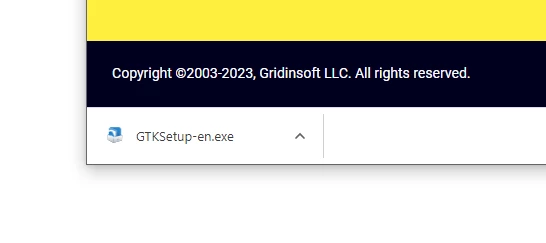
2. Insert a USB flash drive into this computer.
3. Install Trojan Killer to the "removable drive" following the on-screen instructions.
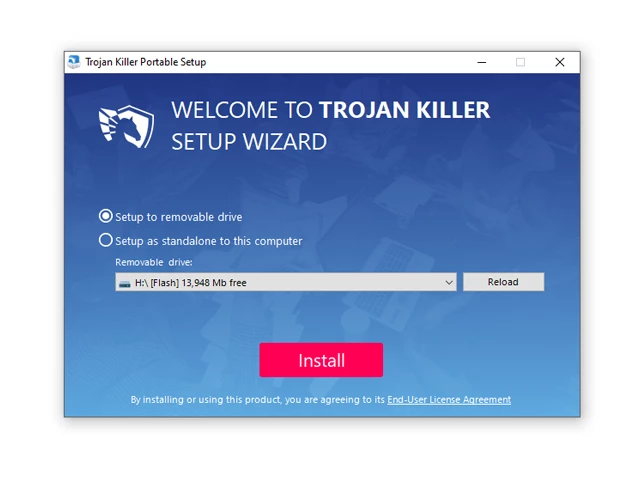
4. Once the installation is complete, launch Trojan Killer.
Step 2: Update Signature Databases:
5. After launching Trojan Killer, ensure that your computer is connected to the Internet.
6. Click "Update" icon to download the latest signature databases, which will ensure the tool can detect the most recent threats.
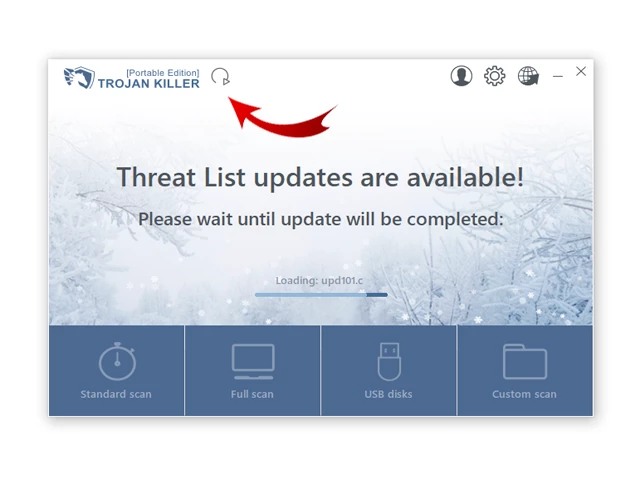
Step 3: Scan the Infected PC:
7. Safely eject the USB flash drive from the clean computer.
8. Boot the infected computer to the Safe Mode.
9. Insert the USB flash drive.
10. Run tk.exe
11. Once the program is open, click on "Full Scan" to begin the malware scanning process.
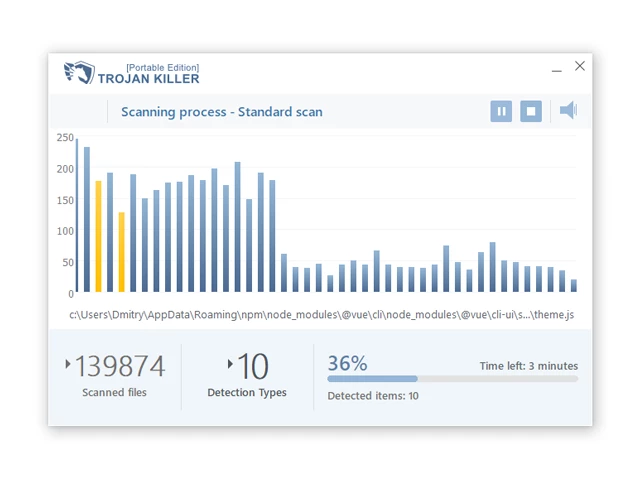
Step 4: Remove Found Threats:
12. After the scan is complete, Trojan Killer will display a list of detected threats.
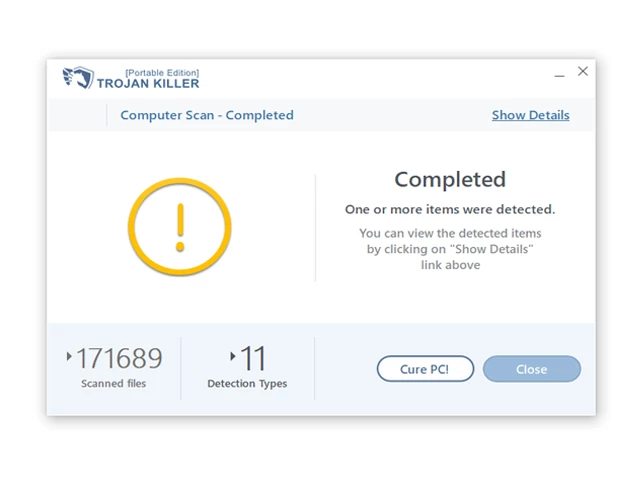
13. Click on "Cure PC!" to remove the identified malware from the infected PC.
14. Follow any additional on-screen prompts to complete the removal process.
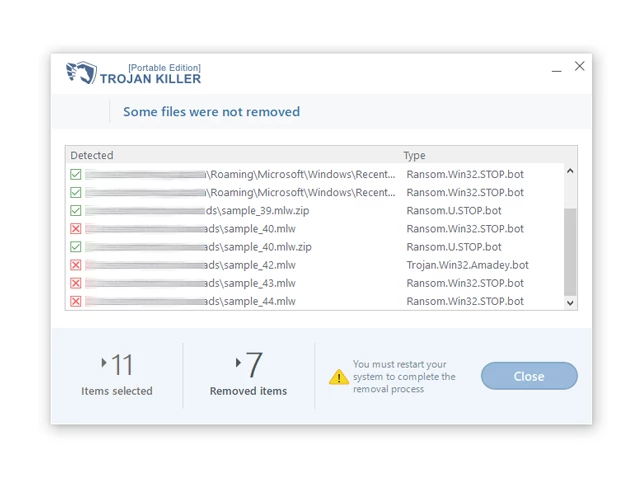
Step 5: Restart Your Computer:
15. Once the threats are removed, click on "Restart PC" to reboot your computer.
16. Remove the USB flash drive from the infected computer.
Congratulations on effectively removing Smile and the concealed threats from your computer! You can now have peace of mind, knowing that they won't resurface again. Thanks to Gridinsoft's capabilities and commitment to cybersecurity, your system is now protected.
Sometimes tamperers would unblock several of your files to prove that they indeed have the decryption tool. Since Smile virus is a relatively recent ransomware, security software designers have not yet found a way to reverse its work. Nevertheless, the anti-ransomware tools are constantly upgraded, so the effective countermeasure may soon arrive.
Of course, if the evildoers succeed in encoding someone’s critical files, the desperate person will most likely fulfill their demands. Despite that, paying a ransom does not necessarily mean that you’re getting your blocked information back. It is still dangerous. After receiving the ransom, the racketeers may send a wrong decryption key to the injured party. There were reports about malefactors just vanishing after getting the money without even writing back.
The optimal solution against ransomware is to have a system restore point or the copies of your critical files in the cloud drive or at least on an external drive. Of course, that might be not enough. The most important thing could be that one you were working upon when it all went down. But at least it is something. It is also advisable to scan your drives with the anti-malware utility after the system restoration.
There are other ransomware products, besides Smile, that work similarly. Examples of those are Crone, Gunra, Hudson, and some others. The two major differences between them and the Smile are the ransom amount and the encoding method. The rest is almost identical: files become encoded, their extensions altered, ransom notes are found in each directory containing encoded files.
Some lucky users were able to decode the blocked files with the aid of the free tools provided by anti-ransomware developers. Sometimes the hackers mistakenly send the decryption key to the wronged in the ransom readme. Such an extraordinary fail allows the injured part to restore the files. But of course, one should never rely on such a chance. Remember, ransomware is a bandits’ technology to pull the money out of their victims.
How to avoid ransomware injection?
Smile ransomware doesn’t have a endless power, so as any similar malware.
You can protect your PC from ransomware injection within several easy steps:
- Never open any emails from unknown mailboxes with unknown addresses, or with content that has likely no connection to something you are expecting (can you win in a lottery without even taking part in it?). If the email subject is likely something you are expecting, check all elements of the dubious letter with caution. A fake letter will always contain mistakes.
- Never use cracked or untrusted software. Trojans are often distributed as an element of cracked products, most likely under the guise of “patch” preventing the license check. Understandably, potentially dangerous programs are very hard to tell from reliable software, because trojans may also have the functionality you need. You can try to find information about this software product on the anti-malware message boards, but the best way is not to use such software.
- And to be sure about the safety of the objects you downloaded, scan them with GridinSoft Anti-Malware. This software will be a powerful armor for your system.
Frequently Asked Questions
🤔 How can I open “.SM$LE” files?Can I somehow access “.SM$LE” files?
Unfortunately, no. You need to decipher the “.SM$LE” files first. Then you will be able to open them.
🤔 What should I do to make my files accessible as fast as possible?
If the “.SM$LE” files contain some really important information, then you probably have them backed up. If not, there is still a function of System Restore but it needs a Restore Point to be previously saved. The rest of the methods require patience.
🤔 Will GridinSoft Anti-Malware remove all the encrypted files alongside the Smile virus?
No way! Unlike the ransomware program itself, the encrypted files do not jeopardize your system.
GridinSoft Anti-Malware will delete actual malware from your system. The virus that has infected your device is probably still active and it scans your system periodically to encrypt any new files you might create on your PC after the infection. As it has been said above, the Smile ransomware does not come alone. It installs backdoors and keyloggers that can take your account passwords by trespass and provide criminals with easy access to your system after some time.
🤔 What to do if the Smile virus has blocked my computer and I can’t get the activation code.
In such an unfortunate situation, you need to have a flash memory drive with a pre-installed Trojan Killer. Use Safe Mode to execute the procedure. The point is that the ransomware starts automatically as the system launches and encrypts any new files created or imported into your computer. To block this function – use Safe Mode, which allows only the vital applications to run automatically. Consider reading our manual on booting Windows in Safe Mode.
🤔 What could help the situation right now?
Some of the encrypted files can be located elsewhere.
- If you exchanged your critical files via email, you could still download them from your online mail server.
- You might have shared photographs or videos with your friends or relatives. Simply ask them to send those pictures back to you.
- If you have initially got any of your files from the Web, you can try to do it again.
- Your messengers, social media pages, and cloud storage might have all those files too.
- It might be that you still have the needed files on your old PC, a portable device, cellphone, external storage, etc.
USEFUL TIP: You can use data recovery programs1 to get your lost data back since ransomware encodes the copies of your files, removing the original ones. In the video below, you can see how to use PhotoRec for such a recovery, but remember: you can do it only after you kill the virus with an antivirus program.
I need your help to share this article.
It is your turn to help other people. I have written this guide to help users like you. You can use the buttons below to share this on your favorite social media Facebook, Twitter, or Reddit.
Brendan SmithUser Review
( votes)References
- Here’s the list of Top 10 Data Recovery Software Of 2024.
