
The Ooza virus, also known as ransomware, belongs to the STOP family. This malware family is notorious for malicious file ciphering. Once the Ooza virus infects a computer, it scans the system for files like videos, photos, documents, and more. It modifies the file structure and appends the “.ooza” extension to each encrypted file, making them unusable without the decryption key.
Ooza Virus Overview
Ooza
🤔 Ooza virus can be classified as ransomware that belongs to the DJVU/STOP ransomware family. Its primary purpose is to lock all of your files it can reach. After that ransomware virus asks to pay the ransom – ($490 – $980) in Bitcoin.
The Ooza virus is a malware type that encrypts your files and forces you to pay for their decryption. This ransomware ciphers different file types. Encrypted files can be identified by a distinct “.ooza” extension. The files touched by ransomware become impossible to access and use.
Then, the ransomware asks for a ransom payment in Bitcoin from the victims, which ranges from $490 to $980, depending on the time passed after the attack. Usually, a ransom text file is named as “_readme.txt“.
Ooza Ransomware works with Salsa20 encryption algorithms to cipher the targeted files. Since the Ooza virus employs such a robust encryption method, it becomes quite hard, if even possible, to pick the decryption key without the assistance of the attackers.
Once Ooza malware finishes the encryption, it shows a ransom note to the user, demanding a ransom payment for the decryption key. The ransom note provides instructions on how to pay off the bill and also often includes threats of data loss or ransom amounts surge if the ransom is not paid within a specified timeframe.
I have created a comprehensive list of potential solutions, tips, and practices to remove the Ooza malware and recover your files. There are situations when it may be feasible to restore your files, but sometimes, it may be impossible.
📌 Important Note!
It is essential to voice that paying off the ransom is not a guarantee of the successful recovery of your files. The crooks behind the Ooza virus are not trustworthy. There were the cases where victims have paid the ransom, only to be denied by the cyber criminals with the decryption key provision.
Ooza uses a unique key for every victim, with one exception:
The Ooza virus bears resemblance to other DJVU ransomware samples like Hgew, Hgfu, Hgkd, and Hgml. This virus encrypts a wide range of common file types and appends its distinct “.ooza” extension to all files. For instance, a file named “1.jpg” would be altered to “1.jpg.ooza” and “2.png” to “2.png.ooza“.
After successful encryption, malware spawns a special text file named “_readme.txt” and places it in every folder containing the encrypted files. It also adds this file to the desktop, so the victim will not miss its appearance even without opening folders.
The image below provides a visual representation of files with the “ooza” extension:
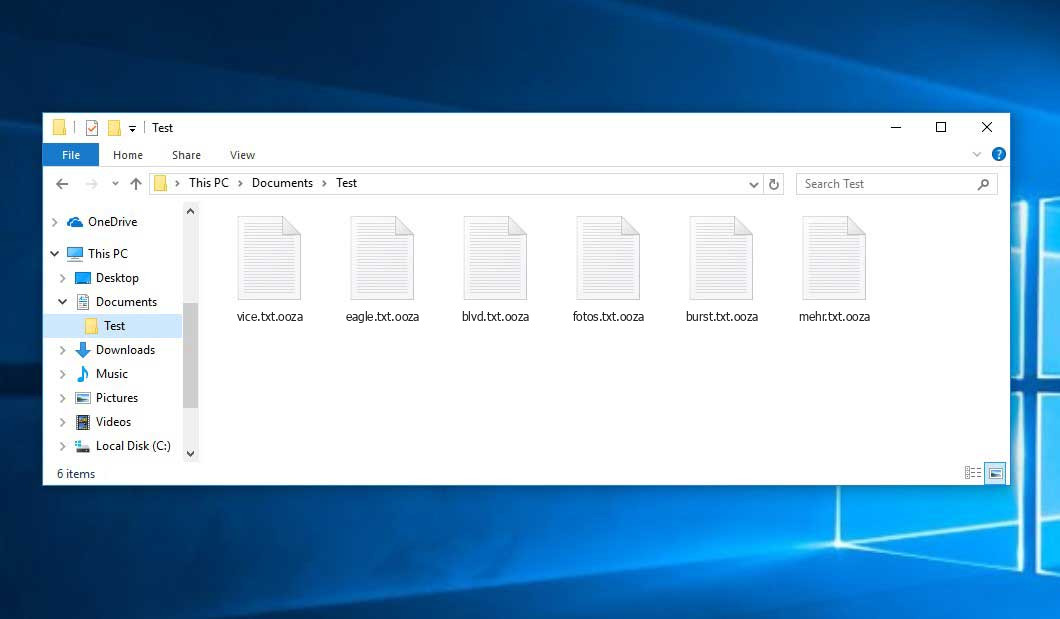
Encrypted Files by STOP/DJVU Ransomware
| Name | Ooza Virus |
| Ransomware family1 | DJVU/STOP2 ransomware |
| Extension | .ooza |
| Ransomware note | _readme.txt |
| Ransom | From $490 to $980 (in Bitcoins) |
| Contact | [email protected], [email protected] |
| Detection | TrojanDropper:Win32/Agent.UM, Trojan:Win32/Gepys.DSB!MTB, Trojan-Ransom.Win32.Crypren |
| Symptoms |
|
| Fix Tool |
To remove possible malware infections, scan your PC:
6-day free trial available. |
This message asking payment is for restore files via decryption key:
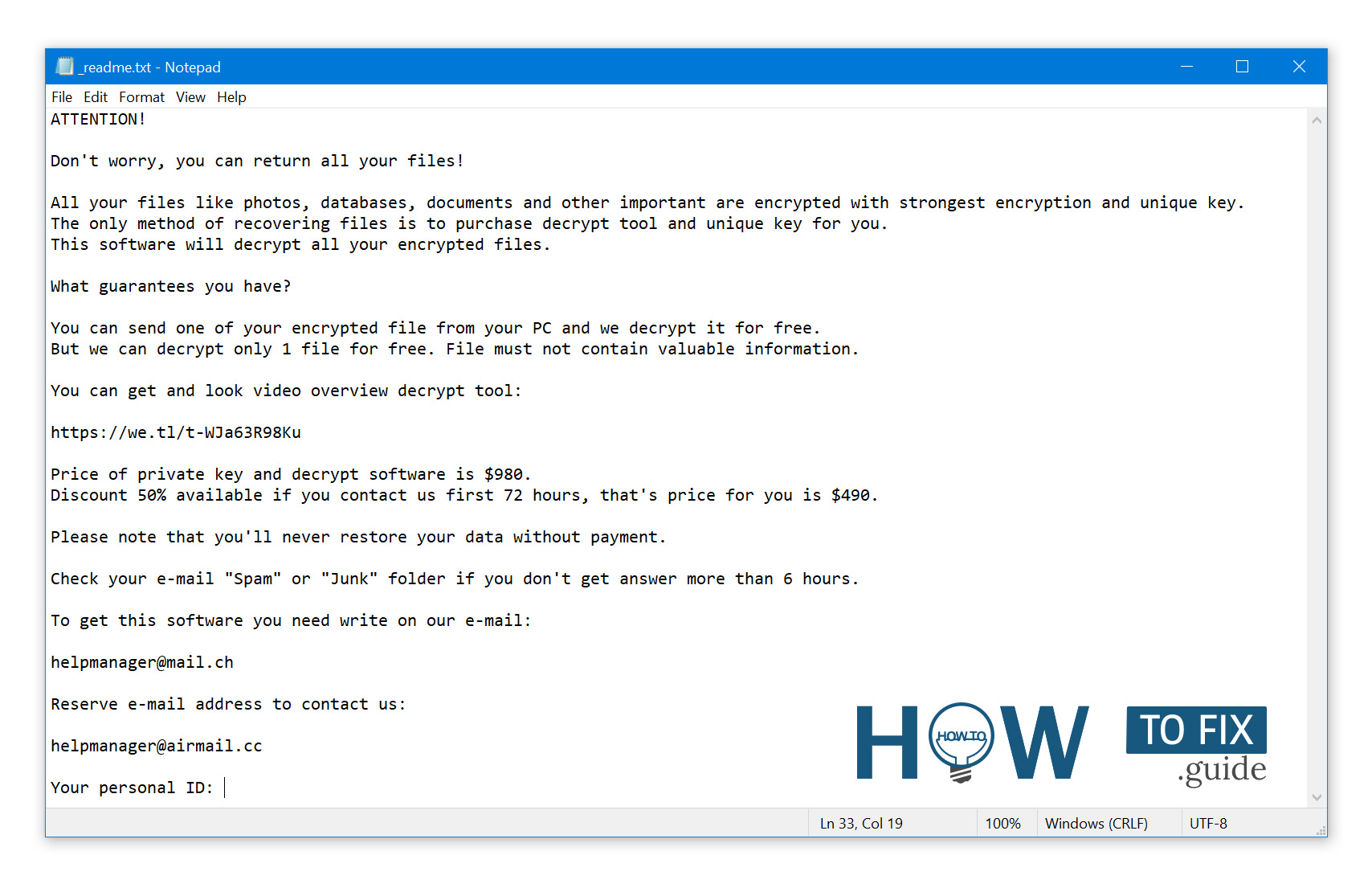
_readme.txt (STOP/DJVU Ransomware) – The frightening alert demanding users to pay off the ransom to decrypt the encrypted data contains these annoying warnings.
Ooza ransomware arrives as a set of operations that are used to carry out different activities on a victim’s computer. One of the primary ones being launched is winupdate.exe, a sneaky process that displays a false Windows update prompt during the attack. Such a trick helps to convince the victim that their PC has become slow because of a Windows update.
Meanwhile, the ransomware runs another process (which name commonly consists of 4 random characters) which initiates scanning the computer for target files and ciphering them. Next, the ransomware removes Volume Shadow Copies from the system by the following CMD command:
vssadmin.exe Delete Shadows /All /Quiet
Once removed, it becomes impossible to recover the previous computer state using System Restore Points. The issue is, ransomware operators are getting rid of any built-in Windows techniques that could assist the victim to restore files for free. In addition, the rascals modify the Windows HOSTS file by including a list of domains to it and mapping them to the localhost IP. As a result, the victim will see a DNS_PROBE_FINISHED_NXDOMAIN error when accessing one of the blocked websites.
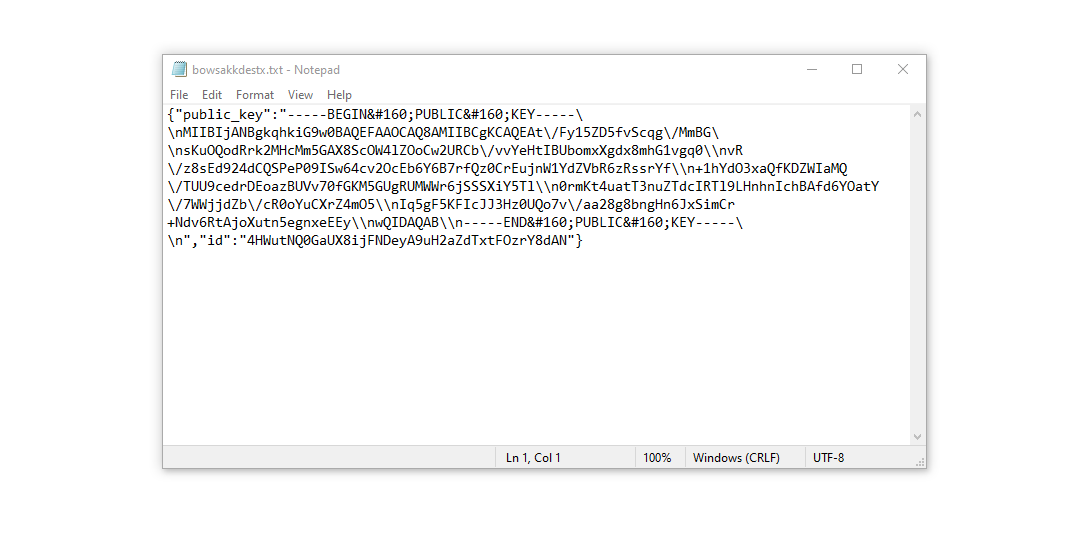
We’ve observed that ransomware tries to restrict websites that developed various how-to guides for computer users. It is evident that by hindering specific domains, the malefactors are seeking to hinder the victim from accessing relevant and helpful ransomware-attack-related information online. The virus also saves two .txt files on the victim’s computer that offer particulars related to the attack – the victim’s public key and personal ID. These two files are named bowsakkdestx.txt and PersonalID.txt.
After all these changes, the malware doesn’t cease. Variants of STOP/DJVU tend to release Vidar password-stealing Trojan on compromised systems. This threat has an huge list of capabilities, including:
- Infiltrating the victim’s computer with malware and executing it to gain unauthorized access.
- Obtaining unauthorized access to login credentials of Steam, Telegram, and Skype.
- Manipulating and viewing files on the victim’s computer without their knowledge.
- Stealing cryptocurrency wallets from the victim’s system.
- Granting the hackers remote control over the victim’s computer for various malicious activities.
- Extracting sensitive information such as browser cookies, saved passwords, and browsing history.
The cryptography algorithm in STOP/Djvu ransomware is AES-256. So, if your data got encrypted with an online decryption key, the possibility to get your files back are quite low. Thing is, this key is unique for each victim, and brute forcing it will take exceptionally big amount of time.
Obtaining the online key in any other way is also close to impossible. It is kept on a remote server controlled by the criminals who promote the Ooza malware. For receiving unlocking key the payment should be $980. To see the payment details, the victims should contact the hackers by email ([email protected]).
The message by the ransomware states the following information:
ATTENTION!

Don't worry, you can return all your files!

All your files like photos, databases, documents and other important are encrypted with strongest encryption and unique key.
The only method of recovering files is to purchase decrypt tool and unique key for you.
This software will decrypt all your encrypted files.

What guarantees you have?

You can send one of your encrypted file from your PC and we decrypt it for free.
But we can decrypt only 1 file for free. File must not contain valuable information.

You can get and look video overview decrypt tool:

https://we.tl/t-WJa63R98Ku

Price of private key and decrypt software is $980.
Discount 50% available if you contact us first 72 hours, that's price for you is $490.

Please note that you'll never restore your data without payment.

Check your e-mail "Spam" or "Junk" folder if you don't get answer more than 6 hours.

To get this software you need write on our e-mail:

[email protected]

Reserve e-mail address to contact us:

[email protected]

Your personal ID:
XXXXXXXXXXXXXXXXXXXXXXXXXXXXXXX
Do not pay the ransom!
Please, try to use the available backups, or Decrypter tool
The _readme.txt document also demands that the computer owner must get in touch with the hackers during 72 hours since the file encryption. If user contacts hackers within 72 hours, hackers grant a 50% discount. Thus the ransom amount will be minimized down to $490.
Yet, stay away from paying off the ransom! I highly recommend that you do not contact these scammers and do not pay. An efficient solution to retrieve the lost data is just using the available backups, or using Decrypter tool from Emsisoft.
The peculiarity of such malware is the utilization a similar set of actions for generating the unique decryption key to recover the ciphered data. Thus, unless the ransomware is still in development or has some hard-to-track flaws, manual data recovery is a thing you can’t perform. The sole remedy to prevent the loss of your valuable data is to regularly make backups of your important files.
Keep in mind that even if you do preserve such backups regularly, they must be located into a specific location without loitering, not being connected to your main workstation. For instance, the backup may be kept on the USB flash drive or some substitute external hard drive storage. Alternatively, you may turn to the help of online (cloud) information storage.
Needless to say, when you maintain your backup data on your regular device, it may be ciphered together with other data. For this reason, placing the backup on your disk is surely not a wise idea.
How I was infected?
Ransomware has a various methods to built into your system. But it doesn’t really matter what way had place in your case.
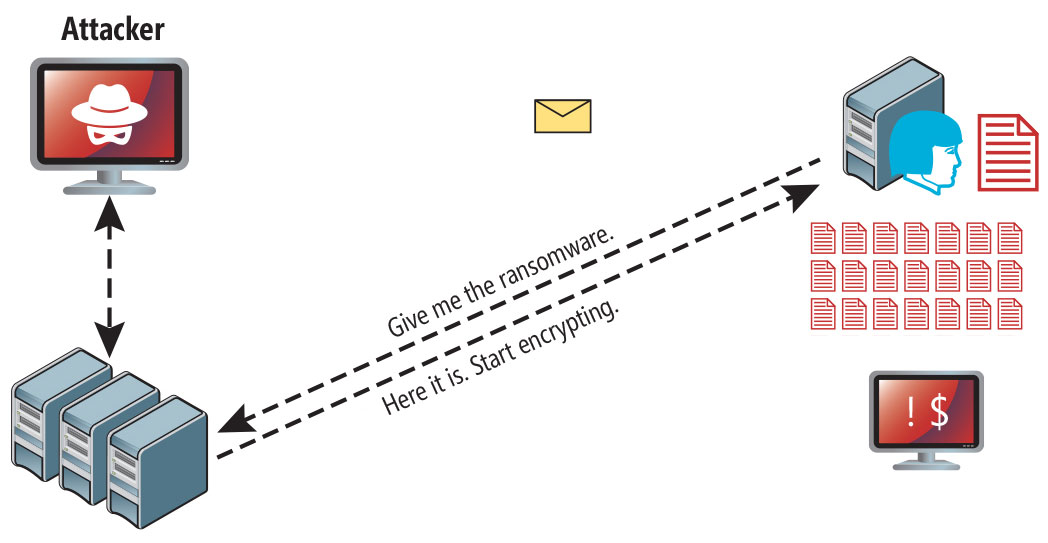
Ransomware attack following a successful phishing attempt.
Nevertheless, these common leaks may inject it into your PC:
- The virus may be discreetly distributed by utilizing online free hosting resources.
- The virus installer may be disguised within other apps, particularly utilities offered as freeware or shareware.
- The virus may propagate through spam emails containing dubious links leading to the installation.
- Hidden malware may be included in pirated software downloaded from illegal peer-to-peer (P2P) resources.
In some cases, the Ooza virus hides as a legitimate procedure, for example, in messages requesting a browser update or a needed codec for online media playback. Some online frauds use this method to force you into manually deploying the ransomware by making you directly engage in the process.
Surely, the fraudulent update alert will not disclose that you are installing the threat. This installation will be concealed under an alert stating that you must install an urgent security update or some dubious program.
Without a doubt, software cracks also pose a threat. Using P2P is both illegal and may result in the introduction of severe malware, including the Ooza ransomware.
To sum up, what can you do to avoid the ransomware from penetrating your computer? Even though there is no 100% guarantee to prevent your PC from getting compromised, there are certain tips I want to give you to prevent the Ooza penetration. Be careful while using free software today.
Always ensure you read what the installer offers aside from the main free program. Stay away from running suspicious email attachments. Do not run files from unknown senders. Naturally, your current anti-malware program must always be updated.
The malware does not openly show itself. It will not appear in the list of your available programs. Instead, it will be masked under a malicious process running consistently in the background, starting the moment you launch your computer.
How To Remove Ransomware?
Video Guide
How To Decrypt .ooza Files?
How to restore big files?
Try removing .ooza extension on a few big files and opening them. This malware has issues with large files encryption. Either the virus accessed and did not encode the file, or it failed and did not add the filemarker. If you have files that are very large (2GB+), the latter is most likely. Please, let me know in comments if that will work for you.
The newest extensions released around the end of August 2019 after the criminals made changes. This includes Hgew, Hgfu, Hgkd etc.
As a outcome of the alterations made by the criminals, STOPDecrypter is no longer backed. It has been replaced with the Emsisoft Decryptor for STOP Djvu Ransomware developed by Emsisoft.
You can download free decryption tool here: Decryptor for STOP Djvu.
-
Select folders for decryption.
Based on the default configurations, the decryptor will automatically choose the available directories in order to unlock the currently accessible drives (the connected ones), including the network drives. Additional (optional) locations can be selected with the aid of the “Add” button.
Decryptors typically offer several options depending on the specific malware family. The existing possible options are presented in the Options tab and can be turned on or disabled there. You may locate a comprehensive list of the currently active Options below.
-
Click on the “Decrypt” button.
As soon as you add all the desired locations for decryption into the list, click on the “Decrypt” button in order to initiate the decryption procedure.
Note that the main screen may turn you to a status view, letting you know of the active process and the decryption statistics of your data:
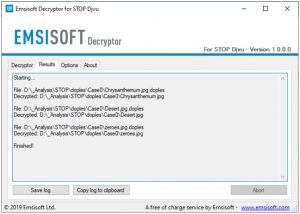
The decryptor will notify you as soon as the decryption procedure is completed. If you need the report for your personal papers, you can save it by choosing the “Save log” button. Note that it is also possible to copy it directly to your clipboard and to paste it into emails or messages here if you need to do so.
The Emsisoft Decryptor might display different messages after a failed attempt to restore your files:
✓ Error: Unable to decrypt file with ID: [your ID]
✓ No key for New Variant online ID: [your ID]
Notice: this ID appears to be an online ID, decryption is impossible
✓ Result: No key for new variant offline ID: [example ID]
This ID appears be an offline ID. Decryption may be possible in the future.
It can take a few weeks or months until the decryption key gets found and uploaded to the decryptor. Please follow updates regarding the decryptable DJVU versions here.
✓ Remote name could not be resolved
How to Restore .ooza Files?
In some case ransomware is not doom for your files…
The Ooza ransomware encryption mechanism algoritm is next: it ciphers every file byte-by-byte, then saves a file copy, removing (not overriding!) the original file. Hence, the information of the file location on the disk drive is lost, but the original file is not deleted from the drive. The cell, or the sector where this file was stored, can still contain this file, but it is not present in the file system and can be replaced by data that has been loaded to this drive after the deletion. Hence, it is possible to retrieve your files using special software.
Anyway, after realizing it was an online algorithm, it is impossible to retrieve my encrypted files. I also had my backup drive plugged in at the time of the virus, and this was also infected, or so I thought. Every folder within my backup drive had been infected and was encrypted. However, despite losing some important files, I retrieved almost 80% of my 2TB storage.
When I started going through the folders, I noticed the readme.txt ransom note in every folder. I opened some of the folders and found that all files that were not in a subfolder within that folder had been encrypted. However, I found a flaw and glimmer of hope when I went into the subfolders in other folders and found that these files had not been encrypted. Every folder within my c and d drives, including subfolders, had been encrypted, but this was not the case with the backup drive. Having subfolders created within a folder has saved 80% of my data.
As I said, I believe this to be only a small loophole on a backup drive. I’ve since found a further 10 % of my data on another hard drive on a different pc. So my advice is if you use a backup drive, create subfolders. I was lucky, I guess. But I was also unlucky that the virus hit as I was transferring some files from my backup.
Hopefully, this can help some other people in my situation.
Jamie NewlandRecovering your files with PhotoRec
PhotoRec is an free program, which is originally created for files recovery from damaged disks, or for files recovery in case if they are unintentionally deleted. However, as time has gone by, this program received the ability to recover the files of 400 different file types. Hence, it can be used for file recovery after the Ooza attack.
First, you need to download this app. It is 100% free, but the developer states that there is no guarantee that the files will be recovered. PhotoRec is distributed together with another utility of the same developer – TestDisk. The downloaded archive will have TestDisk name, but don’t worry. PhotoRec files are right inside.
To open PhotoRec, you need to find and open “qphotorec_win.exe” file. No setup is needed – this program has all the files it need within the archive, hence, you can mount it on your USB drive, and help your friends/parents/anyone who has been attacked by Ooza ransomware.
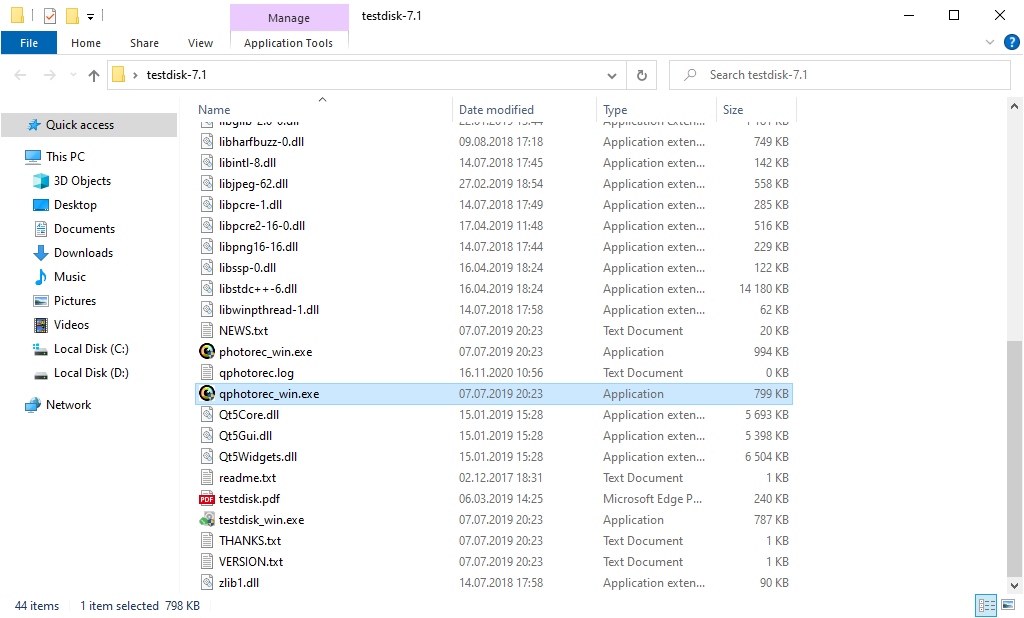
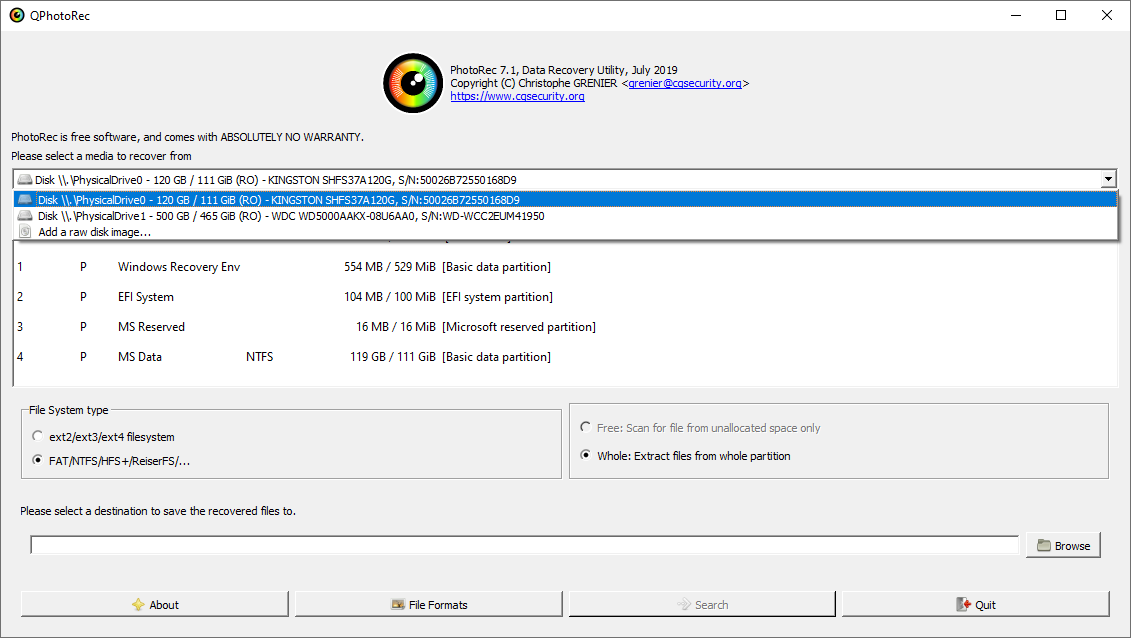
After the start, you will observe the screen showing you the full list of your disks. However, this details are likely futile, because the required menu is placed a bit higher. Click this tab, then choose the disk which was attacked by ransomware.
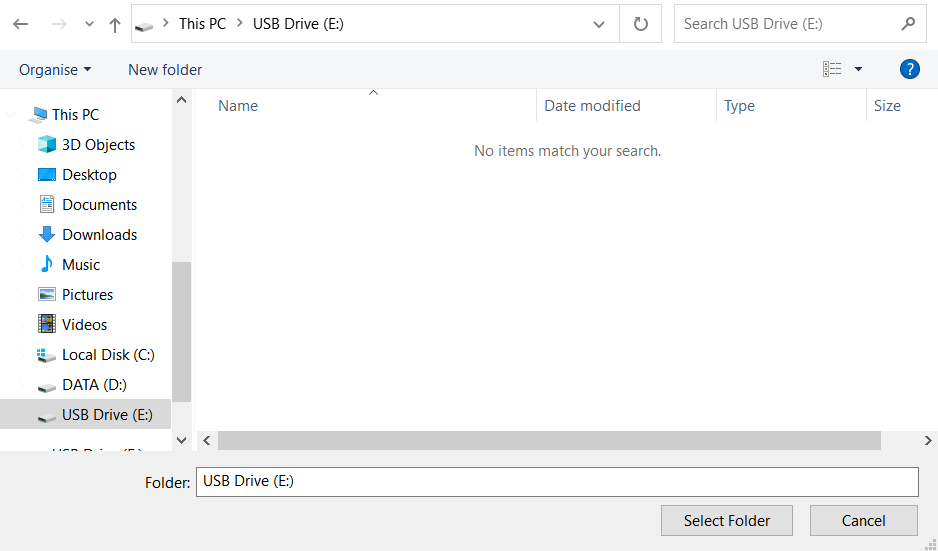
After opting for the disk, you need to select the destination folder for the retrieved files. This menu is located at the lower part of the PhotoRec window. The best choice is to export them on USB drive or any other type of removable disk.
Then, you need to indicate the file formats. This choice is located at the bottom, too. As it was mentioned, PhotoRec can regain the files of about 400 different formats.
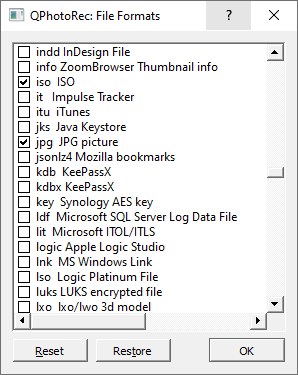
Finally, you can initiate files retrieval by pressing the “Search” button. You will see the screen where the results of the scan and recovery are shown.
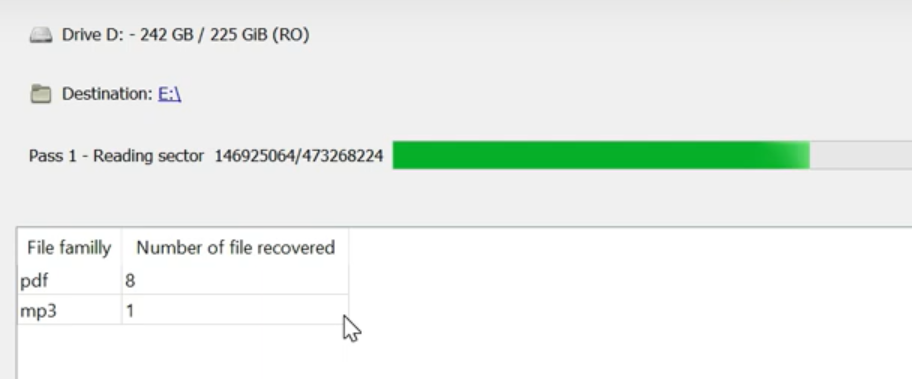
Ooza files recovery Video Guide.
Frequently Asked Questions
I need your help to share this article.
It is your turn to help other people. I have written this guide to help people like you. You can use buttons below to share this on your favorite social media Facebook, Twitter, or Reddit.
Brendan SmithReferences
 German
  Japanese
  Spanish
  Portuguese (Brazil)
  French
  Turkish
  Chinese (Traditional)
  Korean
  Indonesian
  Hindi
Hindi  Italian


Leave a Comment