
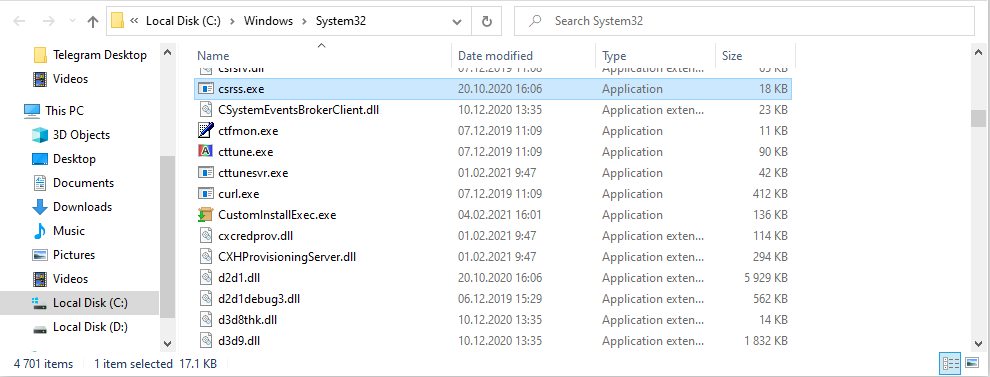
csrss.exe is the Client Server Runtime Process, a critical Windows component. The legitimate Microsoft-signed file is not a Trojan or coin miner. Windows normally runs more than one csrss.exe instance, and ending the wrong process can crash the system. The security question is whether the file is the real Windows copy, not whether the filename itself is scary.

What is csrss.exe?
Client Server Runtime Process is part of the Windows user-mode subsystem. Modern Windows still uses it for essential session and console-related work. Because it is critical, Windows protects it and keeps it running during normal operation.
Safe vs suspicious signs
| Usually legitimate | Suspicious |
Located in C:\Windows\System32 and signed by Microsoft. |
Runs from AppData, Temp, Downloads, Startup, or a misspelled folder. |
| Task Manager shows Client Server Runtime Process. | A similarly named file such as csrsss.exe or a copy in a user folder appears. |
| More than one instance appears for Windows sessions. | Constant high GPU/CPU from a non-Microsoft path. |
| Cannot be ended normally without Windows warning. | Starts through an unknown scheduled task or startup entry. |
How to verify csrss.exe
- Open Task Manager and right-click the process.
- Choose Open file location.
- Confirm that the file is in System32.
- Open file properties and check the Microsoft digital signature.
- If the file is elsewhere, scan it and inspect startup entries.
Why csrss.exe can look active
Users may notice csrss.exe during graphics, console, session, or desktop activity. Some GPU/CPU reports are actually caused by drivers, desktop effects, overlays, or another process while csrss.exe is only part of the session environment. Verify the file first, then troubleshoot the real performance cause.
When to scan for malware
Scan if the path is wrong, the name is misspelled, the signature is missing, or browser/security symptoms appeared at the same time. Fake copies often hide in user folders and rely on the familiar name to avoid suspicion.
What not to do
Do not delete the System32 csrss.exe. Do not try to end the real process. If the file is legitimate, fix drivers, overlays, Windows updates, or the app causing load. If the file is fake, remove the launcher and scan the system.
Decision tree
If the file is in System32 and signed by Microsoft, leave it alone and troubleshoot symptoms around it. If the file is outside System32, treat it as suspicious. If there are two legitimate instances, that can be normal. If there are random copies in user folders, investigate them.
After cleanup
After removing a fake copy, reboot and confirm that only the legitimate System32 process remains. Check scheduled tasks, startup entries, browser extensions, and recently installed programs. If credentials were used while a fake process was active, change important passwords from a clean device.
Decision tree for csrss.exe
If csrss.exe is in System32 and signed by Microsoft, treat it as a protected Windows component. Do not end it. If the system is slow, look for graphics drivers, desktop effects, overlays, browser GPU usage, or other processes consuming resources. If the file is outside System32, treat that copy as suspicious.
If there are two legitimate csrss.exe instances, that can be normal because Windows creates processes for sessions. If there are several copies in user folders, that is not normal. Compare paths carefully instead of counting process names.
Practical example
A user sees two csrss.exe processes and assumes infection. Both point to System32, both are Microsoft-signed, and Windows warns before ending them. That is normal. Another user sees csrss.exe in AppData launched by a scheduled task. That is a fake copy and should be removed with the task that starts it.
What to record before cleanup
Record the full path, signature, parent process, startup source, and creation date for any suspicious copy. Search the same folder for other executables or scripts. Fake system-process malware often uses several files and one launcher.
After verification
If the file is legitimate, document the correct path and move on to the real performance issue. If a fake copy was removed, reboot twice and check that it does not return. Keep Windows Security enabled and review browser extensions if the fake copy arrived with bundled software.
Advanced check
Use Process Explorer if Task Manager does not show enough detail. Confirm the verified signer, command line, and parent process. If graphics or desktop symptoms are involved, update GPU drivers and disable overlays for testing. Do not attribute every desktop slowdown to csrss.exe just because it appears in the process list.
Common mistakes
The most common mistake is deleting or quarantining the real System32 file. The second mistake is ignoring a fake copy because “csrss.exe is always Windows.” Both are wrong. Verify the exact file path every time and act only on the suspicious copy or launcher.
If the page is used during cleanup, keep the advice conservative: protect the real Windows component, remove only evidence-backed fakes, and scan the surrounding folder.
FAQ
Is csrss.exe a virus?
The real Microsoft Client Server Runtime Process is not a virus. Fake copies can be malicious.
Why are there two csrss.exe processes?
Multiple sessions can have separate csrss.exe instances. This is often normal.
Should I end it?
No. Ending the real process can crash Windows or force a restart.


Leave a Comment