
Conhost.exe is the Windows Console Window Host process. It is a normal part of Windows, but it often becomes suspicious to users because it can appear several times in Task Manager and may show CPU usage when a command-line tool, script, installer, or console application is active.
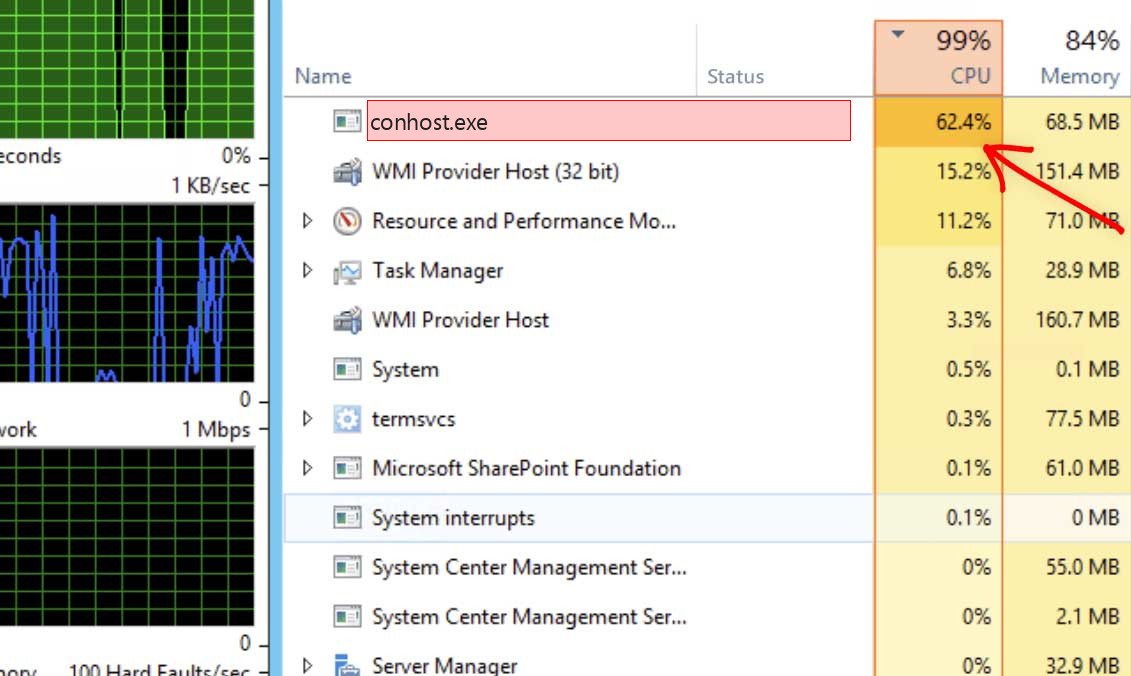
What is conhost.exe?
Conhost.exe provides the visible console window used by Command Prompt, PowerShell, Windows Terminal tabs, batch files, installers, and many maintenance tools. Modern Windows separates the console host from older client/server runtime components, so a console app can draw text, accept keyboard input, and display output without putting that work directly inside the application itself.
The legitimate file is usually located in C:\Windows\System32\conhost.exe and is signed by Microsoft Windows. Seeing more than one instance is not automatically a problem. One backup script, one command prompt, and one installer can each have their own Console Window Host process. The important question is what launched it and whether the file path is the real Windows path.
Is conhost.exe a virus?
Conhost.exe is not a virus by default. Treat it as suspicious only when the file is outside the Windows directory, has no valid Microsoft signature, starts from a user profile or temporary folder, or keeps running with no visible console-related task.
Malware sometimes copies a trusted Windows filename because users recognize it and hesitate to investigate. A fake conhost.exe in AppData, Temp, Downloads, ProgramData, or a random subfolder is a very different situation from the signed Microsoft file in System32.
Why conhost.exe can use high CPU, memory, or disk
High CPU by conhost.exe usually means the console application underneath it is busy. The console host may look like the offender, while the real cause is a looped script, a verbose command producing huge output, a broken installer, a development server, or a mining/loader process hiding behind a console session.
- A batch file, PowerShell command, or installer is printing a large amount of output.
- A developer tool, compiler, package manager, or local server is running in a terminal.
- A scheduled task or login script starts a hidden console process.
- A third-party updater is stuck and repeatedly launches command-line helpers.
- A fake copy is running from a non-Windows folder and pretending to be the real console host.
Signs that the file should be investigated
The name alone does not prove infection. These signs are stronger than the process name and should be checked before making a removal decision.
- The file path is not C:\Windows\System32\conhost.exe.
- Digital signature is missing, invalid, or not issued to Microsoft Windows.
- The parent process is unknown, randomly named, or starts from AppData or Temp.
- CPU usage continues after closing all terminals, installers, and command-line tools.
- A new startup entry or scheduled task launches conhost.exe from a user-writable folder.
How to check conhost.exe manually
Use the checks below before deleting anything. Removing the legitimate System32 file can break normal Windows behavior, while leaving a fake copy in startup can let the unwanted process return after reboot.
- 1. Open file location
In Task Manager, right-click conhost.exe and choose Open file location. The genuine file should open inside C:\Windows\System32. - 2. Check the signature
Open Properties, go to Digital Signatures, and confirm the signer is Microsoft Windows. A missing signature is a reason to investigate. - 3. Find the parent process
Use Task Manager, Process Explorer, or another process viewer to see which command-line program launched conhost.exe. - 4. Close related console apps
Close Command Prompt, PowerShell, Windows Terminal, installers, and development tools, then check whether CPU usage drops. - 5. Inspect startup locations
Review Startup Apps, Task Scheduler, Services, and Run registry entries for a command that launches a suspicious copy. - 6. Scan only if evidence points to a fake
If the path or signature is wrong, scan the file and the startup location instead of deleting the Windows copy.
Should you remove conhost.exe?
Do not remove the legitimate conhost.exe from System32. If the process is a fake copy, remove the startup item that launches it, quarantine the suspicious file, and then reboot to confirm it does not return.
Optional security check
Need a second opinion?
Optional recommendation. Do not remove a system file only because its name is conhost.exe; first confirm the path, signature, parent process, and recent changes on the computer.
FAQ
Why are there several conhost.exe processes?
Each active console-based task can create its own Console Window Host process, so multiple entries can be normal.
Can conhost.exe be used by malware?
Yes, malware can launch console commands or use a fake filename, but the real Microsoft-signed System32 file is a normal Windows component.
Is high CPU always dangerous?
No. It is often caused by a busy script or installer. It becomes suspicious when the file path, signature, or parent process does not match normal Windows behavior.
Conclusion
Conhost.exe should be judged by path, signature, parent process, and behavior. A Microsoft-signed copy in System32 is expected; a copy launched from a user-writable folder or tied to a strange startup entry deserves a full malware check.


Thanks for the detailed guide! I’ve been struggling with high CPU usage from Conhost.exe for a while now. Your troubleshooting steps were easy to follow and helped me resolve the issue quickly. I really appreciate the tips on checking for software conflicts and optimizing startup programs.
Thank you for this informative post! I’ve been struggling with high CPU usage from Conhost.exe for a while now, and your troubleshooting tips are really helpful. I’ll definitely try the solutions you suggested and hope it resolves the issue. Appreciate the detailed explanations!
Thank you for the detailed guide! I was struggling with high CPU usage from Conhost.exe for weeks, and your troubleshooting steps really helped me pinpoint the issue. The tip about checking for malware made a huge difference. Keep up the great work!