
spoolsv.exe is usually the Windows Print Spooler process. It manages print jobs so applications can send documents to printers without waiting for the printer to finish immediately. The legitimate Microsoft process is not a coin miner. Problems usually come from stuck print jobs, bad printer drivers, printer software, or fake copies using the same name.
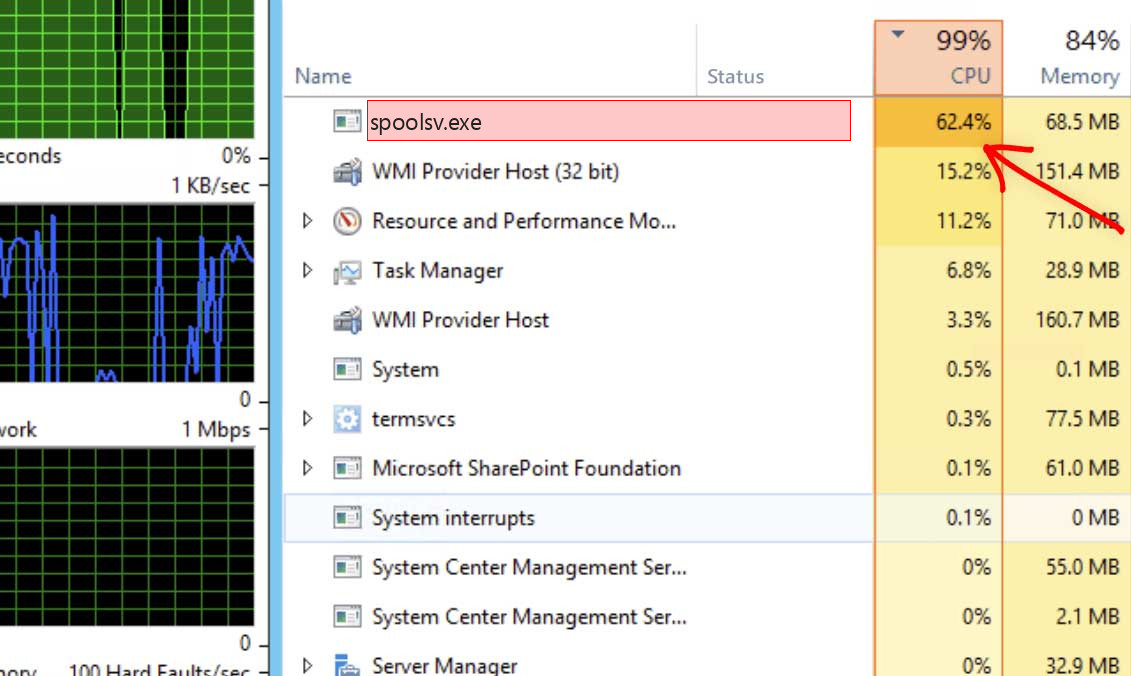
What is spoolsv.exe?
The Print Spooler service stores and manages print jobs in Windows. Microsoft’s support guidance for spooler errors focuses on clearing the print queue, checking printer drivers, and restarting the spooler service. That is the right direction for most spoolsv.exe CPU or hang problems.
Safe vs suspicious signs
| Usually legitimate | Suspicious |
| Located in a Windows system folder and signed by Microsoft. | Runs from AppData, Temp, Downloads, Startup, or a random folder. |
| CPU rises when printing, clearing jobs, or loading printer drivers. | High CPU/GPU continues with no printers or jobs. |
| Print queue or printer driver errors are visible. | Unknown startup entries or fake printer software appeared recently. |
| Stops when the Print Spooler service is stopped. | Returns from an unrelated scheduled task after cleanup. |
How to fix high CPU or stuck printing
- Open the print queue and cancel stuck jobs.
- Restart the Print Spooler service.
- Update or reinstall printer drivers from the printer vendor.
- Remove old printers you no longer use.
- Check whether a print server or shared printer is sending repeated jobs.
- If the file path is suspicious, scan before deleting anything.
Why printer drivers matter
Bad or outdated printer drivers can crash or loop the spooler. A single broken driver can affect printing from many applications. If spoolsv.exe becomes busy whenever you press Ctrl+P, the issue may be printer software rather than malware.
When to scan for malware
Scan if spoolsv.exe is not in a Windows system folder, is unsigned, or appears with suspicious startup entries. Also scan if you do not use printers but a fake spoolsv.exe in a user folder consumes resources. Malware can borrow the name, but the real Print Spooler belongs to Windows.
What not to do
Do not delete the real Windows spoolsv.exe. Do not remove every printer driver blindly on a work machine. Clear the queue, identify problematic printers, and document drivers before removing them.
Decision tree for spoolsv.exe high CPU
If spoolsv.exe becomes busy while printing, check the print queue first. A stuck document can keep the spooler active. If CPU is high with no jobs, check printer drivers, printer monitoring utilities, and shared printer connections. If the file path is wrong, treat it as a fake copy.
If the machine is in an office or shared-printer environment, check whether another device or print server is repeatedly sending jobs. On a home PC, bad vendor printer software is a more common cause.
How to clear stuck spooler work safely
Stop the Print Spooler service, clear stuck jobs from the spool folder if needed, then restart the service. Do this carefully on shared computers because removing spool files deletes pending jobs. After clearing, update or reinstall the printer driver that created the stuck job.
Printer driver troubleshooting
Old printer drivers can break after Windows updates. Remove printers you no longer use, install current drivers from the printer vendor, and avoid random driver updater tools. If spoolsv.exe becomes busy only with one printer, that printer driver is the first suspect.
After repair or cleanup
Print a small test page and watch Task Manager. The spooler should become active briefly and then settle. If a fake copy was removed, reboot and confirm that no startup entry recreates it.
Practical example
If spoolsv.exe spikes whenever one printer is selected, remove and reinstall that printer driver. If it spikes with no printers configured and the file is not in a Windows folder, treat it as a fake copy. If it spikes after a failed print job, clear the queue before changing drivers.
What to record before cleanup
Before deleting stuck jobs on a shared system, record which user, printer, and document are involved. For suspected malware, record the fake file path and launcher before removing it.
Advanced check: print queue and driver isolation
For recurring spooler crashes, test with one printer at a time. Remove unused printers, clear old drivers from print server properties, and avoid installing multiple vendor suites for the same printer. In business environments, check whether a shared printer driver is pushing the same problem to several workstations.
After driver repair, print a test page from two apps. If only one app triggers the issue, the printer driver may not be the only cause.
Keep printer firmware and vendor utilities current when the printer is network-connected.
If the print queue fills again immediately, check the application or device sending jobs. A stuck queue can be caused by repeated submissions, not only by the spooler.
On shared printers, coordinate with the print server administrator before deleting drivers.
This prevents deleting the wrong component while a print workflow is still actively failing.
FAQ
Can I disable Print Spooler?
You can disable it if the PC never prints, but printing and some printer discovery features will stop.
Why does spoolsv.exe use CPU?
Stuck jobs, bad drivers, shared printers, or print software are common causes.
Is spoolsv.exe malware?
The real Microsoft file is not malware. A fake copy outside Windows folders can be malicious.


Leave a Comment