
Agho is a DJVU family of ransomware-type infections1. This infection encrypts important personal files (video, photos, documents). The encrypted files can be tracked by specific “.agho” extension. So, you can’t open them at all.
In this guide I will try to help you remove Agho ransomware for free. Also, I will assist you in decoding your encrypted files.
What is “Agho”?
Agho can be correctly identify as a ransomware-type infection.
Ransomware is a kind of virus that encrypted your documents and then forces you to pay for them. DJVU (aka STOP) ransomware family was first revealed and analyzed by virus analyst Michael Gillespie2.
Agho is similar to other ransomware like: Cadq, Vpsh, Jdyi. Agho encrypted all popular file types. Hence, users cannot work with the own documents or photos. Agho adds its particular “.agho” extension into all files. For example, the file “video.avi”, will be amended into “video.avi.agho”. As soon as the encryption is successfully accomplished, Agho drops a special text file “_readme.txt” and adds it into all folders that contain the modified files.
Here is a short details for the Agho :
| Ransomware family3 | DJVU/STOP4 ransomware |
| Extension | .agho |
| Ransomware note | _readme.txt |
| Ransom | From $490 to $980 (in Bitcoins) |
| Contact | [email protected], [email protected] |
| Detection | Heur.Ransom.Lukitos.1, Win32/Kryptik.HHBZ, Win32/GenKryptik.EVHJ |
| Symptoms | Most of your files (photos, videos, documents) have a .agho extension and you can’t open it |
| Fix Tool | See If Your System Has Been Affected by .agho file virus |
This text asking payment is for get files back via decryption key:
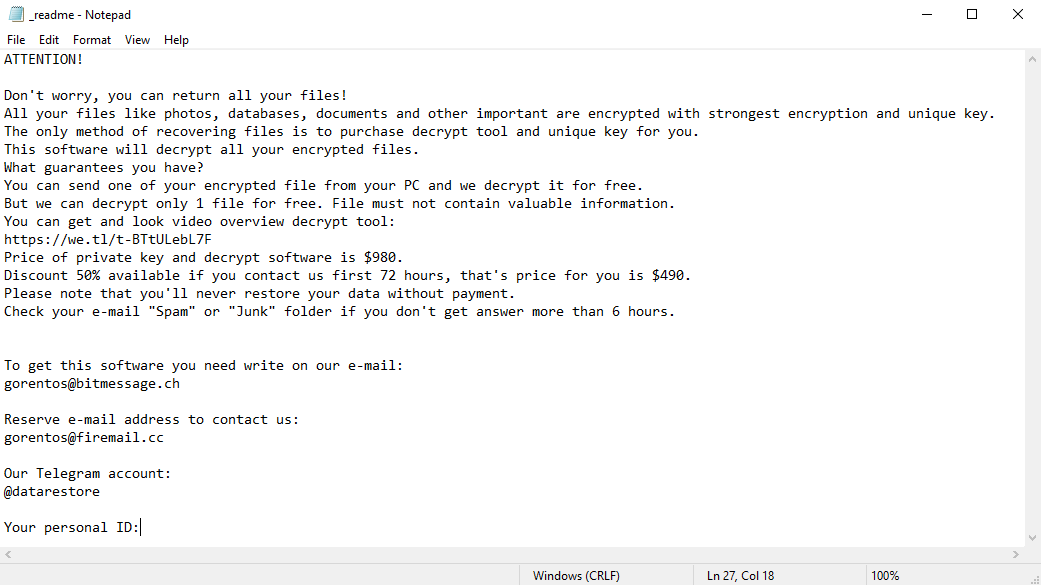
The scary alert demanding from users to pay the ransom to decrypt the encoded data contains these frustrating warnings
The cryptography algorithm used by Agho is AES-256. So, if your documents got encrypted with a specific decryption key, which is totally distinct and there are no other copies. The sad reality is that it is impossible to recover the information without the unique key available.
In case if Agho worked in online mode, it is impossible for you to gain access to the AES-256 key. It is stored on a distant server owned by the frauds who promote the Agho infection.
For receiving decryption key the payment should be $980. To obtain the payment details, the victims are encouraged by the message to contact the frauds by email ([email protected]), or via Telegram.
Do not pay for Agho!
Please, try to use the available backups, or Decrypter tool
_readme.txt file also indicates that the computer owners must get in touch with the Agho representatives during 72 hours starting from the moment of files where encrypted. On the condition of getting in touch within 72 hours, users will be granted a 50% rebate. Thus the ransom amount will be minimized down to $490). However, stay away from paying the ransom!
I certainly recommend that you do not contact these crooks and do not pay. The one of the most real working solution to recover the lost data – just using the available backups, or use Decrypter tool.
The peculiarity of all such viruses apply a similar set of actions for generating the unique decryption key to recover the ciphered data.
Thus, unless the ransomware is still under the stage of development or possesses with some hard-to-track flaws, manually recovering the ciphered data is a thing you can’t perform. The only solution to prevent the loss of your valuable data is to regularly make backups of your crucial files.
Note that even if you do maintain such backups regularly, they ought to be put into a specific location without loitering, not being connected to your main workstation.
For instance, the backup may be kept on the USB flash drive or some alternative external hard drive storage. Optionally, you may refer to the help of online (cloud) information storage.
Needless to mention, when you maintain your backup data on your common device, it may be similarly ciphered as well as other data.
For this reason, locating the backup on your main computer is surely not a good idea.
How I was infected?
Agho has a various methods to built into your system. But it doesn’t really matter what concrete way was used in your case.
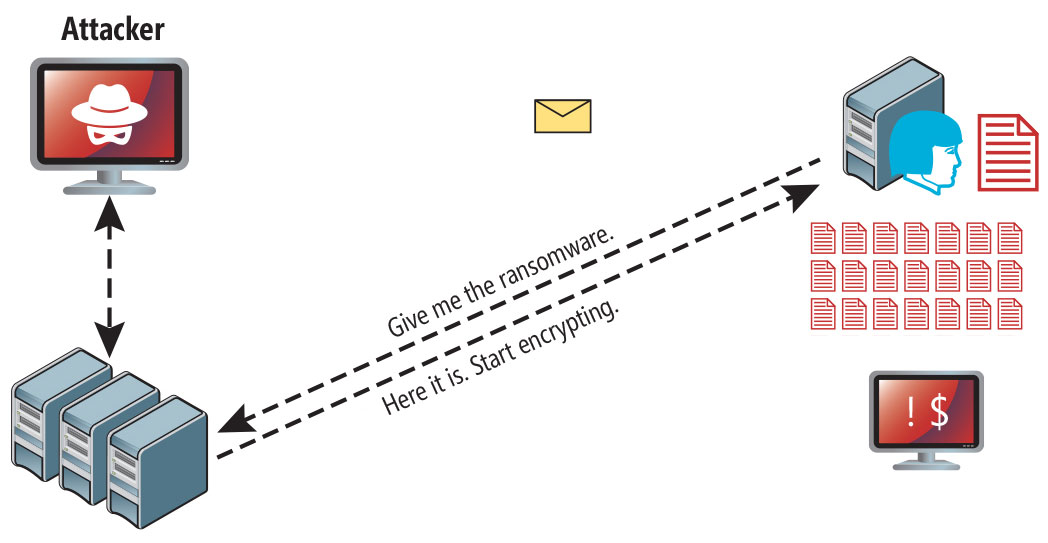
Agho ransomware attack following a successful phishing attempt.
- hidden installation along with other apps, especially the utilities that work as freeware or shareware;
- dubious link in spam emails leading to the Agho installer
- online free hosting resources;
- using illegal peer-to-peer (P2P) resources for downloading pirated software.
There were cases when the Agho virus was disguised as some legitimate tool, for example, in the messages demanding to initiate some unwanted software or browser updates. This is typically the way how some online frauds aim to force you into installing the Agho ransomware manually, by actually making you directly participate in this process.
Surely, the bogus update alert will not indicate that you are going to actually inject the Agho ransomware. This installation will be concealed under some alert mentioning that allegedly you should update Adobe Flash Player or some other dubious program whatsoever.
Of course, the cracked apps represent the damage too. Using P2P is both illegal and may result in the injection of serious malware, including the Agho ransomware.
To sum up, what can you do to avoid the injection of the Agho ransomware into your device? Even though there is no 100% guarantee to prevent your PC from getting damaged, there are certain tips I want to give you to prevent the Agho penetration. You must be cautious while installing free software today.
Make sure you always read what the installers offer in addition to the main free program. Stay away from opening dubious email attachments. Do not open files from the unknown addressees. Of course, your current security program must always be updated.
The malware does not speak openly about itself. It will not be mentioned in the list of your available programs. However, it will be masked under some malicious process running regularly in the background, starting from the moment when you launch your computer.
The message by the Agho ransomware states the following frustrating information:
ATTENTION!

Don't worry, you can return all your files!

All your files like photos, databases, documents and other important are encrypted with strongest encryption and unique key.
The only method of recovering files is to purchase decrypt tool and unique key for you.
This software will decrypt all your encrypted files.

What guarantees you have?

You can send one of your encrypted file from your PC and we decrypt it for free.
But we can decrypt only 1 file for free. File must not contain valuable information.

You can get and look video overview decrypt tool:

https://we.tl/t-WJa63R98Ku

Price of private key and decrypt software is $980.
Discount 50% available if you contact us first 72 hours, that's price for you is $490.

Please note that you'll never restore your data without payment.

Check your e-mail "Spam" or "Junk" folder if you don't get answer more than 6 hours.

To get this software you need write on our e-mail:

[email protected]

Reserve e-mail address to contact us:

[email protected]

Your personal ID:
XXXXXXXXXXXXXXXXXXXXXXXXXXXXXXX
The image below gives a clear vision of how the files with “.agho” extension look like:
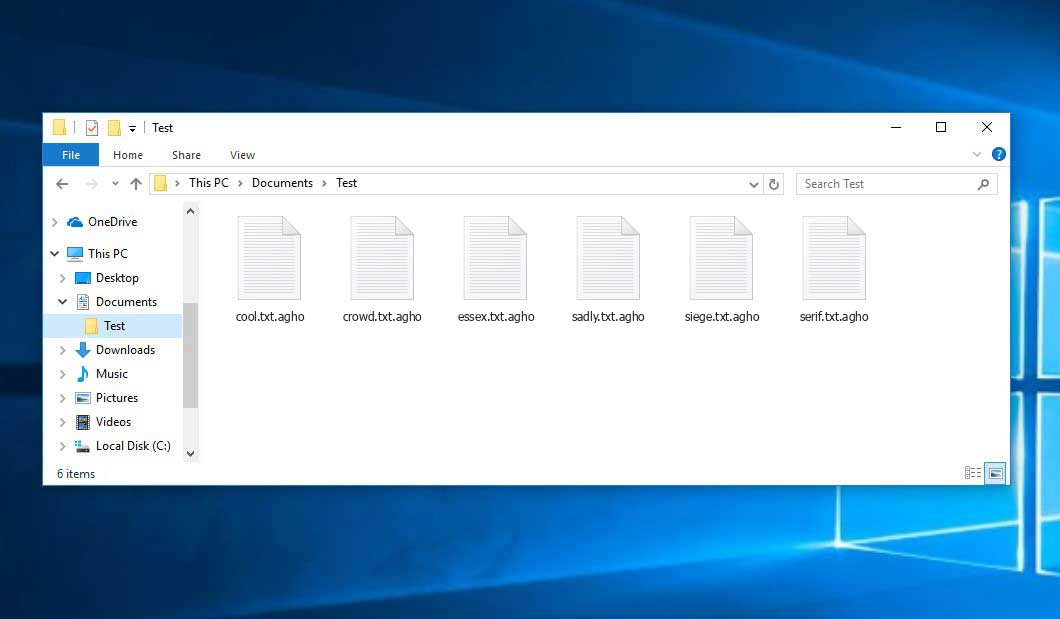
Example of encrypted .agho files
How to remove Agho virus?
In addition to encode a victim’s files, the Agho virus has also started to install the Azorult Spyware on system to steal account credentials, cryptocurrency wallets, desktop files, and more.
Reasons why I would recommend GridinSoft5
Download Removal Tool.
Run the setup file.
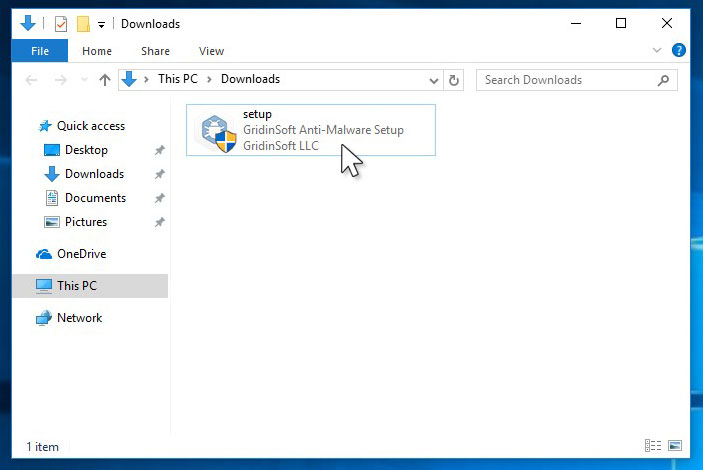
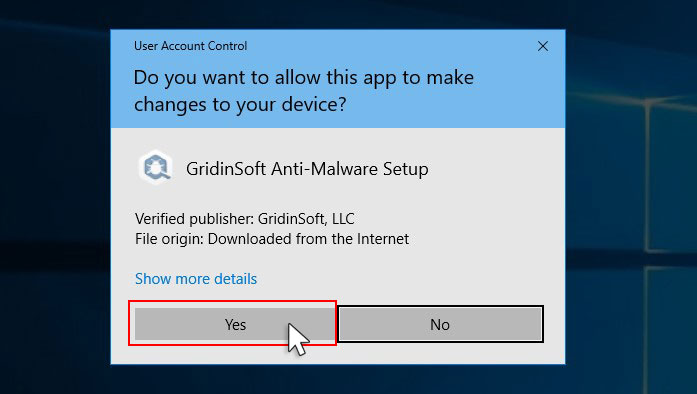
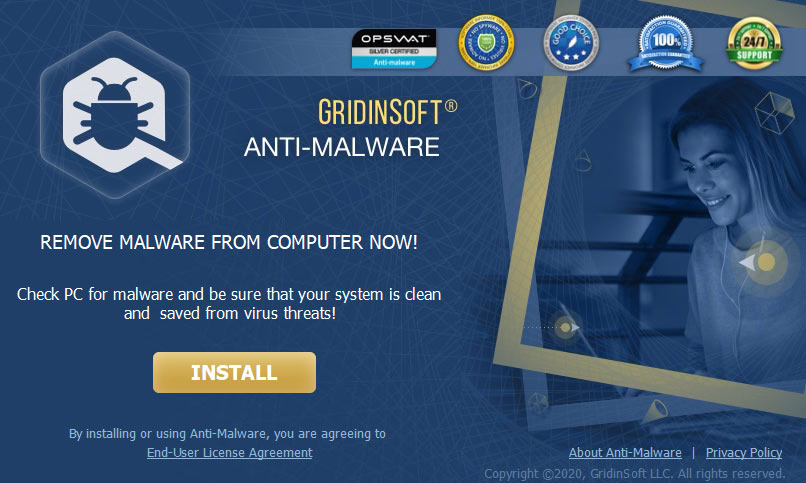
Press “Install” button.
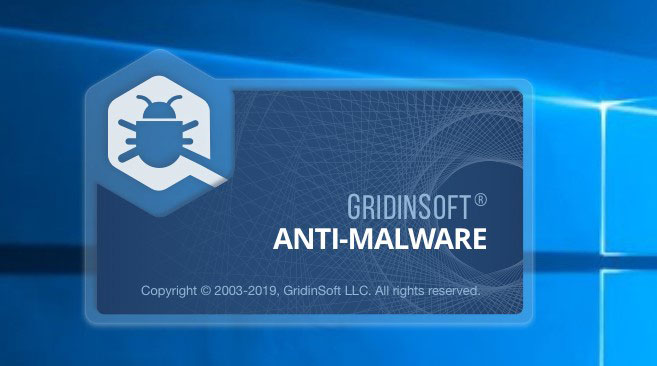
Once installed, Anti-Malware will automatically run.
Wait for the Anti-Malware scan to complete.
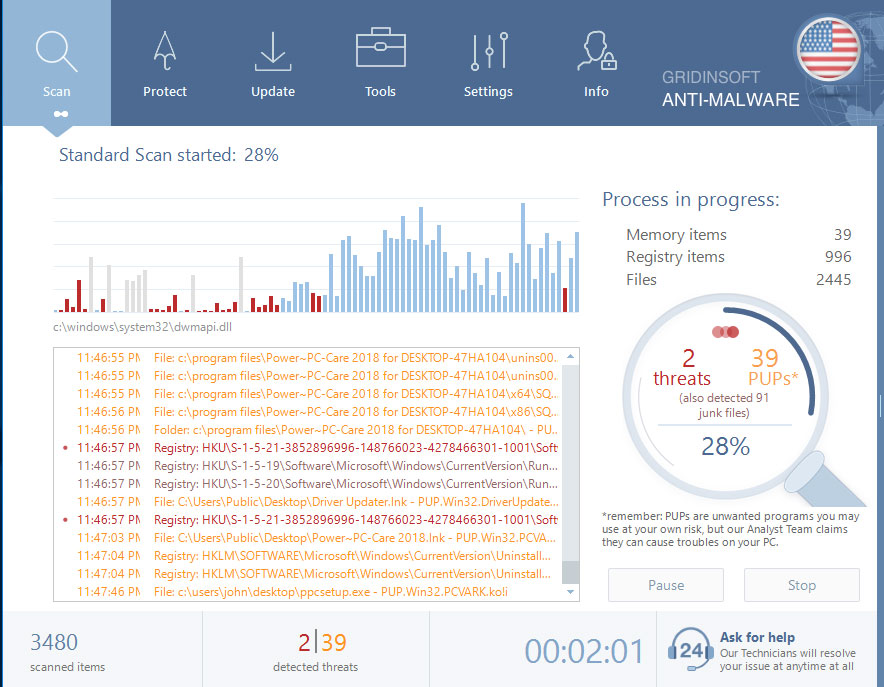
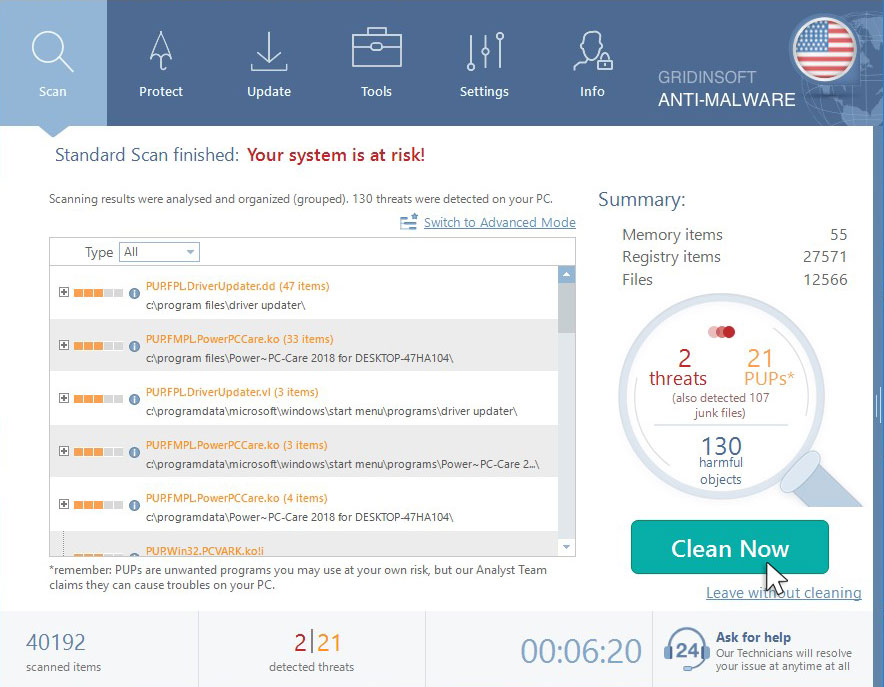
Click on “Clean Now”.
How to decrypt .agho files?
Restore solution for big “.agho files“
Try removing .agho extension on a few BIG files and opening them. Either the Agho ransomware read and did not encrypt the file, or it bugged and did not add the filemarker. If your files are very large (2GB+), the latter is most likely. Please, let me know in comments if that will work for you.
The newest extensions released around the end of August 2019 after the criminals made changes. This includes Iiss, Iiss, Efji, etc.
As a result of the changes made by the criminals, STOPDecrypter is no longer supported. It has been removed and replaced with the Emsisoft Decryptor for STOP Djvu Ransomware developed by Emsisoft and Michael Gillespie.
You can download free decryption tool here: Decryptor for STOP Djvu.
Download and run decryption tool.
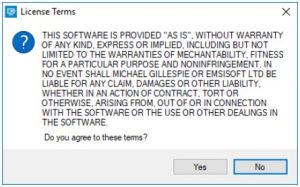
Make sure to launch the decryption utility as an administrator. You need to agree with the license terms that will come up. For this purpose, click on the “Yes” button:
As soon as you accept the license terms, the main decryptor user interface comes up:
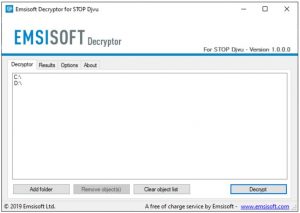
Select folders for decryption.
Based on the default settings, the decryptor will automatically populate the available locations in order to decrypt the currently available drives (the connected ones), including the network drives. Extra (optional) locations can be selected with the help of the “Add” button.
Decryptors normally suggest several options considering the specific malware family. The current possible options are presented in the Options tab and can be activated or deactivated there. You may locate a detailed list of the currently active Options below.
Click on the “Decrypt” button.
As soon as yo add all the desired locations for decryption into the list, click on the “Decrypt” button in order to initiate the decryption procedure.
Note that the main screen may turn you to a status view, letting you know of the active process and the decryption statistics of your data:
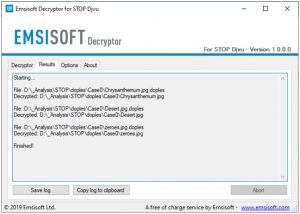
The decryptor will notify you as soon as the decryption procedure is completed. If you need the report for your personal papers, you can save it by choosing the “Save log” button. Note that it is also possible to copy it directly to your clipboard and to paste it into emails or forum messages if you need to do so.
How to Restore .Agho files?
In some case AGHO ransomware is not doom for your files…
Agho ransomware encryption mechanism feature is next: it encrypts every file byte-by-byte, then saves a file copy, deleting (and not overriding!) the original file. Hence, the information of the file location on the physical disk is lost, but the original file is not deleted from the physical disk. The cell, or the sector where this file was stored, can still contain this file, but it is not listed by the file system and can be overwritten by data that has been loaded to this disk after the deletion. Hence, it is possible to recover your files using special software.
Recovering your files with PhotoRec
PhotoRec is an open-source program, which is originally created for file recovery from damaged disks, or for file recovery in case if they are deleted. However, as time has gone by, this program got the ability to recover the files of 400 different extensions. Hence, it can be used for data recovery after the ransomware attack
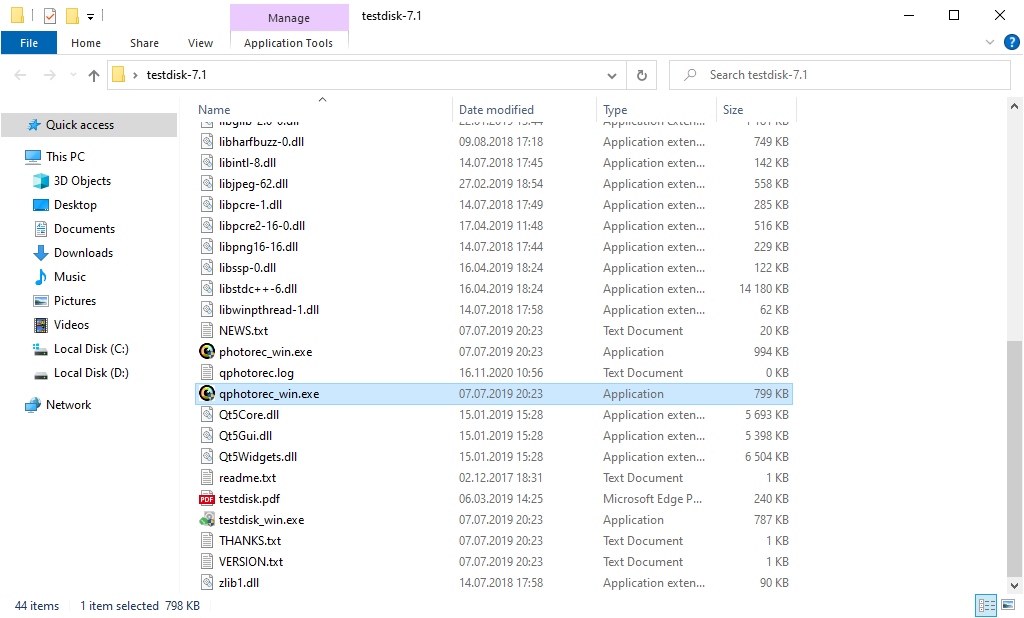
At first, you need to download this app. It is 100% free, but the developer states that there is no guarantee that your files will be recovered. PhotoRec is distributed in a pack with other utility of the same developer – TestDisk. The downloaded archive will have TestDisk name, but don’t worry. PhotoRec files are right inside.
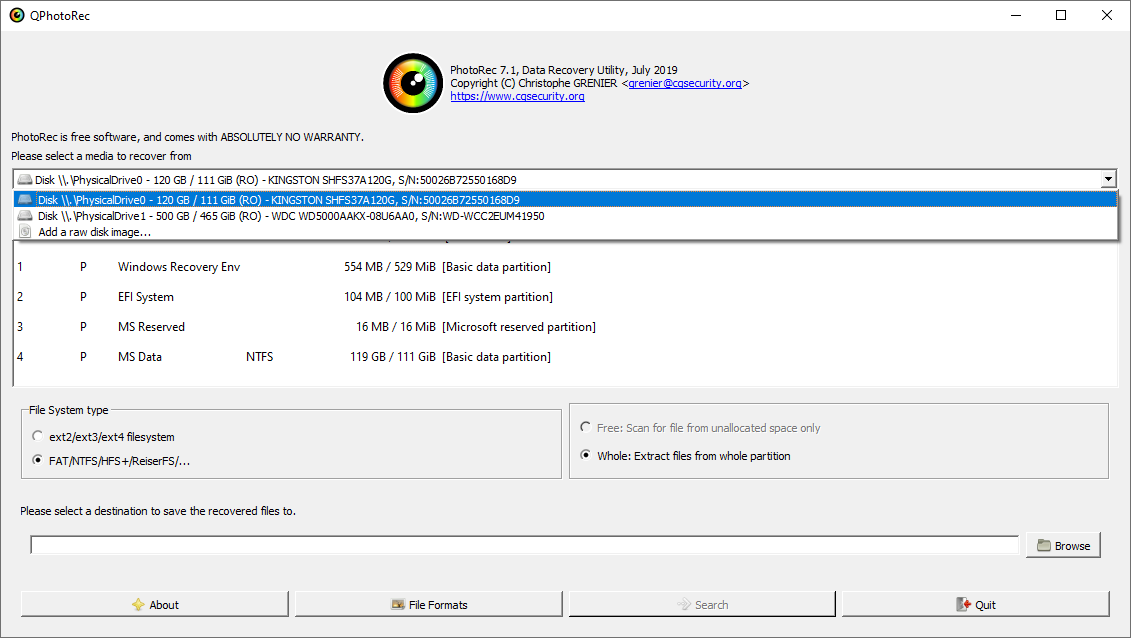
After the launch, you will see the screen showing you the full list of your disk spaces. However, this information is likely useless, because the required menu is placed a bit higher. Click this bar, then choose the disk which was attacked by ransomware.
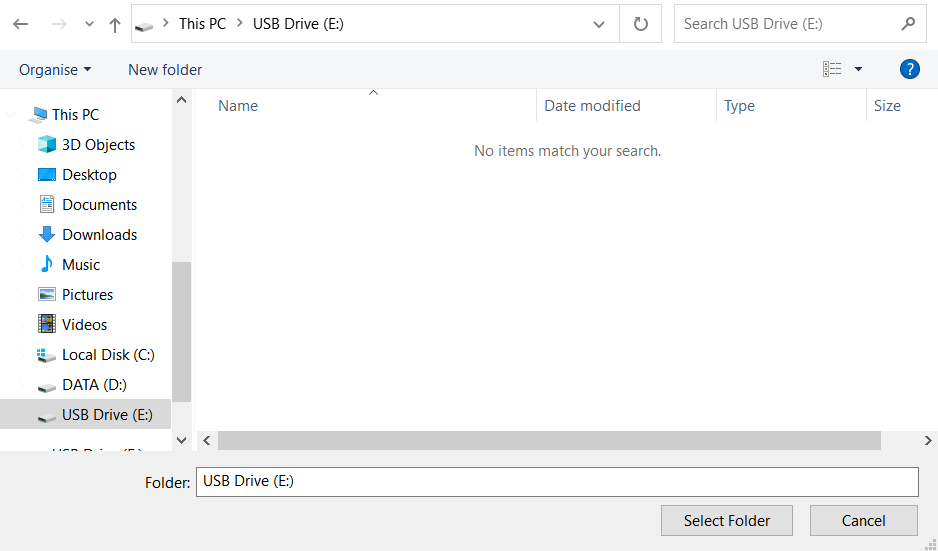
After choosing the disk, you need to choose the destination folder for the recovered files. This menu is located at the lower part of the PhotoRec window. The best desicion is to export them on USB drive or any other type of removable disk.
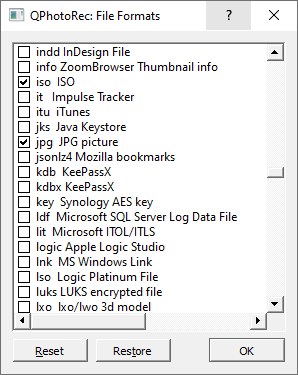
Then, you need to specify the file formats. This option is located at the bottom, too. As it was mentioned, PhotoRec can recover the files of about 400 different formats.
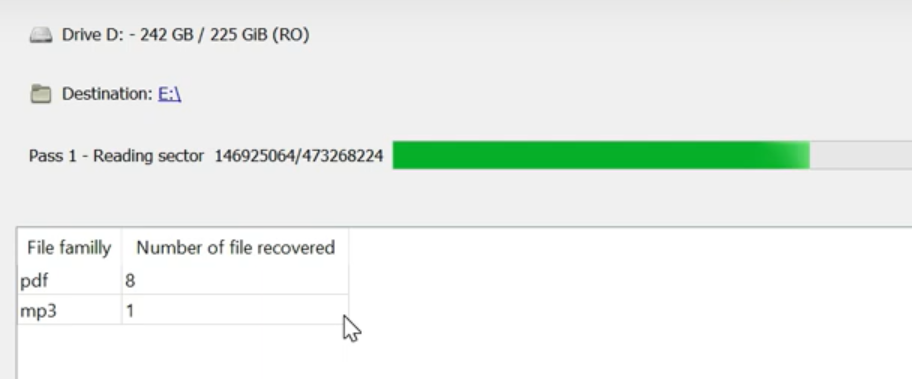
Finally, you can start files recovery by pressing the “Search” button. You will see the screen where the results of the scan and recovery are shown.
Frequently Asked Questions
Video Guide
It’s my favorite video tutorial: How to use GridinSoft Anti-Malware and Emsisoft Decryptor for fix ransomware infections.
I need your help to share this article.
It is your turn to help other people. I have written this article to help people like you. You can use the buttons below to share this on your favorite social media Facebook, Twitter, or Reddit.
Brendan SmithReferences
- Ransomware-type infection: https://en.wikipedia.org/wiki/Ransomware
- Twitter: https://twitter.com/demonslay335
- My files are encrypted by ransomware, what should I do now?
- About DJVU (STOP) Ransomware.
 German
  Japanese
  Spanish
  Portuguese (Brazil)
  French
  Turkish
  Chinese (Traditional)
  Korean


Leave a Comment