
Tiworker.exe is a system process you can spectate in Task Manager. The Windows Modules Installer Worker runs in the background, together with tens of other Windows processes. A lot of users do not know about its purpose and think it is a virus or something that may harm their computer. In this post, you will see what is the purpose of the Tiworker.exe Worker process, and why it is needed for the correct system functioning.
What is Tiworker.exe?
This internal system application, also known as TiWorker.exe, is needed for correct update installation. Numerous updates you get while making use of Windows 10 are installed with the help of this system process. Since 2016, when Windows 10 adopted the rolling release updates, Microsoft releases the updates each second Tuesday of every month. In these patches, the company fixes the bugs, improves different security aspects, and makes different changes to system settings. All these changes are targeted at increasing stability and security of the operating system.
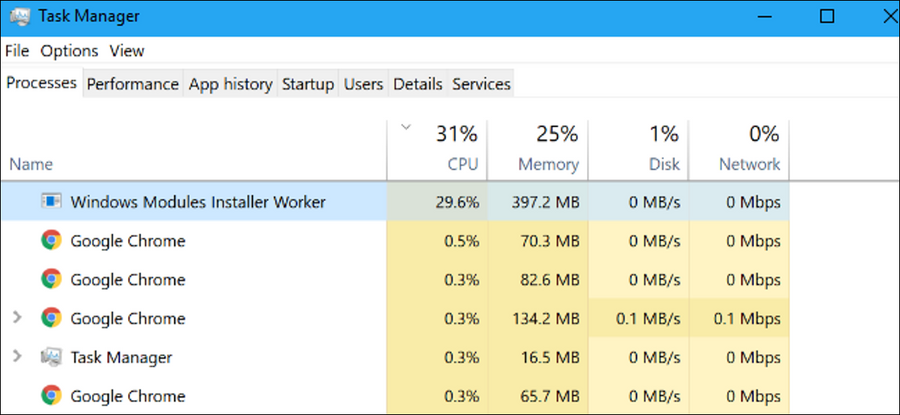
Tiworker.exe in Task Manager
Besides the system patching, Tiworker.exe is responsible for system components installation or uninstallation. When you decide to remove or install, for example, Films&TV, Calendar, or Maps applications, this service takes control of the process. It manages the correct order of operations, so all of these system programs are installed correctly and working well.
Can I stop Tiworker.exe?
This process is vital for correct update installation. If you want to have the latest version of Windows, it is better to keep it enabled. Sometimes, this service can consume significant amounts of hardware capacity, especially on weak systems. That does not mean that something is wrong with your system or this process. If you see that Tiworker.exe constantly consumes your hardware, try to run the official troubleshooting guide for update errors. Keeping your system up to date is very important in cases when we are talking about security. Microsoft constantly patches possible security holes, and there is no way to patch your system besides the update installation.
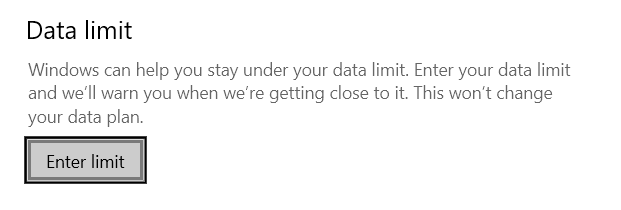
The times when you can stop the Windows processes to increase the system performance have passed long ago. When Windows XP was the last actual OS version, computers were quite weak, and their upgrade was quite expensive, disabling several services could really make your PC faster without any significant problems. Nowadays, such tricks can make things even worse. If you don’t want to get the updates for your system without your allowance, it is better to use another way. In Settings, go to “Network and Internet”. Then, click the “Data usage” button. In the appeared menu, choose the “Enter limit” option to set the network traffic limit. You can enter the number you want, and the system will not use this network to download the updates.


Leave a Comment