
MarsNows1.click pop-ups appear out of the blue, bothering and annoying you. Nonetheless, they are much more than simple pop-ups – their essence is purely malicious, and they may introduce other malware to your system. In this article, I will guide you on how to remove MarsNows1.click pop-ups and explain how to avoid them in the future.
Any interaction with MarsNows1.click push notifications will be useless at best. In worst case scenario, the sites it can throw you to may introduce malware to your system. These push notifications may also advertise fake online shopping websites which will take your money and payment info. The latter generally ends up with losing all the money you have on the exposed card.
What are MarsNows1.click pop-up advertisements?
Brief summary of the Marsnows1.click pop-ups:
| Name | Marsnows1.click |
| Hosting | AS14061 DigitalOcean, LLC Germany, Frankfurt am Main |
| IP Address | 157.230.19.104 |
| Malware type | Adware1 |
| Effect | Unwanted pop-up advertisements |
| Hazard level | Medium |
| Malware source | Apps from third-party websites, ads on dubious websites |
| Similar behavior | Wait4download, Oveadvertisingupfor, G0push |
| Removal method |
To remove possible virus infections, try to scan your PC
|
MarsNows1.click pop-up ads, on the other hand, are related to unlegit web pages. You will generally witness the offer to turn them on after a redirection from another website. It’s OK to see redirects unless they throw you to such a dubious place. At that point, turning on pop-ups is offered under the guise of the anti-DDoS check. In other cases, the websites can deny showing you the contents unless you enable these pop-up advertisements. These requirements should raise suspicion, as websites commonly feature a more convenient anti-bot mechanism. Seeing this demand is a reason to close the website right away. In some cases, even when you click “Allow”, you will not get to the web page – it has only a landing page with the offer to turn on the push notifications.
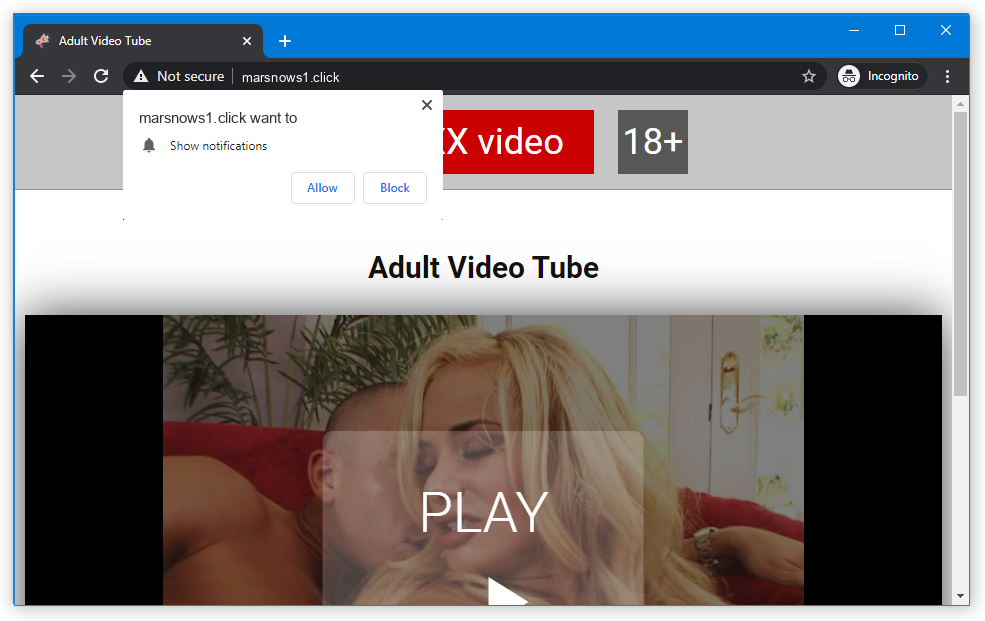
MarsNows1.click push notification.
How does this work?
The vast majority of web browsers support enabling pop-ups from websites. Sites, on the other hand, may send notifications with the content they want. It may be a promotion of the product published on this particular website, as well as an ad of the page of their partner. As a result, you can see the push notification from site X, but opening it will direct you to site Y – because a referral link to the latter was added.
The promotions these crooks show are paid under the pay-per-view model. It commonly provides a miserable payment for one viewer, but when you can send ads to a huge number of victims and show them hundreds of ads each day – that is a much bigger sum. Despite most of such ads are ineffective, it can still bring all the parties a lot of profit.
Are MarsNows1.click pop-ups dangerous?
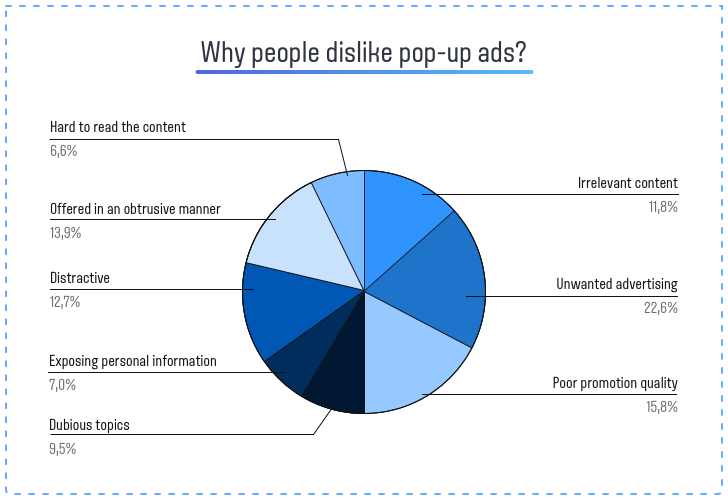
Yes, they are. At the surface, they may look harmless – just a blinking pop-up that appears a couple times in an hour. However, the contents of this window differ drastically from what you used to see in pop-ups. Marsnows1.click website is controlled by crooks, who deliberately spread hundreds and thousands of malicious ads in pop-ups. They also never follow any common sense and can make sporadic pop-ups into a hurricane of ads. For weak computers, that may be enough to make the system slower. But that is not all troubles these pop-up advertisements carry.
How to remove MarsNows1.click pop-ups?
First and foremost, you should reset your browser settings. You can do that in both manual and automatic manner. The former, obviously, takes more time to complete and may be somewhat complicated if you have never done that. Automated supposes the use of anti-malware programs that can reset all browser settings at once.
Reset your browsers manually
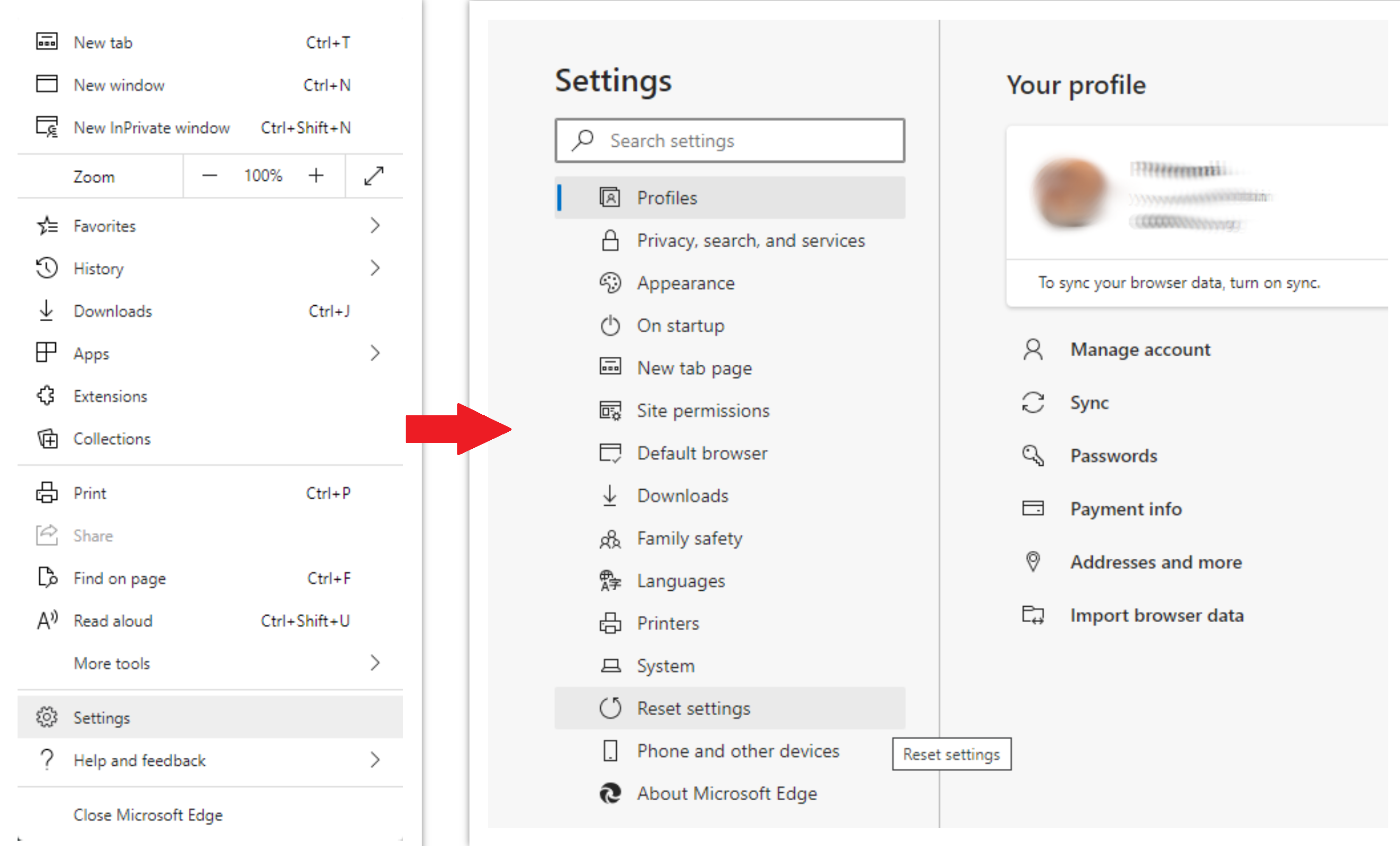
To reset Edge, do the following steps:
- Open “Settings and more” tab in upper right corner, then find here “Settings” button. In the appeared menu, choose “Reset settings” option:
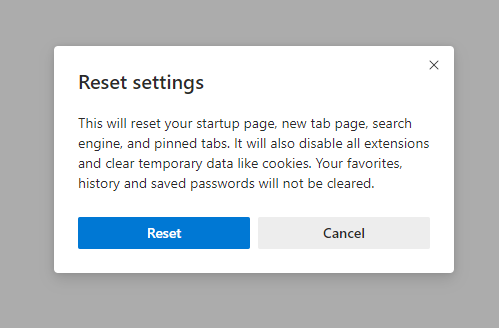
- After picking the Reset Settings option, you will see the following menu, stating about the settings which will be reverted to original:
For Mozilla Firefox, do the next actions:
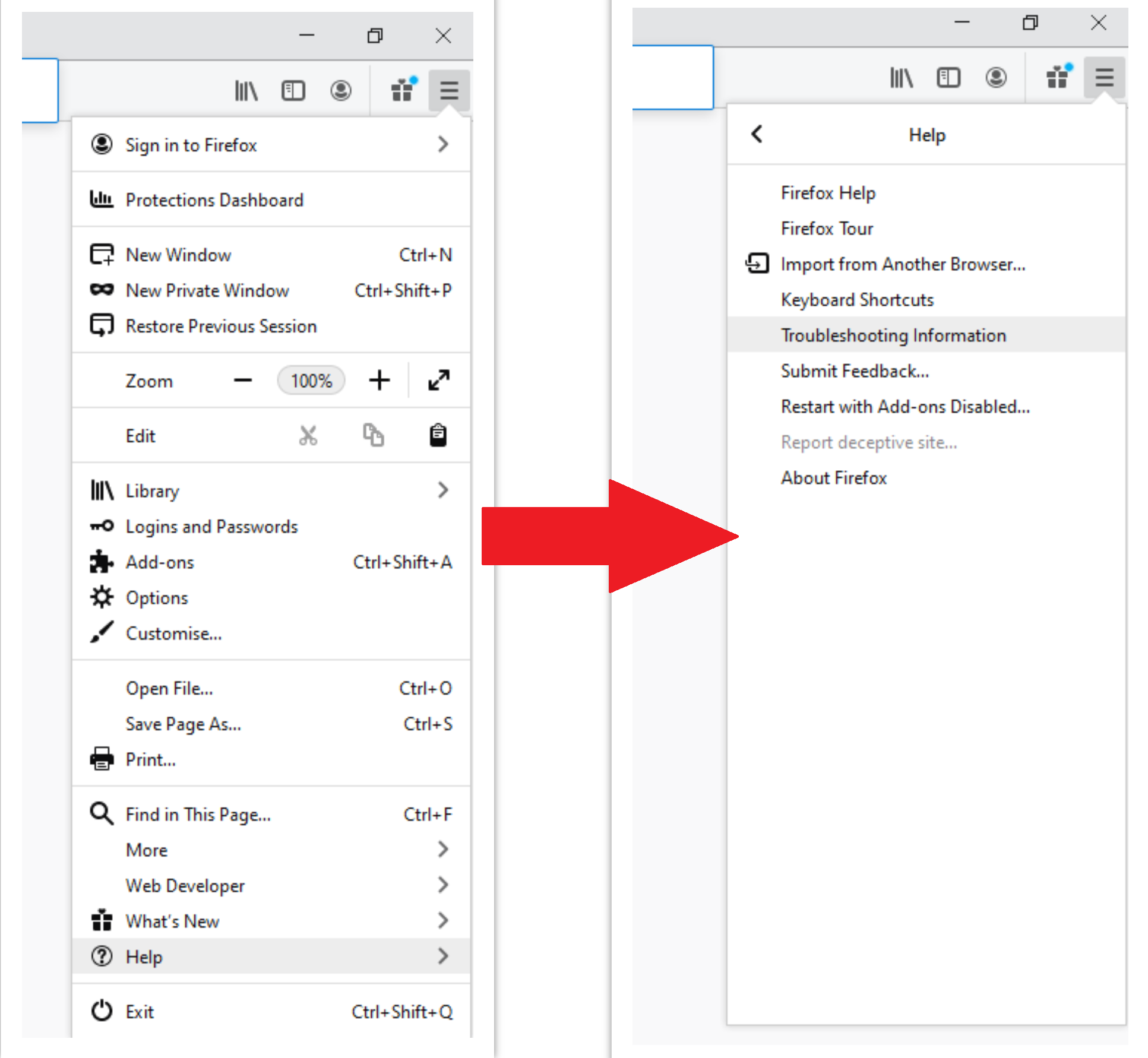
- Open Menu tab (three strips in upper right corner) and click the “Help” button. In the appeared menu choose “troubleshooting information”:
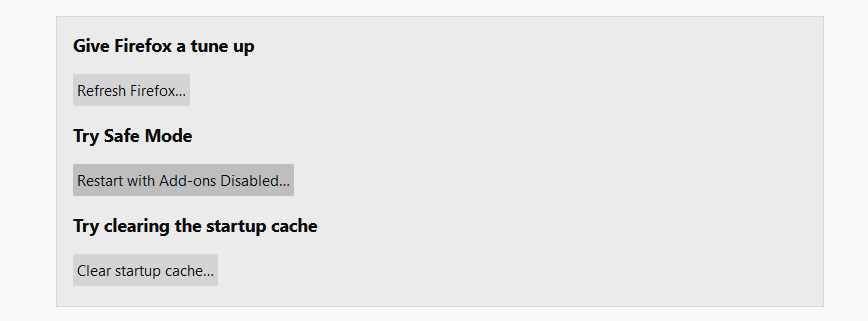
- In the next screen, find the “Refresh Firefox” option:
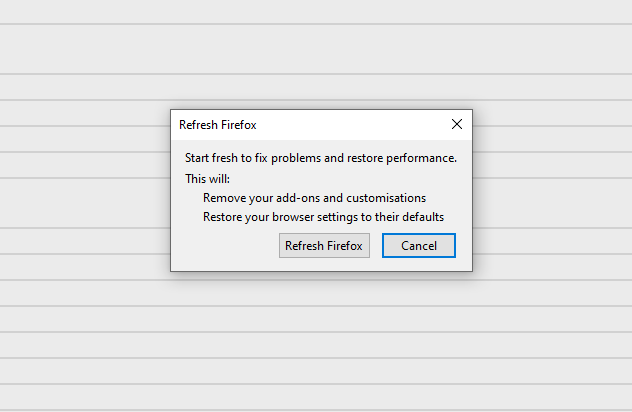
After choosing this option, you will see the next message:
If you use Google Chrome
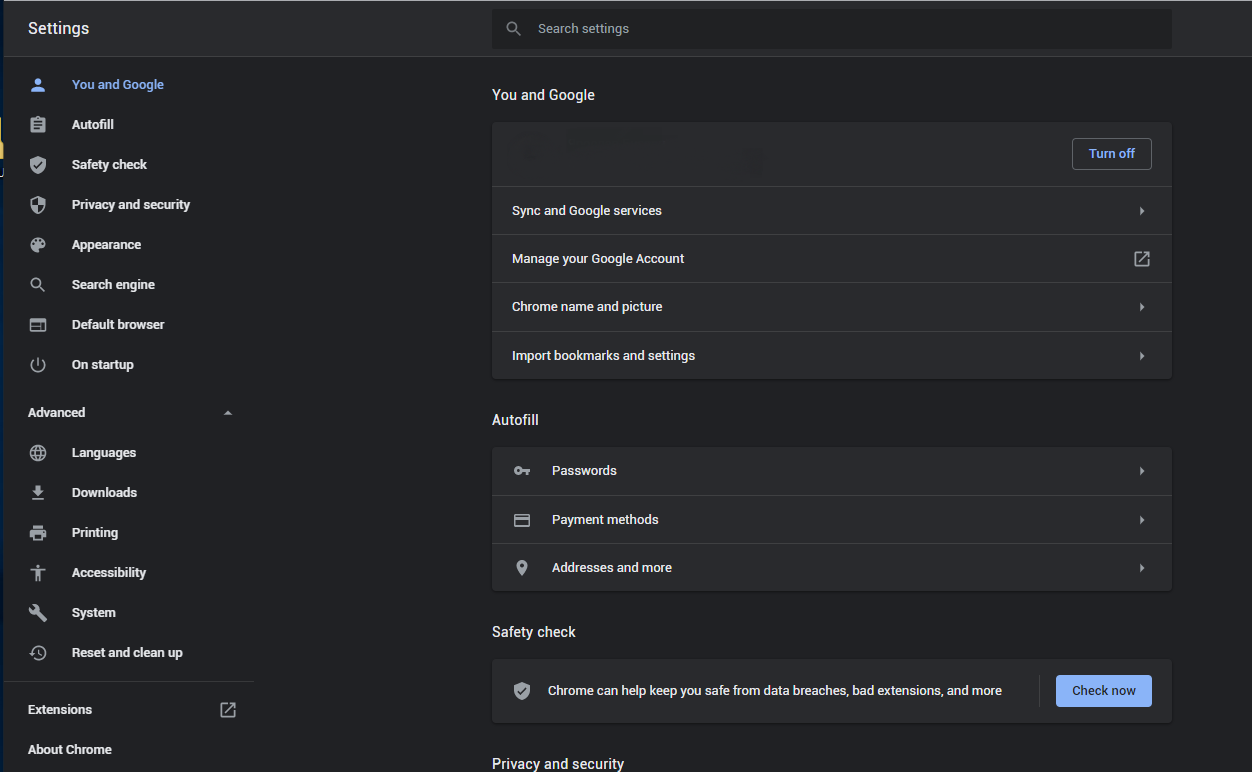
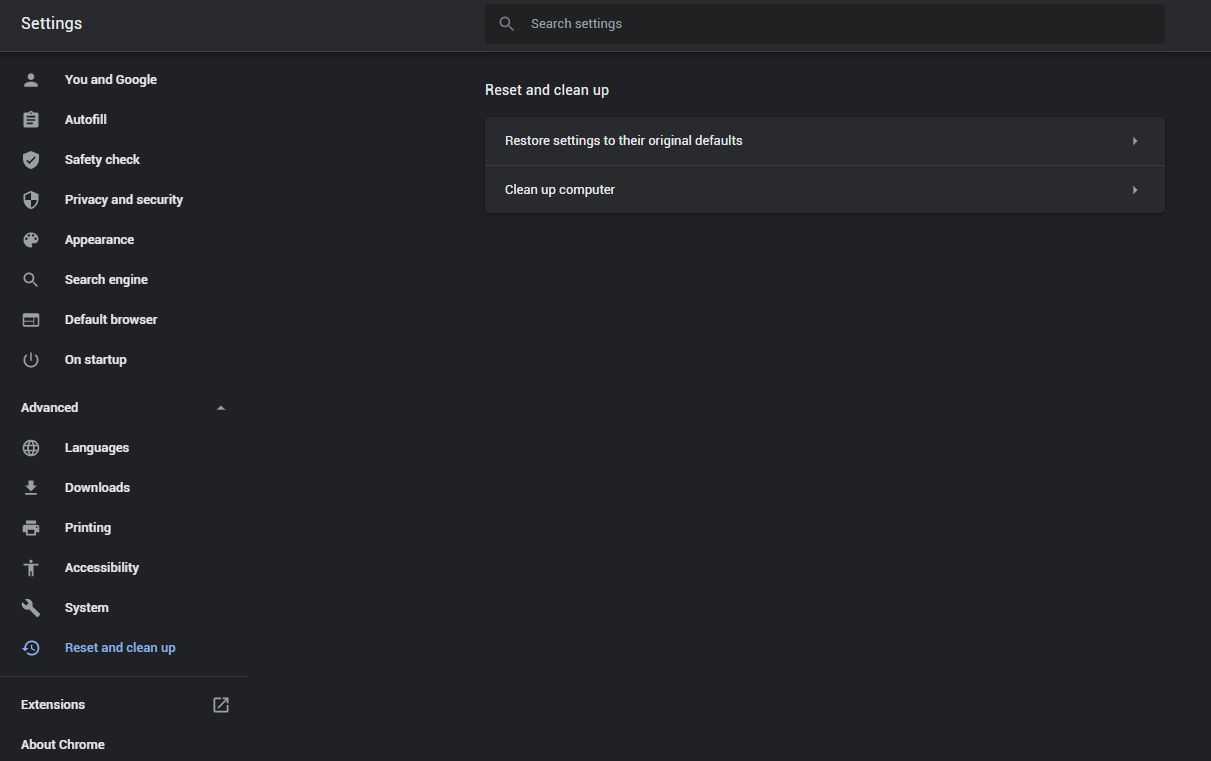
- Open Settings tab, find the “Advanced” button. In the extended tab choose the “Reset and clean up” button:
- In the appeared list, click on the “Restore settings to their original defaults”:
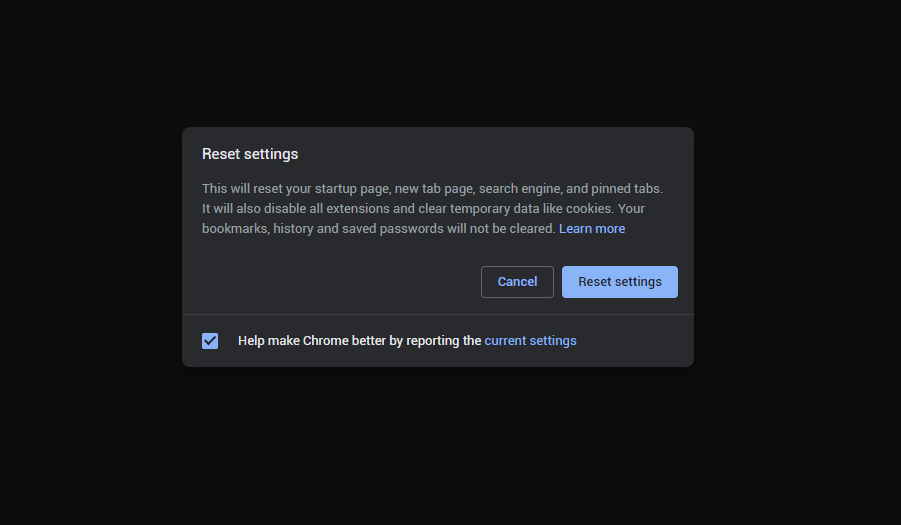
- Finally, you will see the window, where you can see all the settings which will be reset to default:
Opera can be reset in the next way
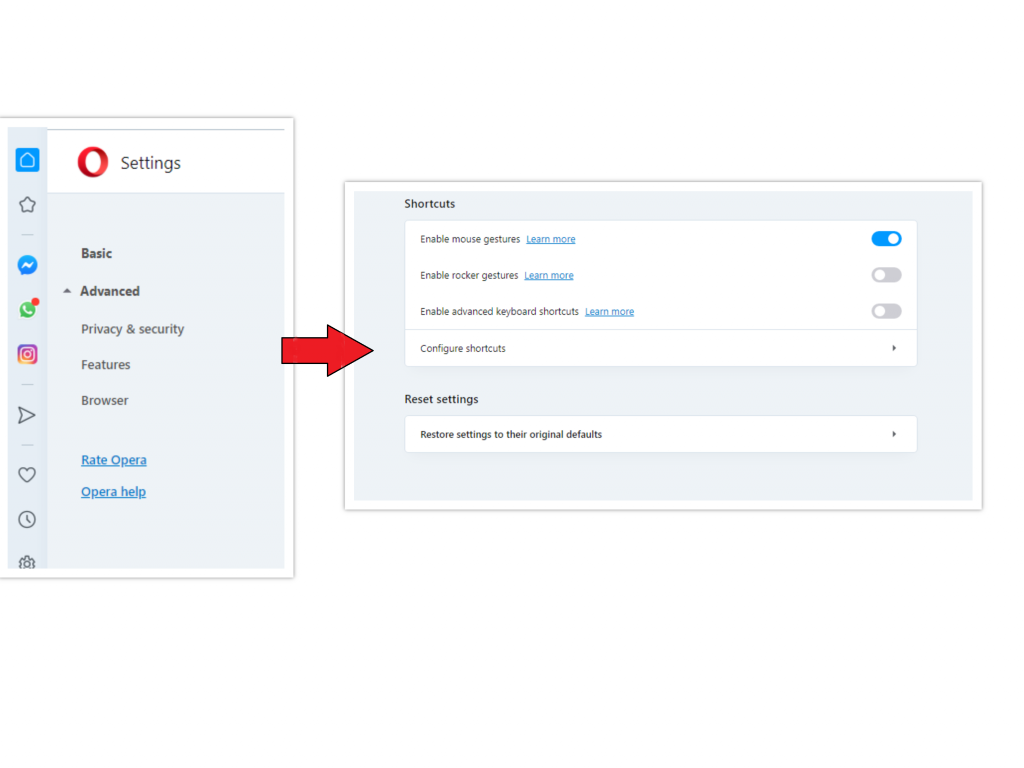
- Open Settings menu by pressing the gear icon in the toolbar (left side of the browser window), then click “Advanced” option, and choose “Browser” button in the drop-down list. Scroll down, to the bottom of the settings menu. Find there “Restore settings to their original defaults” option:
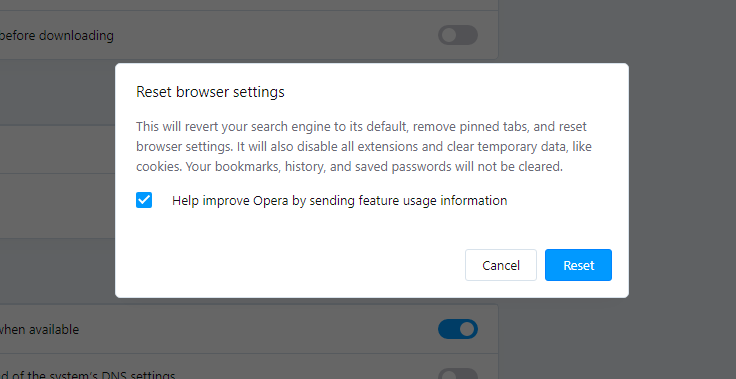
- After clicking the “Restore settings…” button, you will see the window, where all settings, which will be reset, are shown:
When the browsers are reset, you need to ensure that your browser will connect the right DNS while connecting to the website you need. Create a text file titled “hosts” on your pc’s desktop, then open it and fill it with the following lines2:
# Copyright (c) 1993-2006 Microsoft Corp.

#

# This is a sample HOSTS file used by Microsoft TCP/IP for Windows.

#

# This file contains the mappings of IP addresses to host names. Each

# entry should be kept on an individual line. The IP address should

# be placed in the first column followed by the corresponding host name.

# The IP address and the host name should be separated by at least one

# space.

#

# Additionally, comments (such as these) may be inserted on individual

# lines or following the machine name denoted by a '#' symbol.

#

# For example:

#

# 102.54.94.97 rhino.acme.com # source server

# 38.25.63.10 x.acme.com # x client host

# localhost name resolution is handle within DNS itself.

# 127.0.0.1 localhost

# ::1 localhost
Find the hosts.txt file in C:/Windows/System32/drivers/etc directory. Rename this file to “hosts.old.txt” (to distinguish it from the new one), and then move the file you created on the desktop to this folder. Remove the hosts.old from this folder. Now you have your hosts file as good as new.
Scan your system for possible viruses
Once the scan is complete, you will see the detections or a notification about a clean system. Proceed with pressing the Clean Up button (or OK when nothing is detected).
References
- Official Microsoft guide for hosts file reset.


Leave a Comment