
If Discord shows “Stream Paused” or tells viewers to “Switch to Application to Resume”, the stream has not necessarily crashed. In many cases, Discord is still connected to the voice channel, but it has stopped sending the captured app window because it believes the window is no longer active, visible, or capturable.
This guide focuses on that exact message, not on generic Discord lag. The fixes below start with the capture mode and window focus problems that usually trigger the pause, then move into overlays, hardware acceleration, permissions, cache, and viewer-side checks.
Quick Fix
First, stop the stream and start it again by sharing the entire screen instead of the individual app window. If the paused message disappears, Discord was losing track of the application window. You can then switch the game or app to borderless windowed mode and try sharing the specific application again.
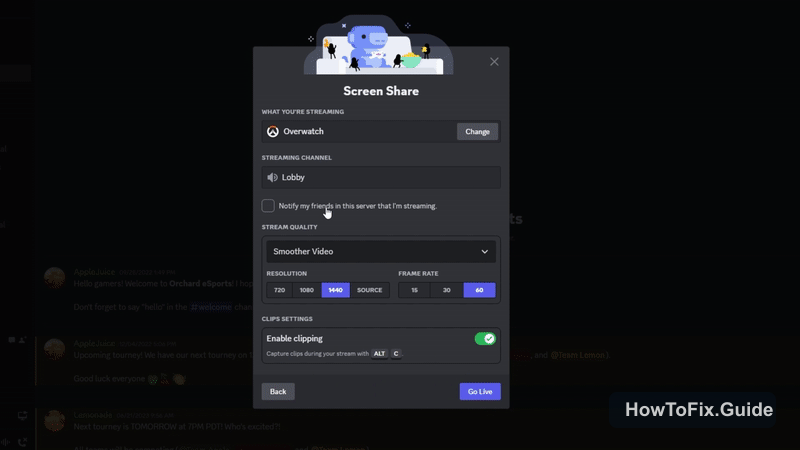
If the issue started after changing graphics settings, enabling an overlay, or updating Discord, use this order:
- Restart the stream with the application open and focused.
- Try sharing the full screen instead of the app window.
- Use borderless windowed mode instead of exclusive fullscreen.
- Disable game overlays from Discord, Steam, NVIDIA, AMD, Xbox Game Bar, and recording tools.
- Toggle Discord hardware acceleration under Voice & Video.
- Run Discord as administrator on Windows.
- Clear Discord cache and restart the app.
What “Stream Paused” Means in Discord
Discord can share either an individual application window or an entire screen. Discord’s own Go Live documentation explains that users can choose a single application window or a full screen when starting a stream, and games may also need to be detected by Discord’s game detection system before they can be streamed directly.
The “Stream Paused” state usually means Discord still has the stream session open, but the selected capture source is no longer producing frames. This can happen when the target app is minimized, hidden behind another window, running in an exclusive fullscreen mode, moved to another display, blocked by permissions, or captured through a graphics path Discord does not handle well.
There is one normal pause behavior that can confuse people: Discord notes that the small Picture-in-Picture preview can pause when the game is in focus. That is not always the same as viewers seeing a paused stream. The problem is real when viewers see the paused screen and cannot watch your app or game.
Check If You Are Sharing an App Window or the Entire Screen
This is the most important diagnostic step.
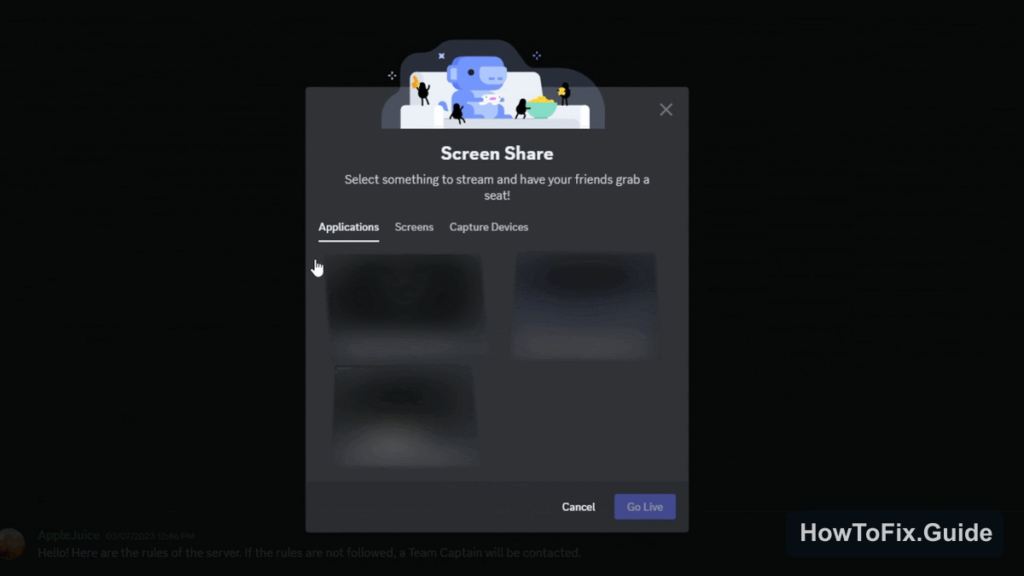
If you are sharing an app window: Discord depends on that exact window staying visible and capturable. If the app changes renderer, opens a launcher, uses a protected video surface, switches to exclusive fullscreen, or minimizes after alt-tab, viewers may see “Stream Paused.”
If you are sharing the entire screen: Discord captures the monitor output instead. This is less private, but it is more tolerant when games or apps behave strangely.
Try this:
- End the current stream.
- Open the game or app first.
- Return to Discord and click Screen.
- Select Screen, not the individual application.
- Start the stream and ask a viewer if the pause message is gone.
If sharing the entire screen works, the problem is not your internet connection. It is almost certainly window capture, game detection, fullscreen mode, overlays, or permissions.
Switch Fullscreen Games to Borderless Windowed
Exclusive fullscreen can break Discord capture because the game may take direct control of the display. Viewers can end up seeing a paused stream while you see the game normally.
Open the game settings and change the display mode from Fullscreen to one of these options:
- Borderless Windowed
- Windowed Fullscreen
- Windowed
After changing the mode, restart the Discord stream. If the game has a launcher, make sure you share the actual game window, not only the launcher window.
If Stream Pauses After Alt-Tab
If the stream works until you alt-tab, Discord may be losing focus on the captured app. This is common with games, launchers, remote desktop windows, emulators, browser video, and apps that create a new render window after launch.
Use this sequence:
- Close the stream.
- Alt-tab into the app or game and leave it open.
- Alt-tab back to Discord without minimizing the target app.
- Start Go Live again.
- If the stream pauses again, switch to full screen capture.
For games, also disable any “pause when unfocused” setting if the game has one. Some games stop rendering when they are not the active window, which can make Discord show a frozen or paused stream.
Disable Overlays That Hook Into the Game
Overlays can conflict with screen capture because several programs try to hook into the same game frame at the same time. Discord overlay, Steam overlay, NVIDIA overlay, AMD overlay, Xbox Game Bar, FPS counters, clipping tools, and recording tools can all contribute.
Turn them off temporarily and test the stream again:
- Discord: User Settings > Game Overlay > disable in-game overlay.
- Steam: Steam Settings > In Game > disable Steam Overlay.
- NVIDIA: NVIDIA App or GeForce Experience > disable in-game overlay.
- Xbox Game Bar: Windows Settings > Gaming > Xbox Game Bar.
- Recording tools: close OBS, Medal, Overwolf, ReLive, ShadowPlay, or similar apps for the test.
If disabling overlays fixes the stream, re-enable them one at a time. Keep the one that breaks Discord disabled while streaming.
Toggle Hardware Acceleration in Discord
Discord’s official troubleshooting guide recommends checking hardware acceleration when stream or screen share problems appear. Depending on the GPU driver and the app being captured, hardware acceleration can either help Discord encode the stream smoothly or cause capture instability.
Try both states:
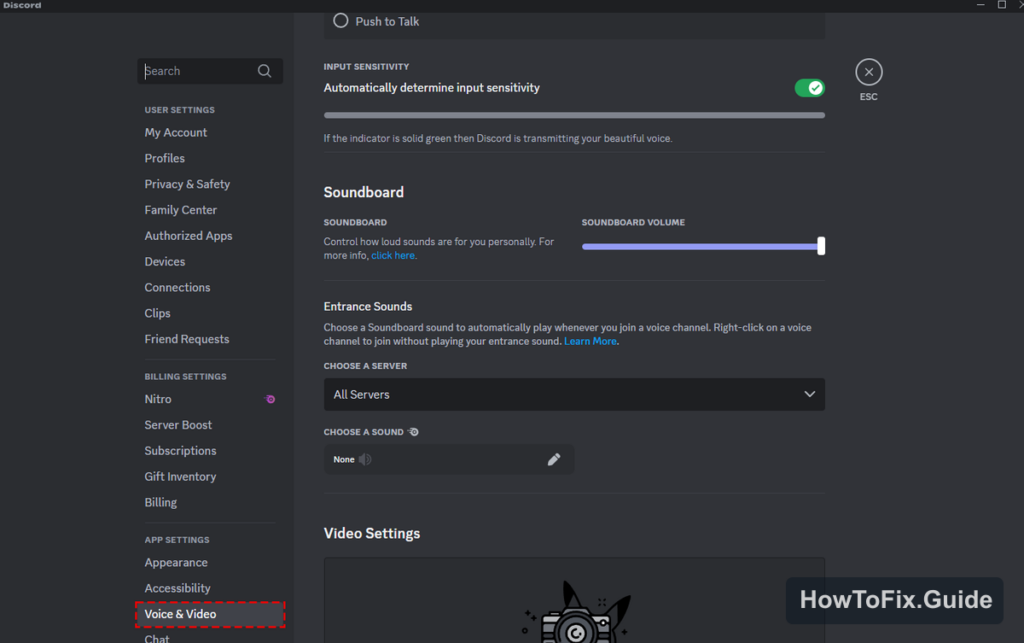
- Open Discord.
- Go to User Settings.
- Open Voice & Video.
- Find the Video or Advanced section.
- Toggle Hardware Acceleration.
- Restart Discord and test the stream again.
If the stream becomes stable after the toggle, leave the setting in the working state. There is no universal best value here; it depends on the GPU, driver, app, and Discord build.
Turn Off Experimental Screen Capture Settings
Some Discord builds include screen capture options such as “Use our advanced technology to capture your screen” or similar experimental capture settings under Voice & Video. The wording may change between Discord versions.
If you see this option, test it both ways:
- User Settings > Voice & Video.
- Scroll to screen share or advanced settings.
- Disable the advanced capture option.
- Restart the stream.
- If it gets worse, turn it back on.
This is especially useful when only one specific game or app pauses while other streams work normally.
Run Discord as Administrator on Windows
If the game runs as administrator but Discord does not, Discord may not be allowed to capture the game window correctly. Discord’s troubleshooting guidance also lists running Discord as administrator as a Windows-specific step for screen share problems.
To test it:
- Completely close Discord from the system tray.
- Right-click the Discord shortcut.
- Choose Run as administrator.
- Open the game or app.
- Start the stream again.
If this fixes the issue, you can set Discord to always run as administrator from the shortcut properties. Do this only if you understand the tradeoff: administrator apps have more system access, so avoid running unknown plugins or modified Discord clients.
Check Screen Recording Permissions on macOS
On macOS, Discord needs Screen Recording permission. Without it, screen share can show a blank, paused, or incorrect view.
Check it here:
- Open System Settings.
- Go to Privacy & Security.
- Open Screen Recording.
- Enable Discord.
- Restart Discord.
If Discord was already enabled, toggle it off and on, then restart the app. macOS permission changes often require a full app restart before capture works correctly.
Lower Stream Quality for a Stability Test
If viewers see “Stream Paused” together with freezing, stuttering, or reconnecting, stream quality may be too high for the connection or encoder. Discord allows stream quality changes from the stream controls, though browser streaming has fewer quality controls than the desktop client.
For testing, use:
- 720p instead of 1080p or higher
- 30 FPS instead of 60 FPS
- Full screen capture instead of app capture
- Wired Ethernet instead of Wi-Fi, if available
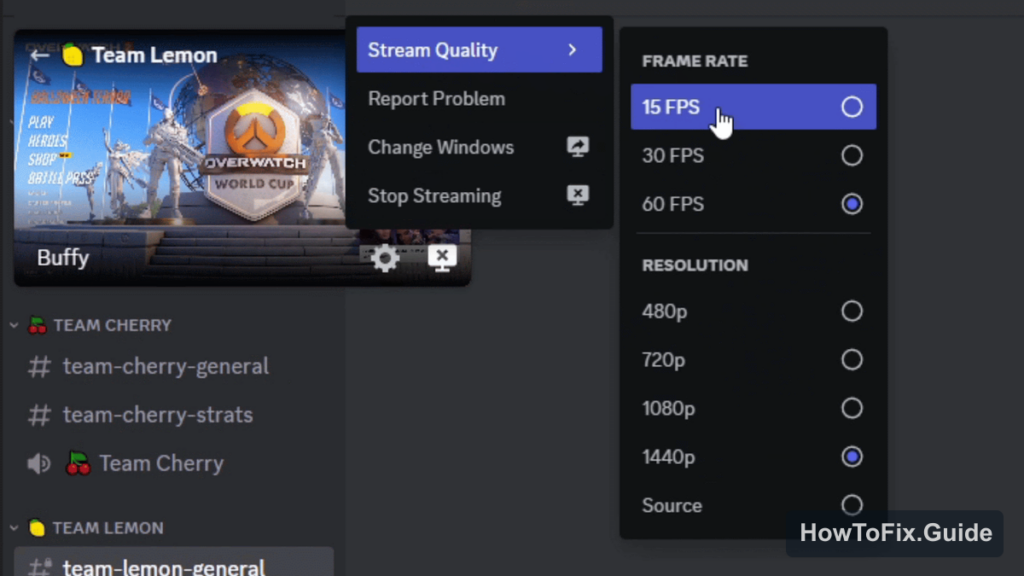
If lower quality fixes the issue, the pause was likely related to encoding, bandwidth, or a driver/overlay conflict rather than a broken Discord account.
Clear Discord Cache
Discord cache corruption can cause odd client behavior, especially after updates. Clearing cache will not remove your account or servers.
Windows
- Quit Discord completely.
- Press Win + R.
- Enter
%appdata%discord. - Delete the folders
Cache,Code Cache, andGPUCache. - Start Discord again.
macOS
- Quit Discord.
- Open Finder.
- Press Command + Shift + G.
- Open
~/Library/Application Support/discord. - Delete
Cache,Code Cache, andGPUCache. - Restart Discord.
Reset Voice and Video Settings
If you changed multiple Discord settings and the stream still pauses, reset the Voice & Video configuration.
- Open Discord User Settings.
- Go to Voice & Video.
- Open the Debugging section if your Discord build shows it.
- Select Reset Voice and Video Settings.
- Restart Discord and test screen share again.
After the reset, re-apply only the settings you actually need. Avoid changing hardware acceleration, experimental capture, overlays, and quality all at once; otherwise you will not know which change fixed the stream.
If Viewers See “Stream Paused” But You See the Game Fine
This usually means the capture pipeline failed on the streamer side, not that the game stopped running. Ask one viewer to leave and rejoin the stream, but do not spend too long troubleshooting viewer settings if several viewers see the same paused message.
Use this decision tree:
- Only one viewer sees it: viewer should rejoin the voice channel, restart Discord, or try the desktop app instead of browser.
- All viewers see it: streamer should switch capture source, restart Go Live, and test borderless windowed mode.
- It happens only after alt-tab: use full screen capture or keep the app focused.
- It happens only in one game: disable overlays and try a different display mode.
If Discord Pauses Spotify Playback
This is a different problem. Discord may pause Spotify playback in some situations related to account connection, voice activity, or audio detection. That issue is not the same as the Go Live “Stream Paused” message. If your video stream works but Spotify stops playing, troubleshoot Spotify integration and Discord account connections separately.
When to Reinstall Discord
Reinstall only after the capture and settings checks above. A reinstall is useful when Discord updates, cache cleanup, and Voice & Video reset do not change anything.
Before reinstalling, write down the current behavior:
- Does it happen with app capture, screen capture, or both?
- Does it happen in every game or only one game?
- Does it happen after alt-tab?
- Do all viewers see the pause?
- Does browser Discord behave differently from the desktop app?
That information is useful if you later contact Discord support.
Final Checklist
- Share the entire screen once to confirm whether app capture is the trigger.
- Use borderless windowed mode for fullscreen games.
- Disable overlays and recording hooks while testing.
- Toggle Discord hardware acceleration and restart the app.
- Run Discord as administrator on Windows if the game uses elevated permissions.
- Check Screen Recording permission on macOS.
- Lower stream quality to 720p/30fps for a stability test.
- Clear Discord cache and reset Voice & Video settings if the issue persists.
FAQ
Why does Discord say “Stream Paused”?
Usually Discord lost access to the app window it was capturing. Fullscreen mode, alt-tab behavior, overlays, permissions, or hardware acceleration can cause it.
Should I share my screen or the app window?
Use app window sharing for privacy. If it pauses, test full screen sharing. If full screen works, the issue is app capture, not the voice channel.
Why does it happen only when I alt-tab?
The app may stop rendering or Discord may lose the capture target when focus changes. Borderless windowed mode usually helps.
Can overlays cause Discord stream paused errors?
Yes. Discord, Steam, NVIDIA, AMD, Xbox Game Bar, FPS counters, and recording tools can interfere with game capture.
Is this the same as Spotify playback paused?
No. Spotify playback paused is a separate Discord/Spotify behavior. This guide is for Go Live or screen share showing a paused video stream.
Sources Checked
For this guide, we checked Discord’s official Go Live and Screen Share documentation, Discord’s Voice, Video, and Streaming troubleshooting guidance, a Discord community report about the exact “Stream Paused” symptom, and third-party troubleshooting pages from WindowsDigitals and Hone. The recommendations above prioritize Discord’s own settings and the exact paused-stream behavior rather than generic lag fixes.


Leave a Comment