
The Virus:Win64/Expiro.DD!MTB alert is detected by Microsoft Defender’s machine learning system. It identifies a malicious program that aims at various unwanted operations within your computer.
Win64/Expiro malware is an exceptionally potent threat that can open remote access, steal your data, use hardware to mine cryptocurrencies, and the like. Allowing it to run in your system may lead to pretty bad consequences. Follow my guide below to remove this threat.
Malicious activities done by Expiro hacktools
Expiro refers to a family of malware and hacktools that are often designed for malicious purposes. These tools can engage in various harmful activities on a computer. Some of the malicious activities typically associated with Expiro hacktools and similar malware include:
- Expiro hacktools may delete or corrupt important files and data on an infected computer.
- They can modify Windows registry entries and system settings without the user’s permission, potentially causing instability or dysfunction in the operating system.
- Expiro malware may attempt to spread to other systems or devices, either through network vulnerabilities or by infecting files that are shared across a network.
- Some Expiro variants can open up system backdoors, allowing unauthorized access to the infected system. This can be exploited by hackers for further malicious activities.
- These tools might have the capability to gather sensitive and confidential information from the infected computer, such as login credentials, personal data, or financial information.
- Expiro and similar malware can download and install other malware infections onto the compromised system, further worsening the security situation.
- Many Expiro variants are designed to be persistent, meaning they can remain on the infected system even after a reboot, making them challenging to remove.
Virus:Win64/Expiro.DD!MTB Removal Guide
While it is possible to remove the threat manually, I do not recommend attempting it. Malware often creates multiple instances of itself, making it nearly impossible to trace and remove all its parts. Manual removal can be time-consuming and ineffective. To make it easier for you, I have compiled the best practices for removing Expiro.DD!MTB in a guide below.
Manual Virus:Win64/Expiro.DD!MTB Removal
You can remove Virus:Win64/Expiro.DD!MTB manually, through the system Settings app. Click the Windows button with the right mouse button and find Settings in the appeared list. In Settings, go to Apps → Installed Apps menu.
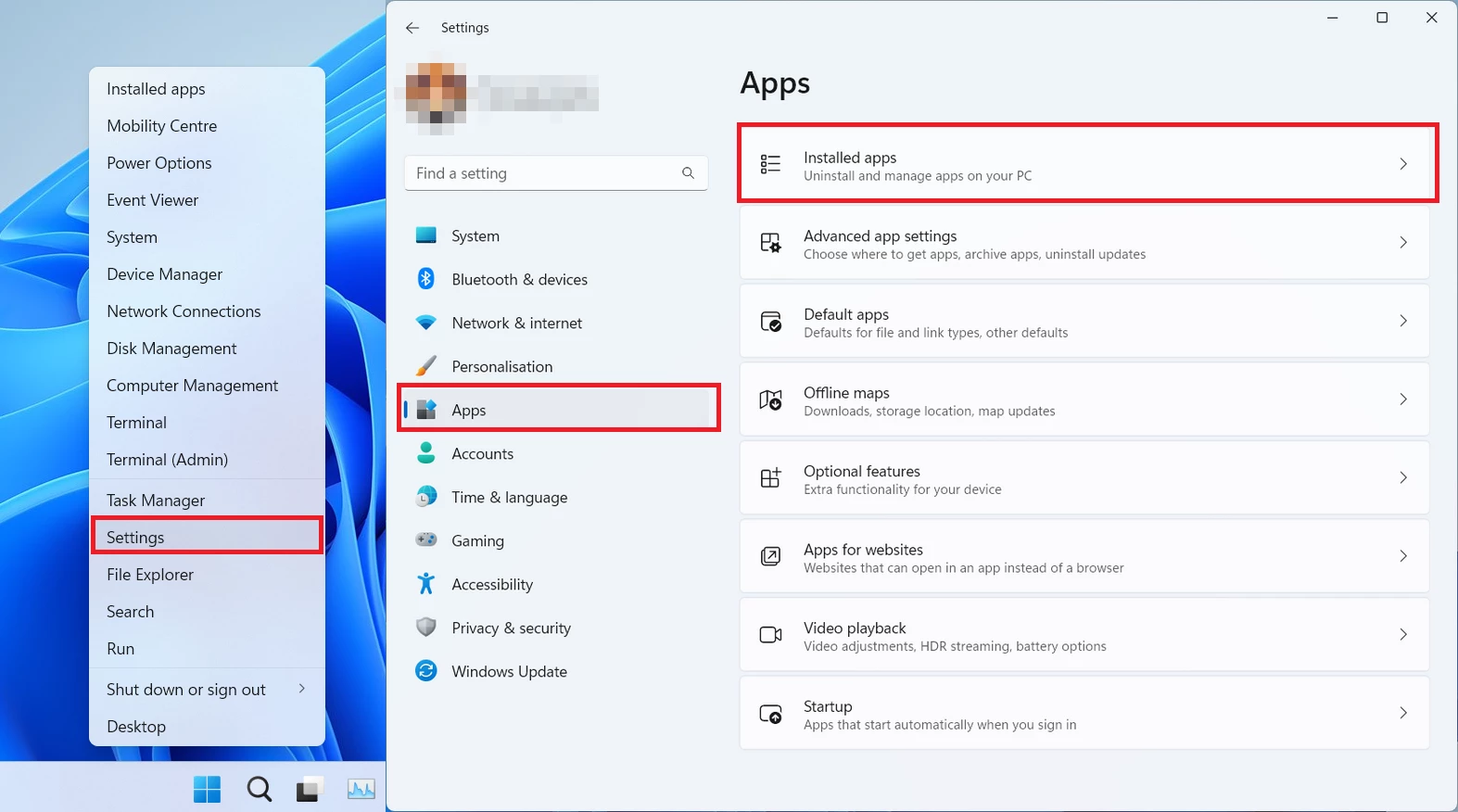
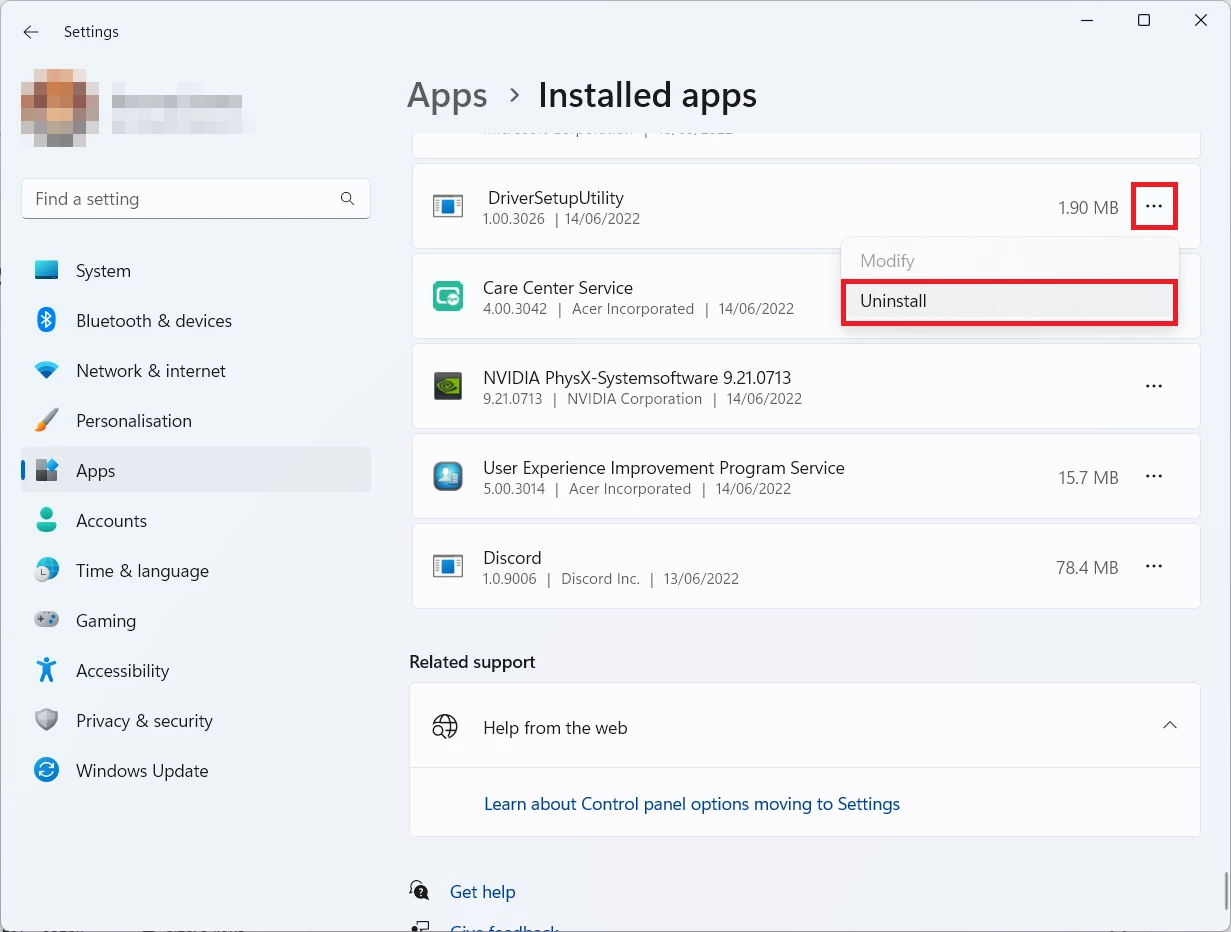
There, find the apps you do not remember installing. If you know a specific one that Avast/AVG is complaining on with the Win32/Uwamson detection, seek for them. Click the three-dot symbol to the right, and then choose “Uninstall”.
Reset your browser settings
You may see the list of options for each browser. By default, they are set up in a manner that fits the majority of users. Press the “Reset” button (lower right corner). In a minute your browser will be as good as new.
Reset your browsers manually
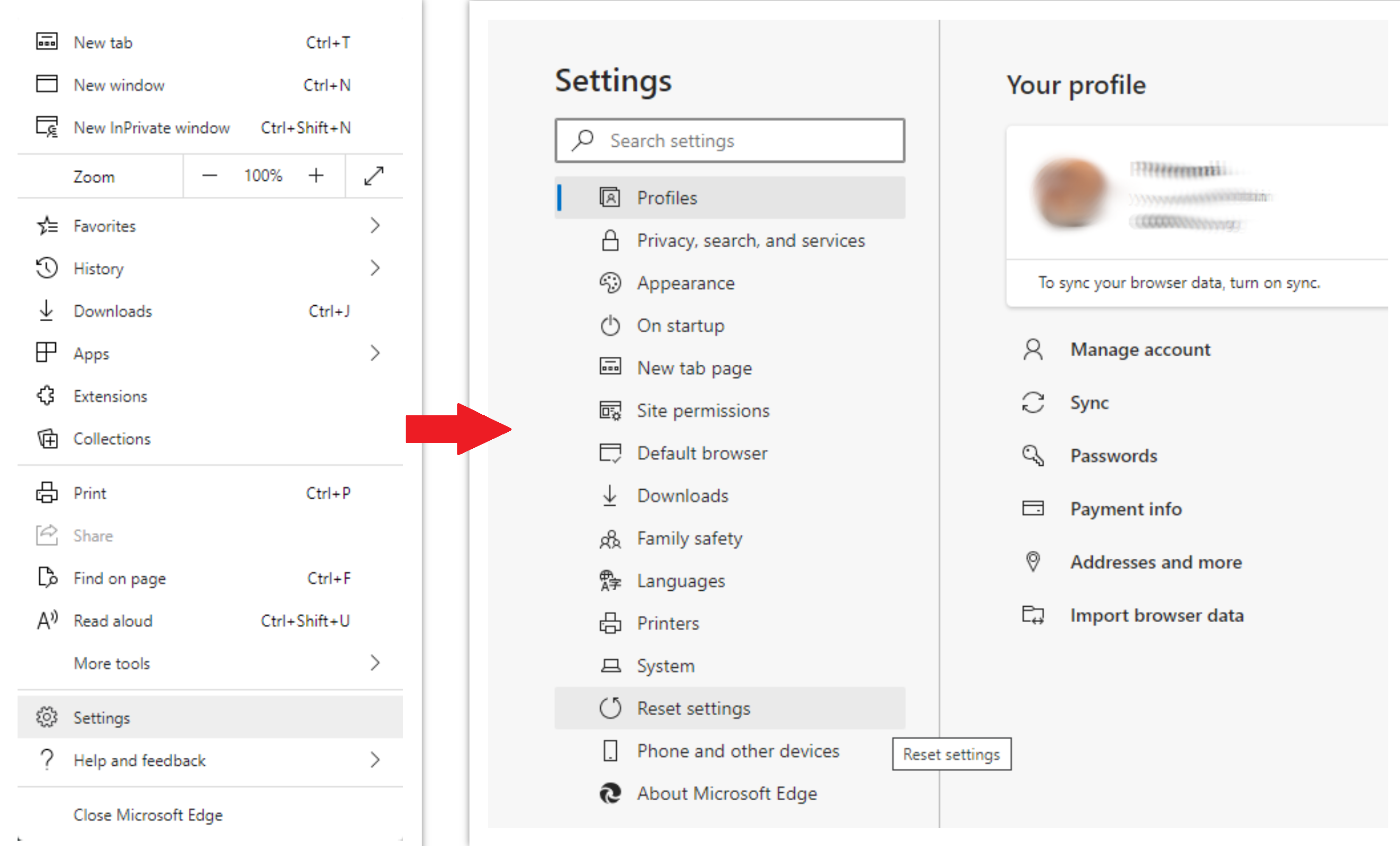
To reset Edge, do the following steps:
- Open “Settings and more” tab in upper right corner, then find here “Settings” button. In the appeared menu, choose “Reset settings” option:
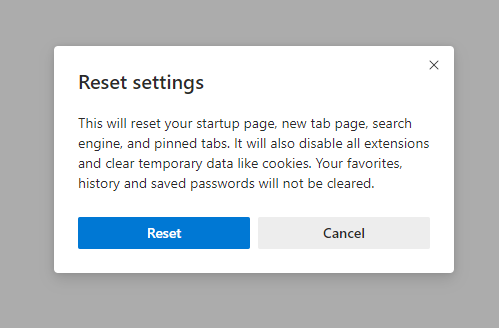
- After picking the Reset Settings option, you will see the following menu, stating about the settings which will be reverted to original:
For Mozilla Firefox, do the next actions:
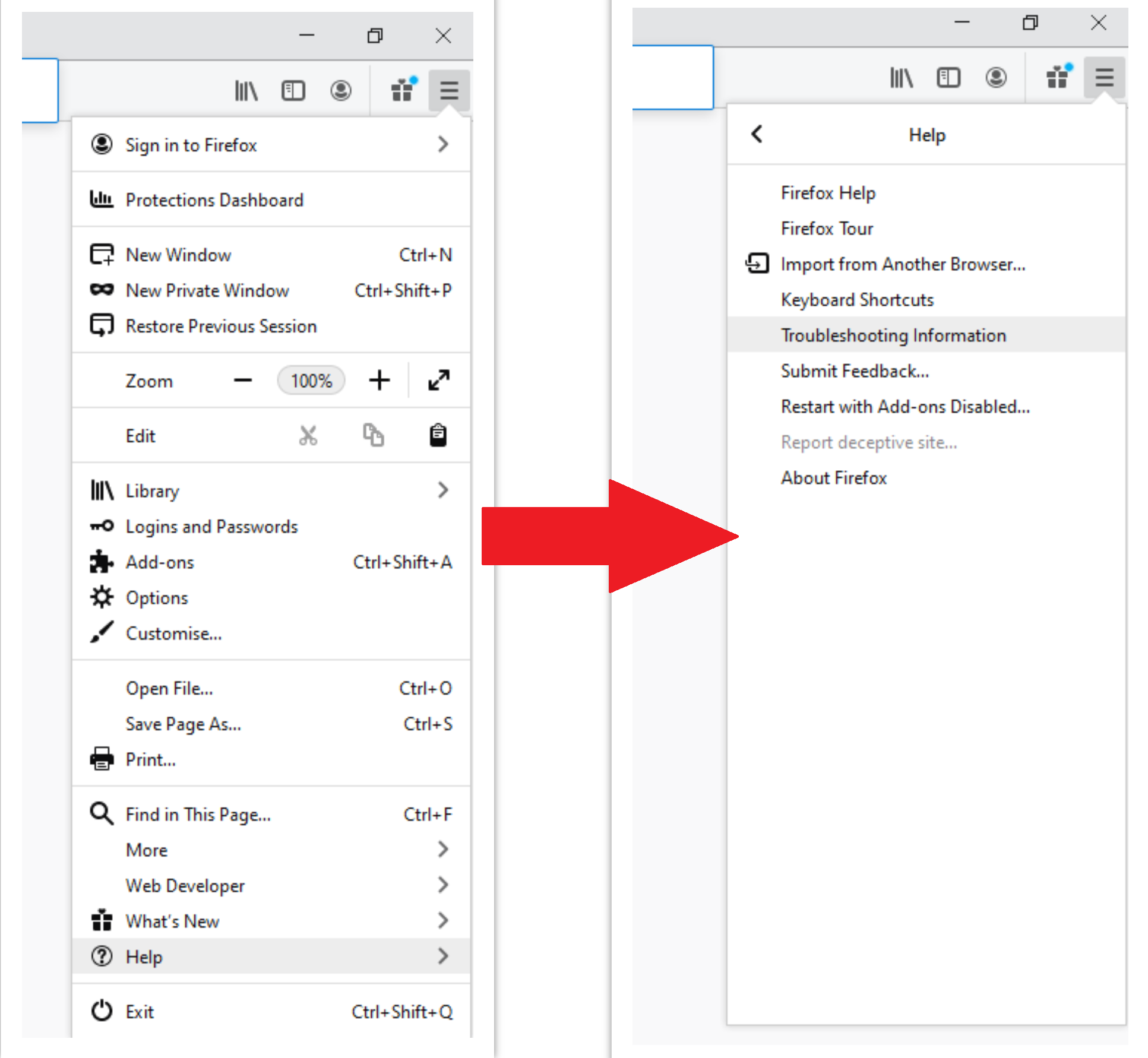
- Open Menu tab (three strips in upper right corner) and click the “Help” button. In the appeared menu choose “troubleshooting information”:
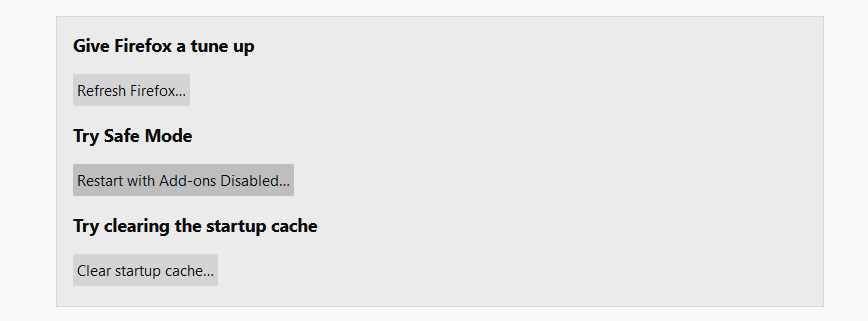
- In the next screen, find the “Refresh Firefox” option:
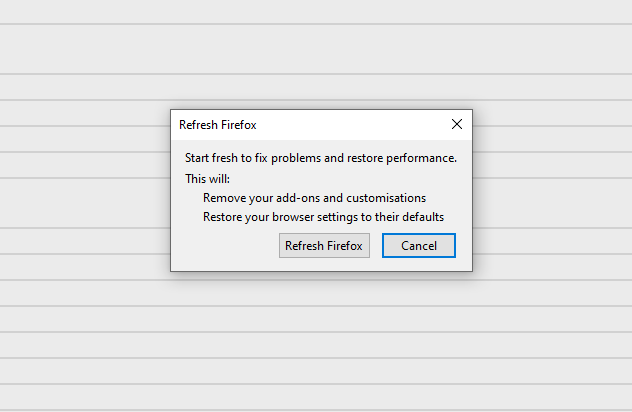
After choosing this option, you will see the next message:
If you use Google Chrome
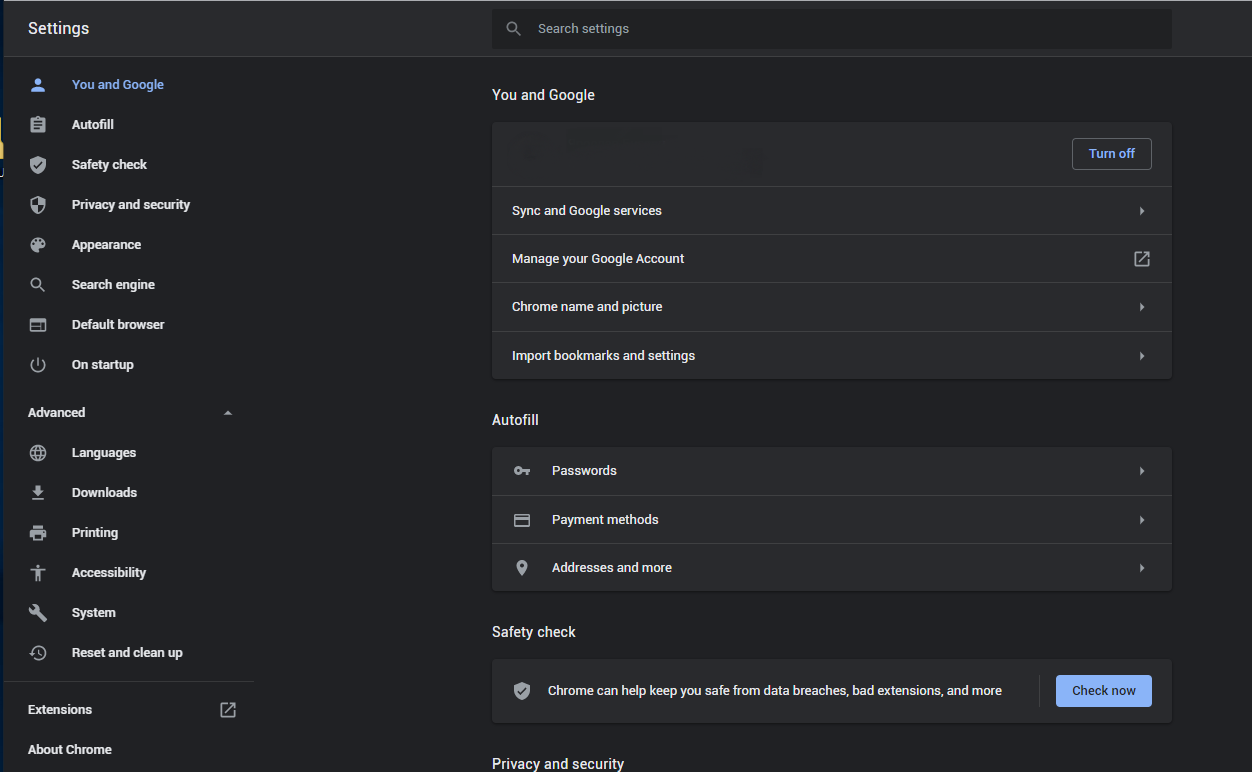
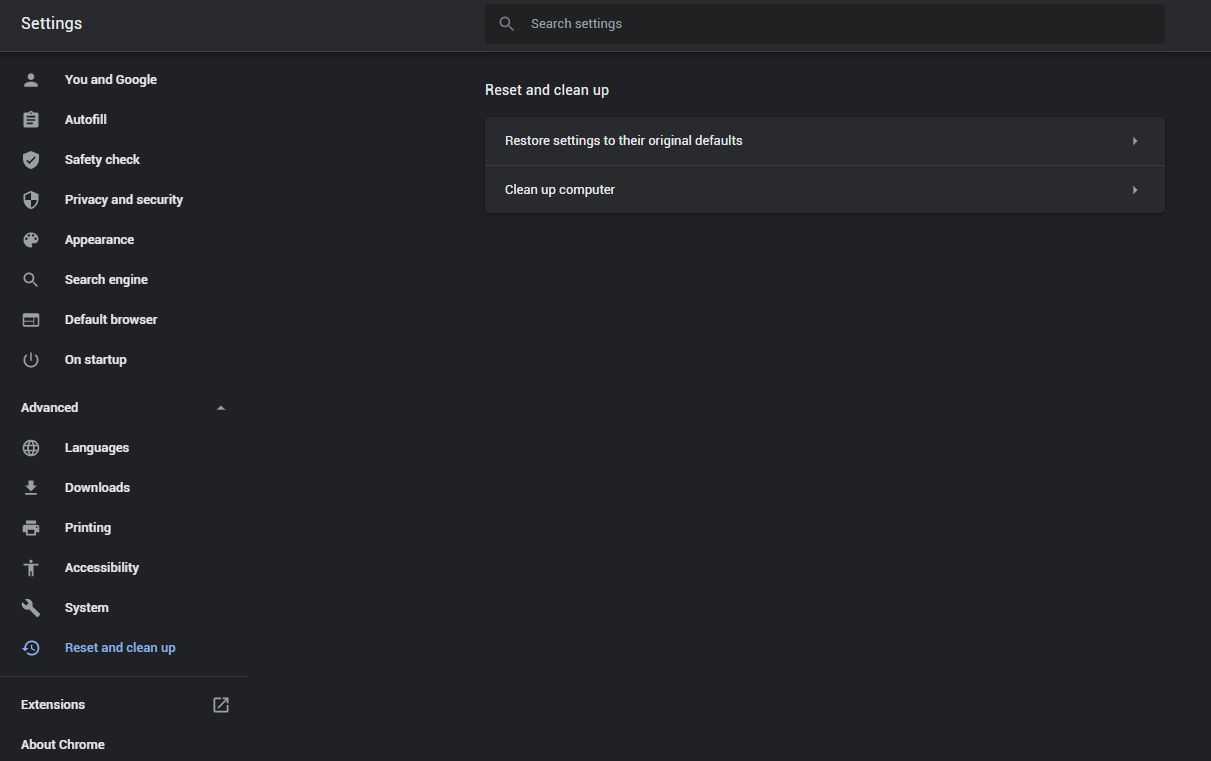
- Open Settings tab, find the “Advanced” button. In the extended tab choose the “Reset and clean up” button:
- In the appeared list, click on the “Restore settings to their original defaults”:
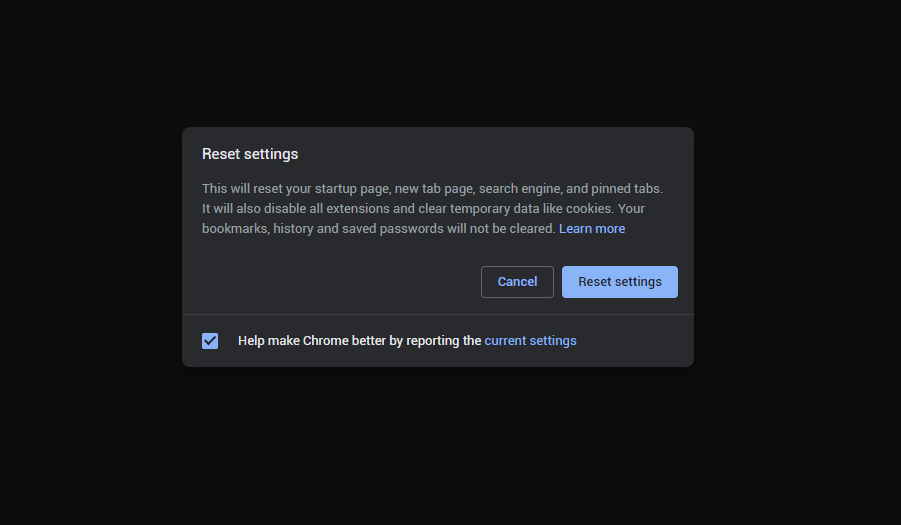
- Finally, you will see the window, where you can see all the settings which will be reset to default:
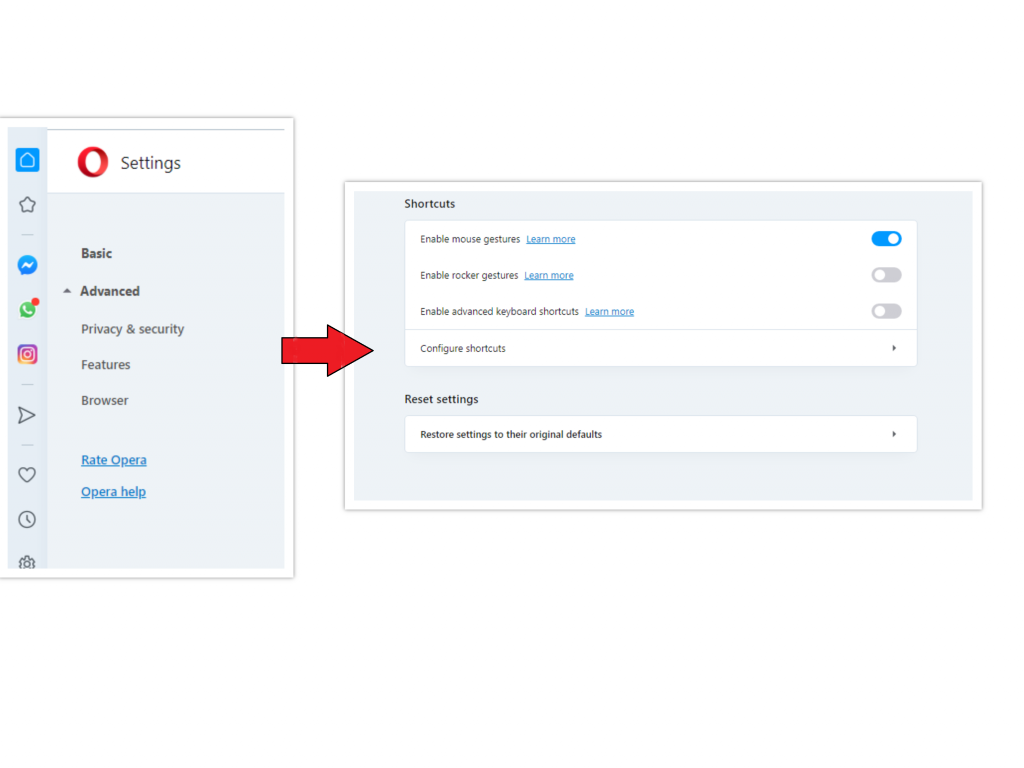
Opera can be reset in the next way
- Open Settings menu by pressing the gear icon in the toolbar (left side of the browser window), then click “Advanced” option, and choose “Browser” button in the drop-down list. Scroll down, to the bottom of the settings menu. Find there “Restore settings to their original defaults” option:
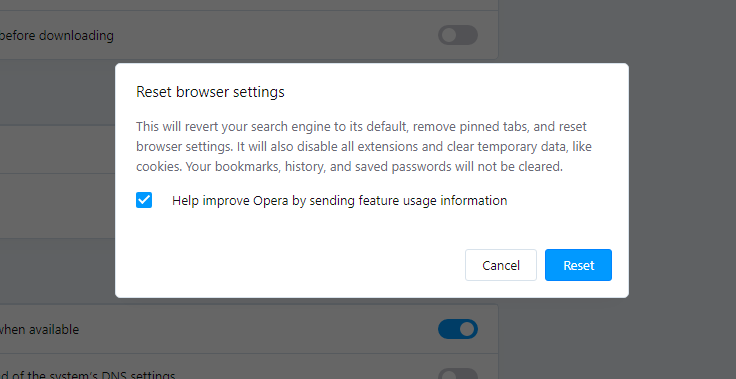
- After clicking the “Restore settings…” button, you will see the window, where all settings, which will be reset, are shown:
When the browsers are reset, you need to ensure that your browser will connect the right DNS while connecting to the web page you need. Create a text file titled “hosts” on your pc’s desktop, then open it and fill it with the following lines1:
# Copyright (c) 1993-2006 Microsoft Corp.

#

# This is a sample HOSTS file used by Microsoft TCP/IP for Windows.

#

# This file contains the mappings of IP addresses to host names. Each

# entry should be kept on an individual line. The IP address should

# be placed in the first column followed by the corresponding host name.

# The IP address and the host name should be separated by at least one

# space.

#

# Additionally, comments (such as these) may be inserted on individual

# lines or following the machine name denoted by a '#' symbol.

#

# For example:

#

# 102.54.94.97 rhino.acme.com # source server

# 38.25.63.10 x.acme.com # x client host

# localhost name resolution is handle within DNS itself.

# 127.0.0.1 localhost

# ::1 localhost
References
- Official Microsoft guide for hosts file reset.



Leave a Comment