
Taskhostw.exe is usually a legitimate Windows process called Host Process for Windows Tasks. It helps Windows run background tasks that are implemented through DLLs and scheduled components. The real Microsoft-signed file is not a coin miner. The risk comes from fake copies or from a legitimate taskhostw.exe instance being used to run a broken or suspicious task.
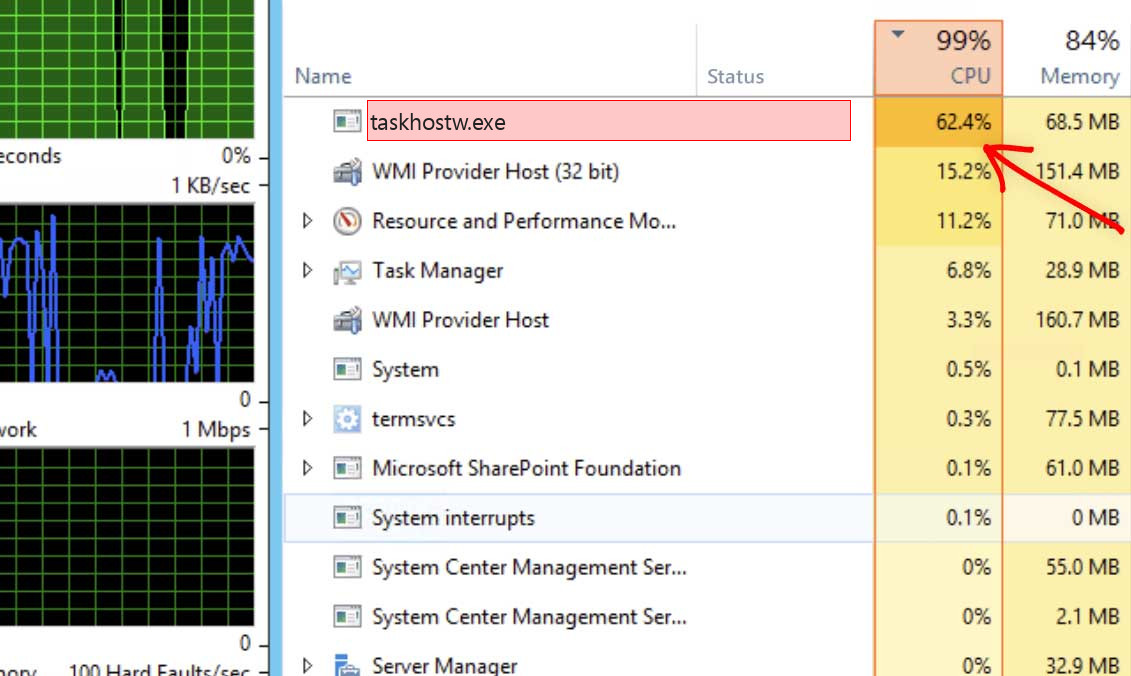
What is Taskhostw.exe?
Windows uses task host processes to run background tasks without giving every task a separate visible application window. That is why Taskhostw.exe can appear briefly, disappear, or start again when Windows performs scheduled work, background maintenance, device events, or system tasks.
Seeing it in Task Manager is not automatically bad. The right question is: where is the executable located, who signed it, and what task or DLL is it hosting?
Safe vs suspicious signs
| Usually legitimate | Suspicious |
Located in C:\Windows\System32 and signed by Microsoft. |
Runs from AppData, Temp, Downloads, Startup, or another user folder. |
| Starts briefly during scheduled Windows activity. | Runs constantly with high CPU and an unknown parent task. |
| Task Scheduler shows normal Microsoft/Windows tasks. | A random scheduled task launches a file from a suspicious path. |
| No browser redirects, fake alerts, or disabled security settings. | Appears after cracks, fake updaters, or bundled freeware. |
How to verify it
- Open Task Manager, right-click Taskhostw.exe, and choose Open file location.
- Confirm that the file is in the Windows System32 folder.
- Open file properties and check for a Microsoft signature.
- Use Task Scheduler to identify tasks running around the same time.
- If CPU is high, use Process Explorer or Event Viewer to see what child activity or task is involved.
Why Taskhostw.exe can use CPU
High CPU usually means one hosted task is busy, failing, or looping. It can happen after Windows updates, driver changes, telemetry tasks, device setup, or broken third-party scheduled tasks. The taskhostw.exe process is often only the host; the real cause is the task it is running.
How to fix high CPU safely
Do not delete the Microsoft file. Instead, identify the task that triggers the usage. Check Task Scheduler history, Reliability Monitor, and Event Viewer. Disable only the suspicious or broken third-party task, not random Microsoft tasks. If the issue began after an update, install pending updates and reboot. If a vendor utility is involved, update or remove that utility.
When to scan for malware
Scan if Taskhostw.exe is outside the Windows folder, unsigned, or launched by a suspicious scheduled task. Also scan if the system has browser hijacking, fake antivirus pop-ups, unknown startup entries, or disabled protection. A fake copy can use the same name, but the real Microsoft file should remain in place.
Decision tree for high CPU
If Taskhostw.exe uses CPU only for a short time after login, Windows may be running scheduled maintenance. Wait several minutes and check again. If the spike starts at the same time every day, open Task Scheduler and look at tasks triggered around that time. If it starts after launching a specific app, that app may have registered a background task.
If high CPU continues for hours, use Event Viewer and Task Scheduler history to identify repeated failures. A task that fails and retries can keep Taskhostw.exe active. Repair or update the program that owns the task rather than deleting Windows host files.
Where fake copies hide
Fake Taskhostw.exe copies often hide in AppData, Temp, ProgramData with random folder names, Downloads, or Startup folders. They may be launched by registry Run keys or scheduled tasks with vague names. If the file is not the Microsoft-signed System32 copy, scan it and remove the launcher too.
What not to disable
Do not disable every Microsoft task in Task Scheduler. Many are required for updates, indexing, time sync, maintenance, and app functionality. Disable only a task you can clearly connect to the problem and preferably only after exporting or documenting it.
After fixing it
Reboot twice and confirm the same high CPU pattern does not return. If a suspicious task was removed, check browser extensions, proxy settings, and recently installed apps. Bundled malware often creates multiple persistence points, so one removed task may not be the whole cleanup.
Practical example
A common case is a vendor updater or driver helper that registers a scheduled task. Taskhostw.exe appears as the visible host, but the real cause is the vendor task failing every few minutes. Updating or uninstalling that vendor utility fixes the CPU loop while leaving Windows task hosting intact.
If the file path is wrong, handle it differently: disconnect from sensitive accounts, scan the file, remove the startup entry, and then verify that the fake process does not return after reboot.
What to record before changing tasks
Before disabling anything, record the task name, path, action, trigger, and last run result. If the task belongs to business software, backup software, or a driver package, removing it without context can create a different problem. Documentation also helps if you need to restore the setting later.
FAQ
Can I delete Taskhostw.exe?
No. Do not delete the real Windows file. Investigate the task it is hosting.
Why does it appear and disappear?
That can be normal. Taskhostw.exe may start only while a background task is running.
What is the biggest red flag?
A Taskhostw.exe file outside C:\Windows\System32 or a random task launching it from a user folder.



Leave a Comment