
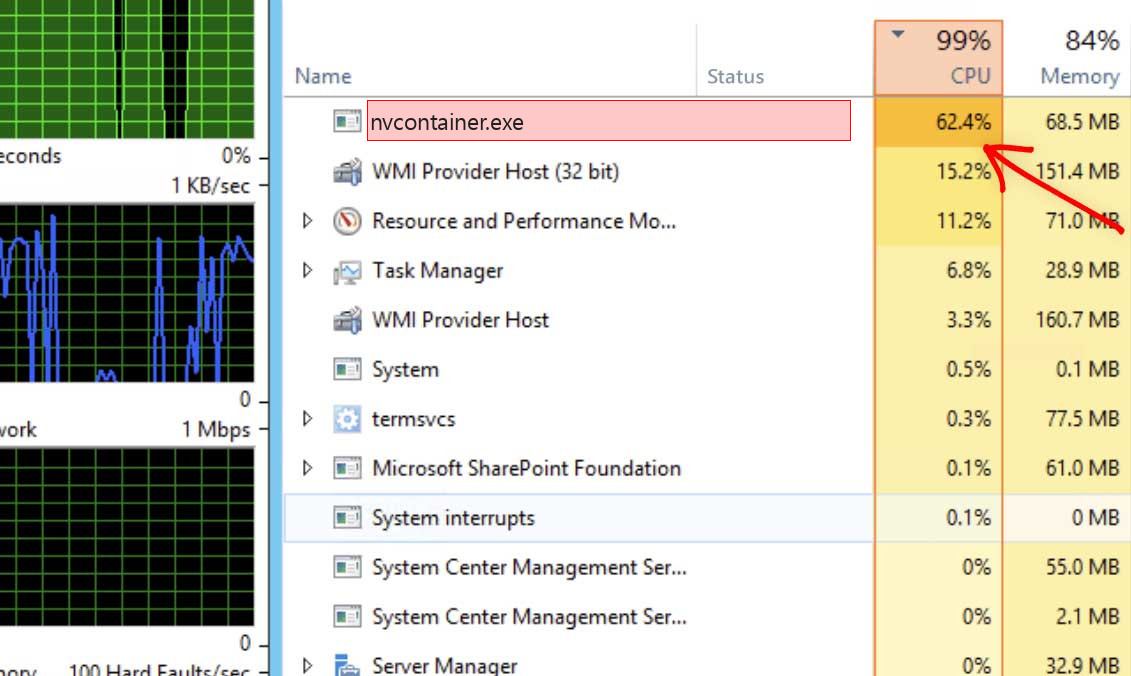
nvcontainer.exe is usually an NVIDIA Container process installed with NVIDIA graphics drivers and NVIDIA software. It is not automatically a coin miner. NVIDIA uses container/helper processes for driver services, Control Panel functions, telemetry-related services, GeForce Experience, overlays, and graphics features.
What is nvcontainer.exe?
NVIDIA Container is a helper process that hosts parts of the NVIDIA driver/software stack. Depending on what is installed, it may support NVIDIA Control Panel, display services, overlay features, GeForce Experience, update checks, or graphics settings. Seeing more than one NVIDIA process can be normal on a system with NVIDIA drivers.
It becomes suspicious only when the file is outside NVIDIA folders, lacks a trusted signature, or behaves unlike a driver component.
Safe vs suspicious signs
| Usually legitimate | Suspicious |
| Located under NVIDIA Corporation folders in Program Files or a driver store path. | Runs from AppData, Temp, Downloads, Startup, or a random folder. |
| Signed by NVIDIA or a trusted related publisher. | No signature or unknown publisher. |
| Appears after installing NVIDIA drivers or GeForce Experience. | No NVIDIA GPU or NVIDIA software is present. |
| Uses resources briefly during driver startup, overlay use, or updates. | Constant high CPU/GPU, unknown network traffic, or persistence after NVIDIA uninstall. |
Why nvcontainer.exe can use CPU
CPU usage may rise when NVIDIA software starts, checks updates, loads overlay components, records gameplay, handles notifications, or communicates with Control Panel services. Constant high usage can come from a broken driver install, GeForce Experience issues, overlay conflicts, old drivers, or third-party tools interacting with the GPU stack.
How to verify it
- Open Task Manager, right-click nvcontainer.exe, and choose Open file location.
- Confirm that the path belongs to NVIDIA.
- Open file properties and check the digital signature.
- Check whether NVIDIA drivers and related apps are installed.
- If the file is elsewhere, scan it and inspect startup entries.
How to fix high CPU or crashes
- Update NVIDIA drivers from NVIDIA or the laptop/OEM vendor.
- Disable NVIDIA overlay/recording features temporarily and test again.
- Update or reinstall GeForce Experience if you use it.
- Perform a clean driver install if the issue started after a driver update.
- If you do not need GeForce Experience, uninstall it while keeping the display driver.
When to treat it as malware
Treat nvcontainer.exe as suspicious if it is unsigned, outside NVIDIA folders, uses resources when no NVIDIA software is installed, or appears after a suspicious installer. Also investigate if it remains after a clean NVIDIA uninstall or is launched by an unknown scheduled task.
Decision tree: driver component or fake copy?
If the PC has an NVIDIA GPU, NVIDIA drivers are installed, and nvcontainer.exe is in an NVIDIA folder with a valid signature, it is probably legitimate. If the PC has no NVIDIA hardware, the file is unsigned, or the path is in a user profile folder, treat it as suspicious.
Also check timing. If usage started after a driver update, overlay update, or GeForce Experience update, repair the NVIDIA stack. If it started after a random installer or game crack, scan the system.
Features that can keep NVIDIA Container busy
Game overlays, instant replay, recording, broadcast features, update checks, notifications, Control Panel services, and driver telemetry-related components can all interact with NVIDIA Container. On some systems, overlay features cause more trouble than the driver itself. Disabling the overlay is a useful test before reinstalling everything.
Clean driver repair path
- Download the current driver from NVIDIA or your laptop/OEM vendor.
- Choose a clean install if the installer offers it.
- Install only the driver components you actually need.
- Disable overlay/recording temporarily and retest CPU usage.
- If GeForce Experience is not needed, uninstall it and keep the display driver.
After fixing it
After repair, reboot and confirm that nvcontainer.exe runs from the correct folder and uses low resources while idle. If a suspicious copy was removed, check startup entries and scheduled tasks. A fake nvcontainer.exe should not survive a clean NVIDIA uninstall, while legitimate driver components may remain only when NVIDIA software is still installed.
Why the old “coin miner” label was misleading
A real nvcontainer.exe process may appear on any NVIDIA-equipped PC, so labeling the filename itself as a miner is not accurate. The risk is in fake copies or abused driver-related components. A useful check focuses on location, signature, installed GPU software, and behavior under load.
Practical checks after repair
After a clean driver repair, open NVIDIA Control Panel and confirm that display settings work. Then check Task Manager while the PC is idle and while launching a game or GPU-heavy app. A short activity burst is normal. Constant CPU/GPU activity while idle, especially from a non-NVIDIA folder, needs malware investigation.
If you use a laptop, prefer the OEM driver when NVIDIA’s generic driver causes instability. Laptop vendors sometimes customize graphics switching, power profiles, and thermal behavior. A clean install from the correct source can solve container crashes without weakening security.
Keep the driver source documented so future updates do not reintroduce the same problem.
FAQ
Is nvcontainer.exe required?
It may be required for parts of NVIDIA driver/software functionality. It is not a Windows core process.
Can I remove it?
Do not delete it manually. Repair or uninstall NVIDIA software components cleanly.
Is it a miner?
The real NVIDIA Container is not a miner. A fake copy using the same name can be malicious.


Leave a Comment