
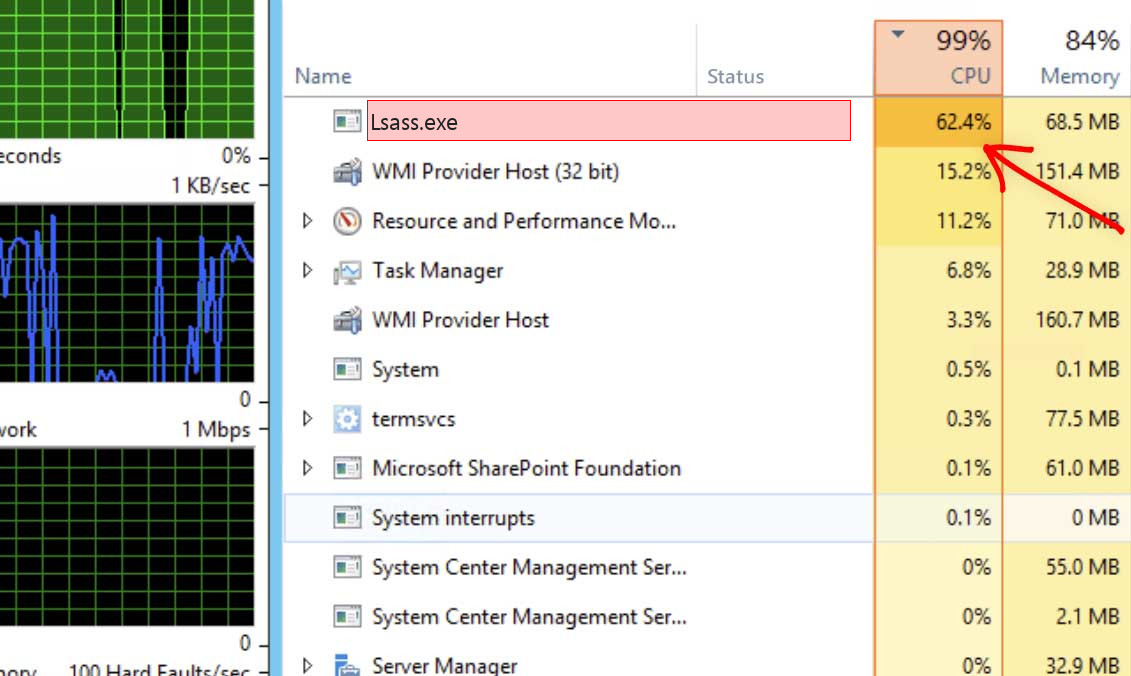
lsass.exe is normally the Local Security Authority Subsystem Service, one of the most sensitive Windows security processes. Microsoft describes LSASS as part of Local Security Authority, which validates sign-ins and enforces local security policy. The legitimate Microsoft-signed file is not a coin miner. A fake copy or credential-dumping activity around LSASS is a serious security concern.
What is lsass.exe?
LSASS handles authentication, security policy, password changes, token creation, and other sign-in related work. Because it touches credential material, attackers often target LSASS with dump tools. That does not mean lsass.exe itself is bad; it means suspicious access to LSASS should be treated seriously.
Safe vs suspicious signs
| Usually legitimate | Suspicious |
Located in C:\Windows\System32 and signed by Microsoft. |
Runs from AppData, Temp, Downloads, Startup, or a misspelled path. |
| Runs as a protected/system process. | A second lsass.exe appears from a user folder. |
| CPU rises briefly during logon or domain/authentication activity. | Security alerts mention LSASS dump, credential theft, or unknown tools accessing LSASS. |
| Windows logon works normally. | Logon issues, new admin users, disabled security, or remote-access tools appear. |
How to verify lsass.exe
- Open Task Manager and check the process location.
- Confirm that the file is in System32.
- Check the Microsoft signature.
- Do not end the legitimate process.
- If another copy exists elsewhere, scan it and inspect startup entries.
High CPU vs credential-theft risk
High CPU from the real LSASS can happen on domain controllers, during authentication storms, after updates, or when security software interacts with authentication. On a normal home PC, persistent high CPU deserves investigation. Credential theft risk is different: alerts such as DumpLsass, Mimikatz-like behavior, or suspicious process access to LSASS should be handled as a compromise indicator.
What to do if LSASS alerts appear
If Defender or another security tool reports LSASS dumping, isolate the machine from sensitive accounts, preserve alert details, run a full and offline scan, and change passwords from a clean device. On business systems, escalate to IT/security because LSASS access can indicate credential theft.
What not to do
Do not kill or delete the real lsass.exe. Do not download replacements. Do not ignore LSASS dump alerts just because the file path is legitimate; attackers often target the real LSASS process rather than replacing it.
Decision tree
If the file is the Microsoft-signed System32 copy and there are no alerts, troubleshoot authentication or update load. If the file is in a user folder, treat it as malware. If a security product reports dumping or suspicious access, treat it as a possible credential exposure event.
Decision tree for lsass.exe
If lsass.exe is the Microsoft-signed System32 copy and there are no alerts, do not remove it. If CPU is high, check authentication activity, domain connectivity, Windows updates, security software, and event logs. If a second lsass.exe runs from a user folder, treat it as malware.
If security tools report LSASS dumping, credential access, Mimikatz-like behavior, or suspicious process access to LSASS, treat it as a possible credential theft event even if the real LSASS file is legitimate. The attacker may be targeting the real process.
Practical example
On a domain-joined machine, LSASS can become busy during repeated authentication failures or domain controller communication problems. On a home PC, a fake lsass.exe in AppData is a much stronger malware signal. The response is different: troubleshoot authentication in the first case, remove the fake copy and check credentials in the second.
What to record before cleanup
Record alert names, detected paths, process names that accessed LSASS, and timestamps. On business systems, preserve this evidence for incident response. On personal systems, change passwords from a clean device if there is any sign of credential dumping.
After cleanup
After removing a fake copy or responding to LSASS alerts, reboot and run another scan. Review local administrator accounts, remote access tools, browser saved passwords, and recent sign-ins. LSASS-related alerts deserve more caution than ordinary unwanted-program detections.
Advanced check
On Windows Pro/Enterprise systems, Credential Guard and LSASS protection settings may change how security tools report access attempts. Do not disable those protections to silence an alert. If LSASS access is suspicious, identify the process that attempted access and preserve its path, hash, and command line.
If high CPU is authentication-related, check failed logon events, domain connectivity, VPN clients, and security software before assuming the LSASS file is infected.
Common mistakes
A common mistake is treating every LSASS alert as a bad lsass.exe file. Often the real file is legitimate, while the attacker tool is the problem. Another mistake is restoring a quarantined tool because the LSASS path looks normal. Read the alert carefully and identify which process performed the suspicious action.
Because credentials may be involved, LSASS alerts deserve password and account review after cleanup.
If you suspect credential theft, invalidate active sessions where possible and review recent sign-ins for email, banking, cloud storage, and administrator accounts. On managed networks, collect event logs before wiping evidence. A clean scan is useful, but account security still needs attention.
FAQ
Is lsass.exe malware?
The real Microsoft LSASS process is not malware. Fake copies and LSASS-dumping tools are dangerous.
Can I end lsass.exe?
No. Ending the real process can force Windows to shut down or become unstable.
Why do attackers target LSASS?
Because LSASS is involved in authentication and may contain credential-related material in memory.



Leave a Comment