
Honeyhashx86.exe should not be judged by the filename alone. Older removal pages often called it a coin miner, but current evidence is more nuanced: in some environments, honeyhash-style processes are used by security/deception tools to place fake credentials in memory and detect credential theft attempts. On an unmanaged home PC, however, an unknown Honeyhashx86.exe still deserves careful verification.
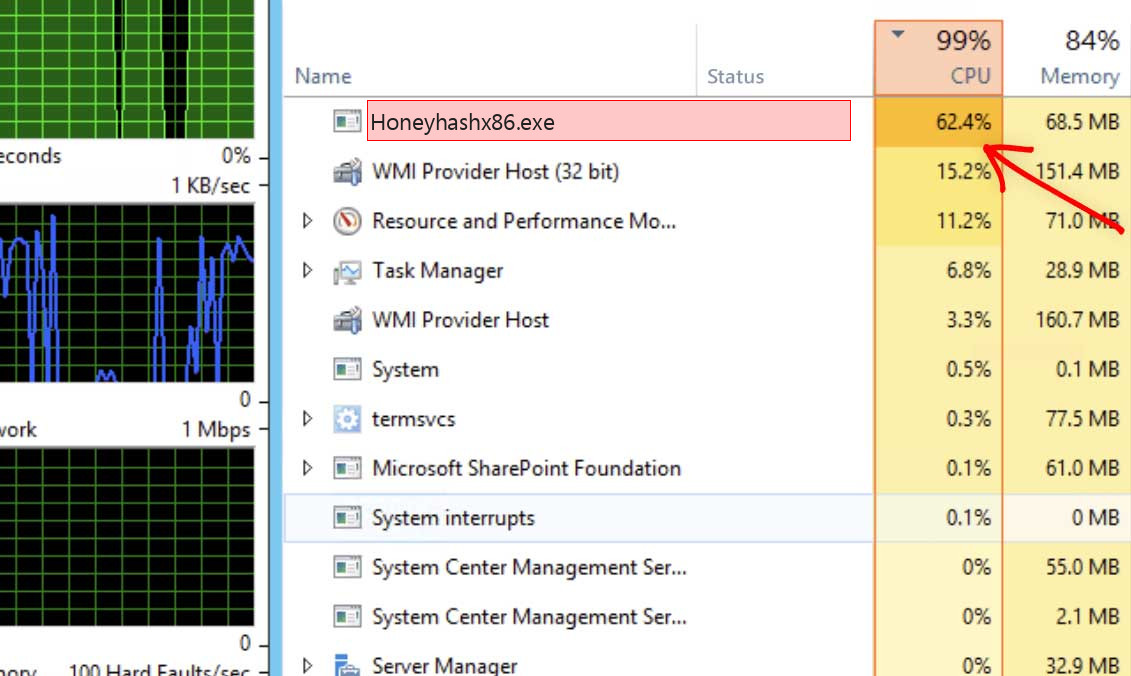
What is Honeyhashx86.exe?
The name suggests a “honey hash” or credential honeypot concept. Security products can plant fake credential material in memory and monitor whether malware tries to read or use it. If a stealer or lateral-movement tool touches those fake credentials, the security product raises an alert. In that context, Honeyhashx86.exe can be defensive, not malicious.
That said, malware can use any filename. A suspicious copy can also be bundled with unwanted software or masquerade as a security component. The right answer depends on where the file is located, who signed it, what installed it, and what it is doing.
Safe vs suspicious signs
| May be legitimate | Suspicious |
| Installed by a known endpoint security, deception, EDR, or managed IT tool. | No security product or IT management tool explains it. |
| Low CPU/RAM, stable behavior, known vendor folder. | High CPU/GPU, mining-like behavior, unknown network connections. |
| Signed by a trusted security vendor. | Unsigned file in AppData, Temp, Downloads, or Startup. |
| IT documentation or admin confirms the component. | Appeared after freeware, cracks, game cheats, or unknown installers. |
How to verify it
- Open Task Manager, right-click Honeyhashx86.exe, and choose Open file location.
- Check the folder name. Look for a known security vendor, EDR, deception product, or IT management agent.
- Open file properties and review the digital signature.
- Check installed apps and services for a matching security product.
- If this is a company device, ask IT before removing it. It may be an intentional defense component.
- If this is a personal PC and the file is unsigned or in a random folder, scan it and check startup entries.
Why old “coin miner” labels are risky
Calling every Honeyhashx86.exe instance a miner can cause users to remove security software that was deliberately installed. A useful guide must separate defensive honeypot behavior from actual malware behavior. High CPU/GPU, unknown persistence, and suspicious path are malware signals; a known security vendor path with low resource use is a different situation.
What to do if it is suspicious
Disconnect from sensitive accounts, scan the exact file, review startup entries, scheduled tasks, services, and recently installed programs. If the file behaves like a miner, look for additional symptoms: constant fan noise, GPU load while idle, unknown outbound connections, browser changes, disabled security tools, or persistence after deletion.
Decision tree: keep, ask IT, or remove
If this is a company computer, stop before deleting anything. Honeyhash-style components can be intentionally deployed by endpoint security teams. Removing them can weaken monitoring or trigger compliance issues. Ask IT whether a deception, EDR, or credential-protection agent is expected on the device.
If this is a personal computer, verify the vendor and path. A trusted security vendor folder and a valid signature point toward a defensive component. An unsigned copy in AppData, Temp, Downloads, or Startup points toward malware or unwanted software.
Signals that matter more than the name
Look for sustained CPU/GPU usage, unknown network connections, persistence after deletion, and startup entries created at the same time the file appeared. A defensive honeyhash process should not behave like a miner. It may sit quietly in the background, while malicious copies tend to consume resources or hide behind random tasks and services.
Safe cleanup approach
If you decide the file is suspicious, remove the parent program first rather than only deleting Honeyhashx86.exe. Then review startup folders, scheduled tasks, services, browser extensions, and recently installed software. Run a full system scan and confirm that the file does not return after reboot. If credentials may have been exposed, change passwords from a clean device.
Why this page was updated
Older detection-style pages often treated every unknown process as malware. That can be dangerous for files with security-tool names. This guide now uses a verification-first approach: confirm vendor, path, signature, behavior, and device context before deciding whether to remove the file.
Advanced checks before calling it clean
If Honeyhashx86.exe was suspicious, do not stop after deleting one file. Check whether a new scheduled task recreates it, whether a service points to the same folder, and whether the same folder contains other randomly named executables. If the process consumed GPU or CPU, check for miners, credential stealers, and browser-injected extensions.
If the process was legitimate security software, document the vendor and expected path so the same alert does not cause confusion later. This is especially important on shared or managed machines where users may see the process in Task Manager without knowing that IT installed it intentionally.
When the system is already compromised
If Honeyhashx86.exe is part of a real infection, expect more than one symptom. Check browser extensions, proxy settings, DNS settings, saved passwords, recently added admin accounts, and unknown remote-access tools. A process with this name can be only the visible part of a larger compromise, so verify the whole environment before calling the cleanup finished.
FAQ
Is Honeyhashx86.exe always malware?
No. It can be part of security deception software, but suspicious copies exist. Verify the source.
Should I remove it from a work computer?
Not without asking IT. It may be an intentional endpoint security component.
When should I scan it?
Scan if it is unsigned, in an odd folder, using high resources, or appeared after an unknown installer.



Leave a Comment