
Dwm.exe is the Desktop Window Manager process in Windows. It is responsible for composing the desktop: windows, animations, transparency, thumbnails, high-DPI scaling, multiple monitors, and other visual effects. Seeing it in Task Manager is normal, but sustained high CPU, GPU, or memory usage deserves a structured check rather than an automatic “coin miner” label.
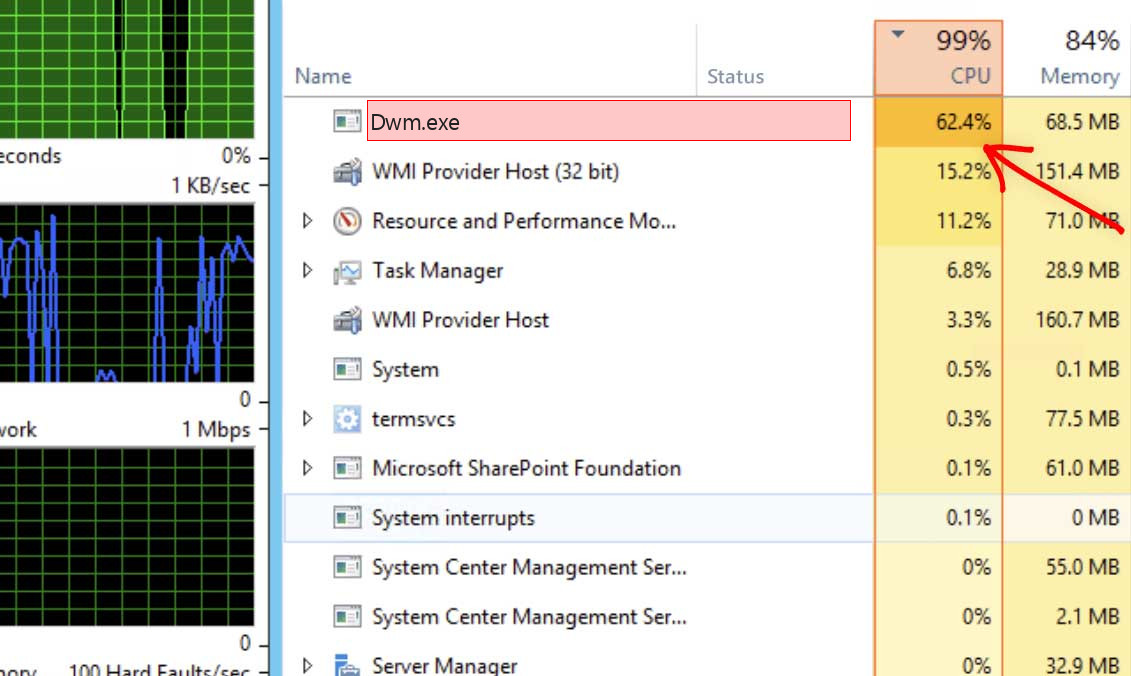
What is dwm.exe?
Desktop Window Manager collects the output of application windows and asks the graphics stack to compose what you see on screen. This design enables smooth window movement, live previews, transparency, animation, HDR handling, multi-monitor rendering, and hardware-accelerated desktop effects.
The legitimate file is usually C:\Windows\System32\dwm.exe and should be signed by Microsoft Windows. It starts with the graphical desktop and normally uses a modest amount of memory and GPU. Usage can rise during video playback, screen recording, gaming, remote desktop sessions, or when many hardware-accelerated browser tabs are visible.
Is dwm.exe a virus?
Dwm.exe is not a virus by default. The real Windows process is essential for the desktop experience. It becomes suspicious only when the executable path is wrong, the signature is missing, or another file imitates the name from a user-writable folder.
Attackers sometimes choose Windows-looking filenames because users hesitate to touch them. A copy named dwm.exe in AppData, Temp, Downloads, ProgramData, or a random application folder should not be trusted just because the name looks familiar.
Why dwm.exe can use CPU, GPU, memory, or disk
High load by Desktop Window Manager is usually connected to graphics rendering rather than mining. The process can be the messenger for a driver, display, or shell problem.
- A graphics driver bug after a Windows, NVIDIA, AMD, or Intel driver update.
- Multiple monitors, high refresh rates, HDR, or mixed DPI scaling increasing composition work.
- A browser, video player, or communication app using hardware acceleration heavily.
- Animated wallpapers, overlays, screen recorders, or remote desktop tools.
- A fake dwm.exe copy running outside the Windows directory.
Signs that deserve investigation
The process name alone is weak evidence. These details are stronger and should be checked before removal.
- Open file location does not lead to C:\Windows\System32\dwm.exe.
- Digital signature is missing or not issued to Microsoft Windows.
- GPU/CPU usage stays high after closing browsers, games, video, overlays, and recording tools.
- A startup entry launches dwm.exe from AppData, Temp, or ProgramData.
- The process shows unexpected network behavior or is tied to a suspicious parent process.
How to check dwm.exe safely
Use a graphics-first troubleshooting order, then verify the executable. This avoids deleting a Windows component when the real cause is a display driver.
- 1. Verify file location
Right-click dwm.exe in Task Manager and choose Open file location. The real file should be in System32. - 2. Check the signature
Open Properties and confirm that the file is signed by Microsoft Windows. - 3. Update or roll back the graphics driver
If the issue started after an update, test a clean driver reinstall or roll back to a stable version. - 4. Disable heavy visual sources
Close animated wallpapers, screen recorders, overlays, and hardware-accelerated browser windows one by one. - 5. Check display settings
Temporarily test a lower refresh rate, disable HDR, or disconnect an extra monitor to isolate the trigger. - 6. Scan suspicious copies
If the file is outside System32 or unsigned, scan the file and remove the startup mechanism that launches it.
Practical DWM decision tree
Start by asking whether the desktop is doing extra visual work. If DWM rises while a browser plays video, while a game is alt-tabbed, while a meeting app shares the screen, or while a wallpaper/overlay tool is active, the load is probably tied to rendering. Close those apps one at a time and watch whether GPU usage drops within a minute.
If the spike started after a graphics driver update, test the driver before touching Windows files. A clean reinstall of the current driver, or a rollback to a previously stable version, is often more effective than malware removal steps. Laptops with hybrid graphics should also be tested on battery and plugged in, because switching between integrated and dedicated graphics can change DWM behavior.
If resource usage remains high on a clean desktop with no overlays, no video playback, and a verified System32 path, create a new Windows user profile for comparison. A profile-specific issue points to shell settings or app configuration, while a machine-wide issue points more strongly to driver, display, or system corruption.
Repair path before removal
If the file is the legitimate Microsoft component, do not remove it. Focus on graphics drivers, display settings, overlays, and applications that constantly redraw the screen.
A useful test is to create a clean boot profile, then re-enable graphics utilities, overlay tools, and vendor panels one at a time. If high DWM load returns after enabling a specific tool, that tool is the cause.
Optional security check
Need a second opinion?
Optional recommendation. Do not remove a Windows component only because the name is dwm.exe; confirm the path, signer, and behavior first.
FAQ
Can I disable dwm.exe?
No. Modern Windows relies on Desktop Window Manager for the graphical desktop.
Why does dwm.exe use GPU?
It composes windows and visual effects using graphics hardware, so GPU usage can be normal.
Is high GPU usage always malware?
No. Drivers, monitors, HDR, overlays, browsers, and video playback are more common causes.
Conclusion
Dwm.exe should be treated as a core Windows graphics process first. Malware checks are still important when the path or signature is wrong, but most high-load cases come from graphics drivers or visual workloads.



Leave a Comment