
DiagsCap.exe is usually connected to HP diagnostics or HP Support Assistant components, often described as HP Diagnostics HSA Service. It is not a Windows core process, but on HP laptops and desktops it can be a legitimate support/diagnostic helper. Treat it as suspicious only if the file path, signature, or install history does not match HP software.
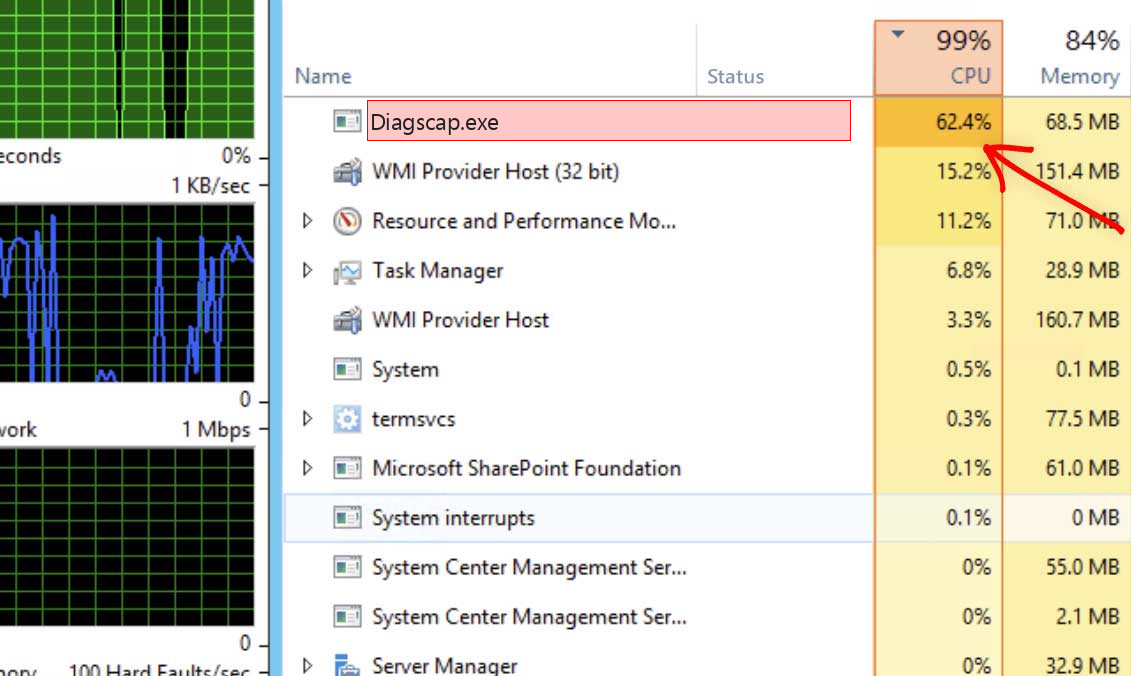
What is DiagsCap.exe?
HP Support Assistant provides troubleshooting tools, device information, driver updates, diagnostics, warranty information, and support links for HP PCs and printers. HP says Support Assistant is included on many new HP PCs and can be installed on other PCs for support resources. DiagsCap.exe appears to belong to that diagnostic/support ecosystem.
If you own an HP device, seeing DiagsCap.exe is usually not alarming. If you do not own HP hardware and did not install HP Support Assistant, verify why it is present.
Safe vs suspicious signs
| Usually legitimate | Suspicious |
| Installed with HP Support Assistant, HP Diagnostics, or HP Enabling Services. | No HP device or HP software is present. |
| Located in an HP folder under Program Files or a trusted HP service location. | Runs from AppData, Temp, Downloads, or a random folder. |
| Signed by HP Inc. or Hewlett-Packard. | No trusted signature or unknown publisher. |
| Runs during diagnostics, support checks, or driver update checks. | Uses CPU constantly or crashes repeatedly with no HP tools open. |
How to verify DiagsCap.exe
- Open Task Manager and choose Open file location.
- Check whether the path belongs to HP Support Assistant, HP Diagnostics, or HP Enabling Services.
- Open file properties and check the publisher/signature.
- Open Apps & Features and confirm whether HP Support Assistant or HP diagnostics software is installed.
- If the file is outside HP folders, scan it before deleting.
Fix high CPU, crashes, or startup errors
HP support components can break after Windows updates, HP Support Assistant updates, or partial uninstalls. If DiagsCap.exe crashes or uses CPU, update HP Support Assistant first. If that fails, uninstall HP Support Assistant, reboot, and install the latest version from HP’s official support page. On business devices, HP Image Assistant may be more appropriate than HP Support Assistant for driver management.
Should you remove it?
If you use HP Support Assistant for updates, warranty checks, or diagnostics, keep it and repair the installation. If you never use it, uninstall HP Support Assistant cleanly from Windows settings. Do not remove only DiagsCap.exe; that can leave broken HP service entries behind.
When to scan for malware
Scan if the file is not in an HP folder, has no HP signature, appears on a non-HP PC without explanation, or starts with unknown scheduled tasks. A legitimate HP-signed copy is not malware just because it appears in Task Manager.
Why HP diagnostics components break
HP support tools are useful when they are healthy, but they can become noisy after Windows feature updates, partial driver updates, or interrupted HP Support Assistant installs. A broken background service may repeatedly try to collect diagnostic information, start a health check, or communicate with a helper component that is no longer registered correctly.
That is why reinstalling or cleanly uninstalling HP Support Assistant is usually better than deleting DiagsCap.exe. If the HP support stack is damaged, deleting one executable only hides the symptom and may leave startup errors in Event Viewer.
Repair path for HP systems
- Install Windows updates and reboot.
- Open HP Support Assistant and check for updates to the support tool itself.
- Update HP drivers from HP’s official support site for your exact model.
- If DiagsCap.exe still crashes, uninstall HP Support Assistant, reboot, and install the current version from HP.
- If you are on a managed business laptop, ask your administrator before removing HP management tools.
When it is probably unwanted
If the computer is not an HP device, HP support software is not listed in installed apps, or DiagsCap.exe runs from a non-HP folder, treat it as unwanted until proven otherwise. Check the file hash, signature, startup entry, and parent process. A fake copy using an HP-like name can be part of a broader unwanted-program bundle.
After you fix it
After reinstalling or removing HP Support Assistant, confirm that the process no longer restarts unexpectedly. Check Reliability Monitor for recurring HP crashes. If you removed a suspicious copy, review scheduled tasks and browser extensions as well, because bundled threats often create more than one persistence point.
Advanced checks for recurring HP service errors
If DiagsCap.exe keeps returning with errors, open Reliability Monitor and look for HP-related crashes on the same dates. That gives a clearer picture than Task Manager alone. You can also check whether HP Support Assistant is trying to install the same driver update repeatedly, which can create a background loop.
For older HP PCs, the best fix may be to remove HP Support Assistant entirely and install only the drivers you need from the model support page. For newer HP PCs, repairing the support assistant keeps diagnostics, warranty status, and device health checks available without leaving broken services behind.
FAQ
Is DiagsCap.exe required for Windows?
No. It is not a Windows core file. It is related to HP support/diagnostics software.
Can I uninstall HP Support Assistant?
Yes. If you do not use HP support tools, uninstalling it is safer than deleting individual EXE files.
Why does it appear at startup?
HP support tools may load background services to check device health, updates, or diagnostics.



Leave a Comment