
audiodg.exe is the Windows Audio Device Graph Isolation process. It helps isolate the Windows audio engine and third-party audio processing from core system services. The legitimate Microsoft file is not a coin miner. High CPU is usually related to audio enhancements, drivers, headset software, virtual audio devices, or a fake copy with the same name.
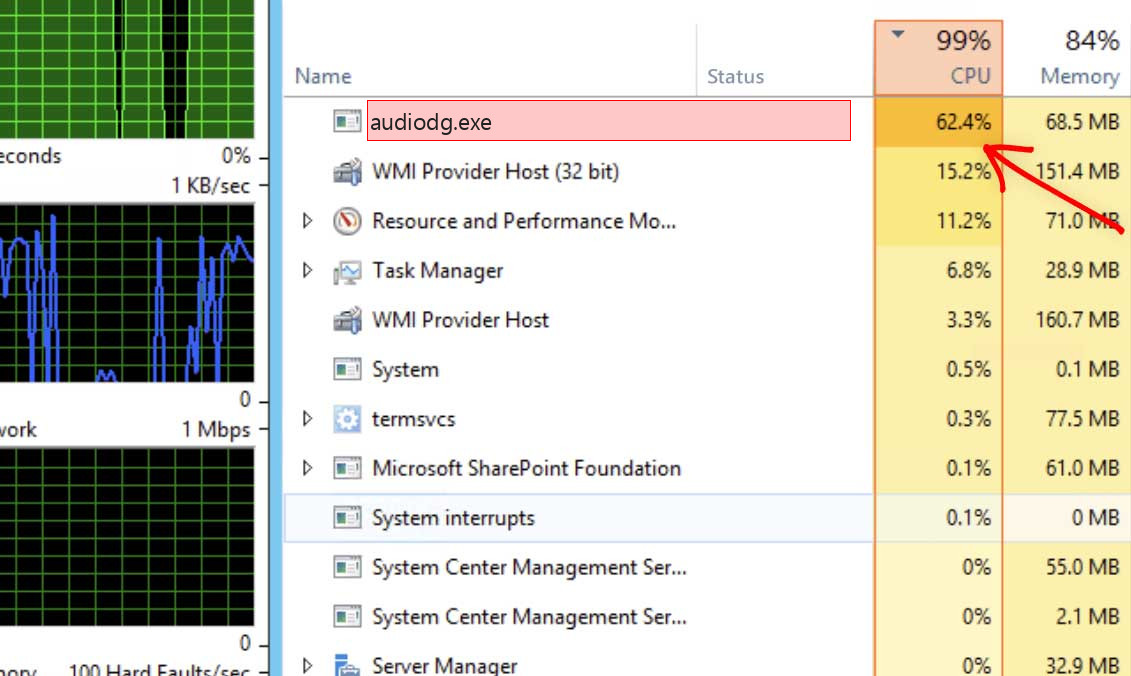
What is audiodg.exe?
Microsoft’s audio driver documentation describes audiodg.exe as a helper Windows Audio Device Graph Isolation process launched by the Windows audio service. It is part of the user-mode audio engine. Audio processing objects, enhancements, drivers, and audio applications can interact with this process.
Safe vs suspicious signs
| Usually legitimate | Suspicious |
| Located in a Windows system folder and signed by Microsoft. | Runs from AppData, Temp, Downloads, Startup, or a random folder. |
| CPU rises during calls, games, recording, audio effects, or device changes. | High CPU/GPU continues while no audio device or app is active. |
| Audio enhancements, headset software, or virtual audio drivers are installed. | Appears after suspicious installers or fake driver tools. |
| Stops/restarts with Windows audio services. | Returns through an unknown scheduled task or startup entry. |
Why audiodg.exe uses CPU
Audio enhancements, spatial sound, noise suppression, equalizers, virtual surround, conferencing apps, screen recorders, virtual audio cables, and buggy audio drivers can increase CPU usage. The process may spike during calls or games because audio processing is active.
How to fix high CPU
- Disable audio enhancements for the active playback/recording device.
- Turn off spatial sound temporarily.
- Update audio drivers from the PC, motherboard, or headset vendor.
- Disconnect virtual audio devices or headset suites for testing.
- Restart Windows Audio services or reboot after driver changes.
- If the file path is suspicious, scan it and check startup entries.
When to scan for malware
Scan if audiodg.exe is outside Windows folders, unsigned, or appears after a fake driver updater. Also investigate if audio symptoms are accompanied by browser redirects, disabled security, unknown startup entries, or suspicious network activity.
What not to do
Do not delete the real audiodg.exe. Do not disable audio services permanently unless you are troubleshooting. Start by disabling enhancements and updating drivers, because those are the most common reasons for high CPU.
Decision tree for audiodg.exe high CPU
If audiodg.exe spikes only during games, calls, recording, or audio playback, start with audio effects and drivers. If it spikes while no audio is active, check enhancements, virtual audio devices, headset software, and the file path. If the path is not a Windows system folder, treat it as a fake copy.
For laptops, use the manufacturer audio driver first. Generic drivers can work, but OEM packages may include tuning for microphones, speakers, noise cancellation, and hotkeys.
Audio enhancements to test
Disable enhancements, spatial sound, virtual surround, loudness equalization, noise suppression, and vendor effects one by one. If CPU drops after turning off an effect, keep that effect disabled or update the driver/software that provides it.
Common legitimate causes
Headset suites, virtual audio cables, recording tools, conferencing apps, Bluetooth audio, and low-latency audio settings can all increase processing load. The audio engine can also spike when devices reconnect repeatedly.
After repair or cleanup
Test speakers, microphone, headset switching, conferencing apps, and a game or media player. If audiodg.exe stays quiet when idle and audio works, the fix is healthy. If a fake copy was removed, check startup entries and recent driver installers.
Practical example
If audiodg.exe spikes during Discord, Teams, OBS, or a game, disable noise suppression, spatial audio, virtual surround, and other enhancements first. If CPU drops, the audio processing chain was the cause. If the file path is wrong or unsigned, handle it as a fake process instead.
What to record before cleanup
Record the active playback and recording devices, driver version, enabled enhancements, and file path. This helps identify whether the problem is a driver, headset suite, virtual audio device, or malware copy.
Advanced check: isolate the audio chain
Test with default Windows audio device settings first. Then enable enhancements one by one. If a headset suite, virtual cable, noise filter, or recorder causes the spike, update or remove that component. If Bluetooth audio is involved, test wired audio as a comparison. This separates driver load from malware suspicion.
After fixing the audio chain, test idle CPU with no media playing. Then test calls, recording, and games separately so the triggering app is clear.
Document the driver version that works, especially on laptops with customized audio packages.
If the suspicious file was not Microsoft-signed, scan the rest of the folder where it was found. Fake audio processes often sit beside other unwanted executables.
If CPU remains high after driver repair, test a clean boot to separate Windows audio from third-party audio tools.
That keeps the fix practical: remove fake copies, but repair legitimate audio processing instead of breaking sound.
If business conferencing is affected, schedule the driver change outside calls.
Recheck after another reboot because some audio helper services start only after the user signs in.
Use that final check before calling the system clean.
FAQ
Is audiodg.exe safe?
The real Microsoft file is safe and part of Windows audio.
Why does it spike during games or calls?
Audio effects, microphone processing, headset drivers, and spatial sound can increase processing load.
Can malware use this name?
Yes. Verify the path and signature if behavior looks wrong.


Leave a Comment